


Updated Date: 07/07/2026
Introducing Local Traffic Policies
The BIG-IP system provides Local Traffic Policies that simplify the way in which you can manage traffic associated with a virtual server. Using policies involves three basic steps: you create a draft policy, publish the policy, and then associate the published policy with a virtual server. Each policy includes a matching strategy for the specified rules, as well as conditions and actions configured within each rule, to manage traffic.
Note: Local Traffic Policies that have been upgraded from BIG-IP software version 12.0, or earlier, appear in the Published Policies list.
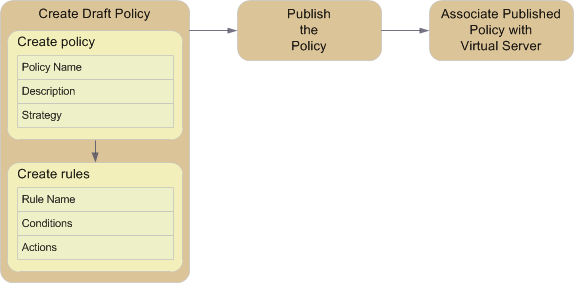
BIG-IP local traffic policies comprise a prioritized list of rules that match defined conditions and run specific actions, which you can associate with a virtual server that directs traffic accordingly. For example, you might create a policy that determines whether a client is using a mobile device, and then redirects its requests to the applicable mobile web site’s URL.
Each BIG-IP local traffic policy requires a matching strategy to determine which rule applies if more than one rule matches.
The BIG-IP local traffic policies provide three predefined policy matching strategies: a first-match, best-match, and all-match strategy. Each policy matching strategy prioritizes rules according to the rule’s position within the Rules list.
As needed, you can create a user-defined best-match strategy to customize the precedence (order of preference) of added operands and selectors. For example, to meet your preferred operand and selector combinations, you might create a user-defined best-match strategy that changes the precedence of added operands and selectors, compared to the predefined best-match strategy.
Note: In a best-match or first-match strategy, a rule without conditions becomes the default rule, when the rule is the last entry in the Rules list.
|
Matching strategy |
Description |
|---|---|
|
all-match strategy |
An all-match strategy starts the actions for all rules in the Rules list that match. Note: In an all-match strategy, when multiple rules match, but specify conflicting actions, only the action of the best-match rule is implemented. A best-match rule can be the lowest ordinal, the highest priority, or the first rule that matches in the Rules list. |
|
best-match strategy |
A best-match strategy selects and starts the actions of the rule in the Rules list with the best match, as determined by the following factors.1. A best-match strategy selects the rule with the most conditions, ignoring details about the conditions. 2. If a rule with the most conditions is not determined, then the best-match strategy selects the rule with the highest priority condition types. The best-match strategy sorts the condition types, highest priority first, comparing one at a time until a higher priority is found. For example, a priority sequence of 0,1,3,4,6 wins over 0,1,3,5,7 because 4 is a higher priority than 5. 3. If a rule with the highest priority condition types is not determined, then the best-match strategy selects the rule with equal match types over other match types, such as starts-with, ends-with, or contains, and processes according to condition type priority. 4. If a rule of equal match types is not determined, then the best-match strategy uses an ordinal (the precedence of the operand). Note: In a best-match strategy, when multiple rules match and specify an action, conflicting or otherwise, only the action of the best-match rule is implemented. A best-match rule can be the lowest ordinal, the highest priority, or the first rule that matches in the Rules list. |
|
first-match strategy |
A first-match strategy starts the actions for the first rule in the Rules list that matches. |
BIG-IP local traffic policy rules match defined conditions and start specific actions. You can create a policy with rules that are as simple or complex as necessary, based on the passing traffic. For example, a rule might simply determine that a client’s browser is a Chrome browser that is not on an administrator network, and restrict access to certain administrative tools. Or a rule might determine that a request URL starts with /video, that the client is a mobile device, and that the client’s subnet does not match 172.27.56.0/24, and then that the request to a video file is designed for mobile devices on a Content Delivery Network (CDN).
Local traffic policy rules provide you with different types of logical operators for matching conditions, which are determined by the order and configuration of the conditions within and between the rules. The different types of logical operators that you can configure are AND logical operators for conditions within a rule, and OR logical operators for values within a condition and for conditions between rules. When AND logical operators apply, then all logical operators must match the matching strategy. When OR logical operators apply, then any logical operator must match the matching strategy.
When you create a rule, you can configure two or more conditions that use AND logic within that rule. For example, you can create Rule1 with two conditions, a and b, which use AND logic when Rule1 is used by the matching strategy. This means that all conditions within a rule must succeed in order to be used by a matching strategy.
When you configure multiple values within a condition, OR logic determines if any matching value within the condition succeeds. For example, you can create a condition configured with two or more values. The matching strategy uses OR logic to determine if any configured value matches.
Similarly, when you create two or more rules, you can configure each rule with applicable conditions that use OR logic between the rules. For example, you can create Rule1 with a set of conditions, and Rule 2 with another set of conditions. The matching strategy uses OR logic to determine if a rule matches.
These examples show the logical operation of three conditions (a, b, and c) and two rules (Rule1 and Rule2).
In this first example, consider the following scenario, where you want to match condition a or b, and c ((a | b) & c). You can configure this logic by creating Rule1 to use conditions a and c (a & c), and Rule 2 to use conditions b and c (b & c). The result is when Rule1 matches the strategy, conditions a and c (a & c) are used, or when Rule 2 matches, conditions b and c (b & c) are used.
In this second example, consider the scenario where you want to match conditions a and b, or c ((a & b) | c). You can configure this logic by creating Rule1 to use conditions a and b, and Rule2 to use condition c. The result is when Rule1 matches the strategy, both conditions a and b are used, or when Rule2 matches the strategy, condition c is used.
The conditions for a local traffic policy rule define the necessary criteria that must be met in order for the rule’s actions to be applied. For example, a policy might include the following condition type and settings, which, when met by a request, would allow the rule’s specified actions to be applied.
| Option | Setting |
|---|---|
| Condition Type | HTTP Host |
| Selector | host |
| Condition | is |
| Values | www.siterequest.com |
You can apply one or more conditions to a rule, as needed.
|
Condition Type |
Description |
|---|---|
|
Client SSL |
Inspects the properties of the SSL connection on the client side of the device. - cipher. Specifies the cipher name.
|
|
CPU Usage |
Specifies a condition that is determined by CPU usage during 15-second, 1-minute, or 5-minute intervals. |
|
Geo. IP |
Specifies a condition that is based on the properties of the geographical location of the IP address. - continent. Matches a two-character continent code, for example, AF (Africa), AN (Antarctica), AS (Asia), OC (Oceania), NA (North America), or SA (South America).
|
|
HTTP Basic Auth. |
Inspects the username and password specified for basic authentication for the HTTP request.- password. Matches the basic authentication password.
|
|
HTTP Cookie |
Inspects the cookie header of an HTTP request, proxy request, or proxy connect. |
|
HTTP Header |
Matches any HTTP Header. |
|
HTTP Host |
Matches the host of an HTTP request, proxy request, or proxy connect.- host. Matches the host name.
|
|
HTTP Method |
Inspects the HTTP Method for the request or proxy request, for example, GET, POST, or HEAD. |
|
HTTP Referer |
Inspects the HTTP Referer header or parts of the URI.- extension. Matches the document extension, for example,
|
|
HTTP Set Cookie |
Inspects the Set Cookie header of an HTTP response or proxy response.- domain. Matches the value of the domain specified by the named cookie.
|
|
HTTP Status |
Inspects the status of the HTTP response or proxy response.- code. Matches the numeric HTTP response status code.
|
|
HTTP URI |
Inspects the URI on a request, HTTP proxy request, or HTTP proxy connect and matches parts of or the entire URI.- extension. Matches the file extension in the URI, for example,
|
|
HTTP User Agent |
Specifies a condition that is based upon the User Agent header. - browser type. Matches the browser name or type.
|
|
HTTP Version |
Inspects the version of an HTTP request, response, proxy request, proxy connect, or proxy response.- major. Matches the numeric major part of the HTTP version.
|
|
IP Reputation |
Inspects the IP reputation on IP addresses observed in a flow matching any, or all, values, for example, |
|
SSL Certificate |
Inspects the properties of an SSL certificate. |
|
SSL Extension |
Inspects the SSL extensions that are negotiated during the
|
|
TCP |
Inspects and matches the parameters associated with TCP connections.- address. Matches the specified IP address. The IP address is the address associated with the external interface remote end of the connection.
|
|
WebSocket |
Specifies a condition based upon the properties of a websocket’s connection.- extension. Matches the value of the
|
Conditions for a local traffic policy enable you to assign a datagroup type and value to an operand, as applicable. For example, you could configure a condition for an HTTP Referer host that ends with a datagroup value of partner-domains.
This table describes the datagroup types and supported comparison operators.
|
Datagroup type |
Comparison operator |
|---|---|
|
string |
|
|
IP address |
|
|
number |
|
The actions for a local traffic policy rule determine how traffic is handled. For example, actions for a rule could include the following ways of handling traffic.
- Blocking traffic
- Rewriting a URL
- Logging traffic
- Adding a specific header
- Controlling SSL forward or HTTP explicit proxy
- Redirecting traffic to a different pool member
- Selecting a specific Web Application policy
|
Action Type |
Description |
|---|---|
|
Enable |
Enables the following actions.- cache. Enables caching for a connection.
|
|
Disable |
Disables the following actions.- cache. Disables caching for a connection.
|
|
Forward traffic |
Controls where a connection is forwarded.- node. Forwards the connection to the specified node.
|
|
Insert |
Inserts an HTTP Header into the request, response, HTTP proxy connect, HTTP proxy request, or HTTP proxy response.- http cookie. Inserts an HTTP Cookie header into the request, response, HTTP proxy connect, or HTTP proxy request.
|
|
Remove |
Removes an HTTP Header from the request, response, HTTP proxy connect, HTTP proxy request, or HTTP proxy response.- http cookie. Removes an HTTP Cookie header from the request, HTTP proxy request, or HTTP proxy connect.
|
|
Replace |
Replaces an HTTP Header from the request, response, HTTP proxy connect, HTTP proxy request, or HTTP proxy response.- http header. Replaces the HTTP Header in the request, response, HTTP proxy request, HTTP proxy connect, or HTTP proxy response.
|
|
Redirect |
Redirects traffic to a different URL. |
|
Reset traffic |
Resets the connection. |
|
Log |
Writes messages to the local or remote system log. |
|
Persist session |
Controls how a connection is persisted.- carp. Persists the connection by using a Cache Array Routing Protocol algorithm.
|
|
Set variable |
Sets a Tcl variable in the runtime environment. |
Certain BIG-IP local traffic policy actions support Tcl command substitutions, giving you significant flexibility in configuring policies. Tcl command substitutions provide quick, read-only access to immediately available runtime data, such as information about a current request’s URI, or a header or cookie in the request or response.
Important: Any Tcl command that requires a delay, for example, the after command, or that requires waiting for results from a request outside of the Traffic Management Microkernel (TMM), is not supported and might not succeed.
When using Tcl command substitutions, the following guidelines apply.
- Memory and CPU capacity determine a maximum number of rules for active policies; however, excessive Tcl command substitutions can degrade performance.
- Tcl command substitutions are primarily intended for reading and returning data.
The following Tcl command is an example of a Tcl command substitution that can be used within a policy.
"tcl:[HTTP::uri]"
Note: Each Tcl command must include a prefix of tcl:. If the tcl: prefix is omitted, the command is interpreted as a plain string.
You can apply options to conditions and actions, as determined by the selected condition or action type. For example, you might want to constrain a condition based on the case-sensitivity of a string, which is easily applied by selecting the applicable option for that condition.
|
Condition Type |
Options |
|---|---|
|
Client SSL |
|
|
CPU Usage |
Not applicable. |
|
Geo. IP |
|
|
HTTP Basic Auth. |
|
|
HTTP Cookie |
|
|
HTTP Header |
|
|
HTTP Host |
|
|
HTTP Method |
|
|
HTTP Referer |
|
|
HTTP Set Cookie |
|
|
HTTP Status |
Not applicable. |
|
HTTP URI |
|
|
HTTP User Agent |
|
|
HTTP Version |
Note: Applies only to protocol and full string settings. |
|
IP Reputation |
|
|
SSL Certificate |
|
|
SSL Extension |
|
|
TCP |
|
|
WebSocket |
|
|
Action Type |
Options |
|---|---|
|
Enable |
Not applicable. |
|
Disable |
Not applicable. |
|
Forward traffic |
Override default forward action using:- SNAT and disable/automap.
|
|
Insert |
Not applicable. |
|
Remove |
Not applicable. |
|
Replace |
Not applicable. |
|
Redirect |
Not applicable. |
|
Reset traffic |
Not applicable. |
|
Log |
Facility:
Priority:
Send log message to remote server:
|
|
Persist session |
Not applicable. |
|
Set variable |
Not applicable. |
You can use tmsh commands with policies, as necessary. Common commands include those in the table.
|
Description |
tmsh Command |
|---|---|
|
Create a draft policy. |
|
|
Publish a draft policy. |
|
|
List all draft policies. |
|
|
List all published policies. |
|
|
List configuration details for a draft policy. |
|
|
List configuration details for a published policy. |
|
You can use BIG-IP local traffic policy matching to direct traffic in accordance with rules, which are applied as determined by the specified strategy, conditions, and actions.
Note: Local traffic policies that have been upgraded from BIG-IP software version 12.0, or earlier, appear in the Published Policies list.
-
On the Main tab, click Local Traffic > Policies > Policy List.
The Policy List Page screen opens.
-
Click Create.
The New Policy screen opens.
-
In the Policy Name field, type a unique name for the policy.
-
In the Description field, type a description for the policy.
-
From the Strategy list, select a matching strategy.
-
Click Create Policy.
The policy is created and the Rules area appears.
-
In the Rules area, click Create.
-
In the Match all of the following conditions area, click +.
-
From the Client SSL list, select a condition type, and configure the applicable settings and available options.
-
Click Add.
-
In the Match all of the following conditions area, click + to add an additional condition, as necessary, and configure the applicable settings and available options.
-
In the Do the following when the traffic is matched area, click +.
-
From the Enable list, select an action type, and configure the applicable settings and available options.
-
Click Add.
-
In the Do the following when the traffic is matched area, click + to add an additional action, as necessary, and configure the applicable settings and available options.
-
Click Save.
The policy appears in the Draft Policies list.
Before you can publish a local traffic policy, a draft policy must be available.
After you create a draft local traffic policy, you need to publish the policy, and then associate the published policy with a virtual server.
Note: Local traffic policies that have been upgraded from BIG-IP software version 12.0, or earlier, appear in the Published Policies list.
-
On the Main tab, click Local Traffic > Policies > Policy List.
The Policy List Page screen opens.
-
Select the check box of the draft policy to publish.
-
Click Publish.
The draft policy is removed from the Draft Policies list, and the modified published policy appears in the Published Policies list.
The draft local traffic policy is published and available to assign to a virtual server.
You must have a published local traffic policy available, before you can modify its settings.
You can modify a published local traffic policy, by creating a draft policy from the published policy, making any necessary changes, and then publishing the modified draft policy. You cannot modify a published policy directly; you can only modify a draft policy. If the published local traffic policy is associated with a virtual server, the modified policy settings are updated in the associated virtual server.
-
On the Main tab, click Local Traffic > Policies > Policy List.
The Policy List Page screen opens.
-
Click the name of a published policy.
-
Click Create Draft.
A draft policy of the same name appears in the Draft Policies list.
Note: When you publish a policy, the draft policy is removed from the Draft Policies list.
-
Click the name of the draft policy.
-
Modify the applicable settings.
-
Click Save.
-
Click Save Draft.
The Policy List Page screen opens.
-
Select the check box of the draft policy to publish.
-
Click Publish.
The draft policy is removed from the Draft Policies list, and the modified published policy appears in the Published Policies list.
The published local traffic policy is updated.
Before you can reorder local traffic policy rules, there must be a draft policy with multiple rules available.
Note: You cannot reorder rules in a published policy.
You can reorder rules within a draft policy, as needed.
-
On the Main tab, click Local Traffic > Policies > Policy List.
The Policy List Page screen opens.
-
Click the name of a draft policy.
-
Click and drag the rule or rules that you want to reorder into the preferred sequence.
-
Click Save Draft.
The Policy List Page screen opens.
Rules in the draft local traffic policy appear in the sequence order that you configured.
After you publish a local traffic policy, you associate that published policy with the virtual server created to handle application traffic.
-
On the Main tab, click Local Traffic > Virtual Servers.
The Virtual Server List screen opens.
-
Click the name of the virtual server you want to modify.
-
On the menu bar, click Resources.
-
In the Policies area, click the Manage button.
-
For the Policies setting, select the local traffic policy you created from the Available list and move it to the Enabled list.
-
Click Finished.
The published policy is associated with the virtual server.
You can clone (copy) either a draft or published BIG-IP local traffic policy to create a different draft policy with the same settings of the original policy. After you clone the local traffic policy, you can modify it as necessary, publish it, and associate it with a virtual server.
-
On the Main tab, click Local Traffic > Policies > Policy List.
The Policy List Page screen opens.
-
Click the name of a policy.
-
Click Clone.
The Policy Name field becomes cleared.
-
In the Policy Name field, type a unique name for the policy.
-
Click Create Policy.
The Draft Policy screen opens.
-
In the Description field, type a description for the policy.
-
From the Strategy list, select a matching strategy.
-
In the Rules area, click Create.
-
In the Match all of the following conditions area, click +.
-
From the Client SSL list, select a condition type, and configure the applicable settings and available options.
-
In the Match all of the following conditions area, click + to add an additional condition, as necessary, and configure the applicable settings and available options.
-
In the Do the following when the traffic is matched area, click +.
-
From the Enable list, select an action type, and configure the applicable settings and available options.
-
In the Do the following when the traffic is matched area, click + to add an additional action, as necessary, and configure the applicable settings and available options.
The policy appears in the Draft Policies list.
You can create a new local traffic policy matching strategy, based on a best-match policy matching strategy type. A user-defined best-match strategy can customize the precedence (order of preference) of added operands and selectors, compared to the predefined best-match policy.
-
On the Main tab, click Local Traffic > Policies > Strategy List.
The Strategy List screen opens.
-
Click Create.
The New Strategy screen opens.
-
In the Name field, type a unique name for the strategy.
-
From the Operands list, select an operand, configure the applicable settings, and click Add.
-
Click Finished.
The new user-defined best-match policy matching strategy appears in the Strategy List screen.
You can delete BIG-IP local traffic policies when they become obsolete or are no longer used.
-
On the Main tab, click Local Traffic > Policies > Policy List.
The Policy List Page screen opens.
-
Select the check box for each policy that you want to delete.
-
Click Delete.
The Confirm delete? popup screen opens.
-
Click OK.
The system deletes the policies that you selected.