


Updated Date: 07/07/2026
Administrative Partitions
An administrative partition is a logical container that you create, containing a defined set of BIG-IP system objects. If you have the Administrator or User Manager user role assigned to your BIG-IP system user account, you can create administrative partitions to control other users’ access to BIG-IP objects. More specifically, when a specific set of objects resides in a partition, you can give certain users the authority to view and manage the objects in that partition only, rather than to all objects on the BIG-IP system. This gives a finer granularity of administrative control. For example, a user that is assigned access to partition A with the role of Operator on that partition can mark nodes up or down, but only in that partition. You assign user access to partitions when you configure BIG-IP system user accounts.
The following illustration shows an example of user objects within partitions on the BIG-IP system.
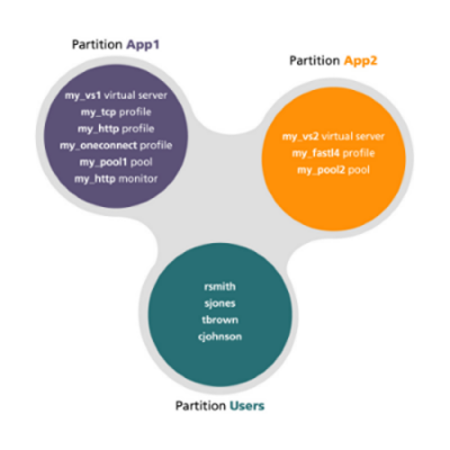
For every administrative partition on the BIG-IP system, the system creates an equivalent high-level folder with an equivalent name.
You perform this task to create an administrative partition. An administrative partition creates an access control boundary for users and applications.
-
On the Main tab, expand System and click Users.
The Users List screen opens.
-
On the menu bar, click Partition List.
-
Click Create.
The New Partition screen opens.
-
In the Partition Name field, type a unique name for the partition.
An example of a partition name is
Spanned_VIP. -
Type a description of the partition in the Description field.
This field is optional.
-
For the Device Group setting, choose an action:
Action Result Retain the default value. Choose this option if you want the folder corresponding to this partition to inherit the value of the device group attribute from folder root.Clear the check box and select the name of a device group. Choose this option if you do not want the folder corresponding to this partition to inherit the value of the device group attribute from folder root. -
For the Traffic Group setting, choose an action:
Action Result Retain the default value. Choose this option if you want the folder corresponding to this partition to inherit the value of the traffic group attribute from folder root.Clear the check box and select the name of a traffic group. Choose this option if you do not want the folder corresponding to this partition to inherit the value of the traffic group attribute from folder root. -
Click Finished.
The new partition appears in the partition list.
Partitions have a special relationship to user accounts. With respect to partitions and user accounts, you can:
- Assign partition access to user accounts
- You can configure a user account to grant the user access to one or more partitions, and you can assign a different user role to a user for each partition. Moreover, you can grant an individual user access to all partitions instead of to specific partitions only. Note that assigning partition access to a user does not necessarily give the user full access to all objects in the partition; the user role assigned to the user determines the type of access that the user has to each type of object in the partition.
- Create user accounts as partitioned objects
- Like other types of objects on the system, user account objects also reside in partitions. Placing user account objects into partitions controls other users’ administrative access to those user accounts. Also, like other object types, a BIG-IP system user account cannot reside in more than one partition simultaneously. When you first install the BIG-IP system, every existing user account (
rootandadmin) resides in partitionCommon.Important: The partition in which a user account object resides does not affect the partition or partitions to which that user is granted access to manage other BIG-IP objects.
During BIG-IP system installation, the system automatically creates a partition named Common. At a minimum, this partition contains all of the BIG-IP objects that the system creates as part of the installation process. Until you create other partitions on the system, all objects that you or other users create or manage automatically reside in partition Common.
With respect to permissions, all users on the system except those with a user role of No Access have read access to objects in partition Common. When a user displays a list of a particular type of configuration object, the system displays not only the objects of that type within the user’s current partition, but also the same type of object in Common. For example, if a user lists all virtual servers within the user’s current partition (such as partition A), the list also shows the virtual servers in Common. In this case, unless the user has write access to Common, the virtual servers in Commonare read-only for that user.
Some users, such as those with the user role of Administrator, can also create, update, and delete objects in partition Common. No user can delete partition Common itself.
The current partition is the specific partition to which the system is currently set for a logged-in user.
A user who has been granted access to one or more partitions, as well as all partitions, can actively select the current partition, that is, the specific partition he or she wants to view or manage. For example:
- If user
jsmithhas access to multiple partitions on the system, then before creating or managing any object on the BIG-IP system, she must select the partition that she wants to be the current partition. After setting the current partition, any object that she creates resides in that partition, and she can modify or delete only the objects that reside in that partition until she sets the current partition to a different partition. Also, regardless of the current partition that jsmith selects, she also has read access to objects in partitionCommon. - Conversely, if user
rjoneshas access to partitionAonly, then any object that he creates while logged in to the BIG-IP system resides in partitionA. Although he can view objects in partitionCommon, he cannot selectCommonas his current partition because he has read access only. For userrjones, partitionAis automatically his current partition when he logs in to the system, and he cannot change the current partition to create objects in another partition.
Before you perform this task, confirm that your user account grants you permission to access more than one partition on the BIG-IP system.
You perform this task to change the current administrative partition on the BIG-IP system. You change the partition when you want to create or manage BIG-IP configuration objects in a different partition than the current partition. For example, if the current partition is set to Common, but you have access to partition A and want to create a load balancing pool and virtual server in that partition, you must change the current partition to partition A before creating those objects.
-
Access the BIG-IP Configuration utility.
-
Find the Partition list in the upper right corner of the BIG-IP Configuration utility screen, to the left of the Log out button.
-
From the Partition list, select the partition in which you want to create or manage objects.
After you perform this task, any configuration objects that you create or manage reside in the selected partition. Any objects that you can view reside in the selected partition or partition Common. Also, each screen of the BIG-IP Configuration utility displays the role currently assigned to the user, based on the current partition.
Certain BIG-IP system objects, such as virtual servers, can reference other objects. Examples of objects that a virtual server can reference are pools, profiles, and iRules®. On the BIG-IP system, there are rules for object referencing with respect to the administrative partitions in which those objects reside.
The rules for valid object referencing are:
- An object and the object that it references can reside in the same partition.
- An object can reside in a user-created partition, such as partition
A, while the object it references resides in partition Common. - An iRule can reference any object, regardless of the partition in which the referenced object resides. For example, an iRule that resides in partition
Acan contain a pool statement that specifies a pool residing in partitionB. Neither object is required to reside inCommon.
Object referencing is restricted in these ways:
- An object cannot reside in partition
Common, while the object that it references resides in a different partition. For example, you cannot have a virtual server residing inCommonwhile the pool that the virtual server references resides in partitionA. - An object cannot reside in one user-created partition, while the object that it references resides in another user-created partition. For example, you cannot have a virtual server residing in
Awhile the pool that the virtual server references resides in partitionB.