


Updated Date: 07/07/2026
Configuring High-Speed Remote Logging of Protocol Security Events
You can configure the BIG-IP system to log information about Protocol Security events and send the log messages to remote high-speed log servers.
Important: The Advanced Firewall Manager™ (AFM™) must be licensed and provisioned before you can configure Protocol Security event logging.
This illustration shows the association of the configuration objects for remote high-speed logging.
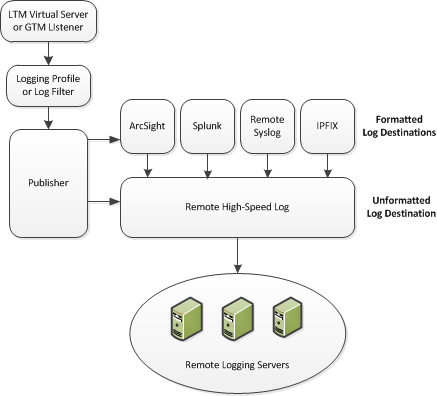
Perform these tasks to configure Protocol Security event logging on the BIG-IP system.
Note: Enabling remote high-speed logging impacts BIG-IP system performance.
When configuring remote high-speed logging of Protocol Security events, it is helpful to understand the objects you need to create and why, as described here:
| Object | Reason | Applies to |
|---|---|---|
| Pool of remote log servers | Create a pool of remote log servers to which the BIG-IP system can send log messages. | Creating a pool of remote logging servers. |
| Destination (unformatted) | Create a log destination of Remote High-Speed Log type that specifies a pool of remote log servers. | Creating a remote high-speed log destination. |
| Destination (formatted) | If your remote log servers are the ArcSight, Splunk, IPFIX, or Remote Syslog type, create an additional log destination to format the logs in the required format and forward the logs to a remote high-speed log destination. | Creating a formatted remote high-speed log destination. |
| Publisher | Create a log publisher to send logs to a set of specified log destinations. | Creating a publisher. |
| DNS Logging profile | Create a custom DNS Logging profile to define the data you want the BIG-IP system to include in the DNS logs and associate a log publisher with the profile. | Creating a custom Protocol Security logging profile. |
| Protected object (virtual server) | Associate a custom DNS profile with a protected object to define how the BIG-IP system logs the DNS traffic that the protected object processes. | Configuring a protected object for Protocol Security event logging. |
Before creating a pool of log servers, gather the IP addresses of the servers that you want to include in the pool. Ensure that the remote log servers are configured to listen to and receive log messages from the BIG-IP system.
Create a pool of remote log servers to which the BIG-IP system can send log messages.
-
At the top of the screen, click Configuration.
-
On the Main tab, click Local Traffic > Pools.
The Pool List screen opens.
-
Click Create.
The New Pool screen opens.
-
In the Name field, type a unique name for the pool.
-
Using the New Members setting, add the IP address for each remote logging server that you want to include in the pool:
-
Type an IP address in the Address field, or select a node address from the Node List.
-
Type a service number in the Service Port field, or select a service name from the list.
Note: Typical remote logging servers require port
514. -
Click Add.
-
-
Click Finished.
Before creating a remote high-speed log destination, ensure that at least one pool of remote log servers exists on the BIG-IP system.
Create a log destination of the Remote High-Speed Log type to specify that log messages are sent to a pool of remote log servers.
-
On the Main tab, click System > Logs > Configuration > Log Destinations.
The Log Destinations screen opens.
-
Click Create.
-
In the Name field, type a unique, identifiable name for this destination.
-
From the Type list, select Remote High-Speed Log.
Important: If you use log servers such as Remote Syslog, Splunk, or ArcSight, which require data be sent to the servers in a specific format, you must create an additional log destination of the required type, and associate it with a log destination of the Remote High-Speed Log type. With this configuration, the BIG-IP system can send data to the servers in the required format.
The BIG-IP system is configured to send an unformatted string of text to the log servers.
-
From the Pool Name list, select the pool of remote log servers to which you want the BIG-IP system to send log messages.
-
From the Protocol list, select the protocol used by the high-speed logging pool members.
-
Click Finished.
Ensure that at least one remote high-speed log destination exists on the BIG-IP system.
Create a formatted logging destination to specify that log messages are sent to a pool of remote log servers, such as Remote Syslog, Splunk, or IPFIX servers.
-
On the Main tab, click System > Logs > Configuration > Log Destinations.
The Log Destinations screen opens.
-
Click Create.
-
In the Name field, type a unique, identifiable name for this destination.
-
From the Type list, select a formatted logging destination, such as Remote Syslog, Splunk, or IPFIX.
The Splunk format is a predefined format of key value pairs.
The BIG-IP system is configured to send a formatted string of text to the log servers.
-
If you selected Remote Syslog, then from the Syslog Format list select a format for the logs, and then from the High-Speed Log Destination list, select the destination that points to a pool of remote Syslog servers to which you want the BIG-IP system to send log messages.
Important: For logs coming from Access Policy Manager (APM), only the BSD Syslog format is supported.
-
If you selected Splunk or IPFIX, then from the Forward To list, select the destination that points to a pool of high-speed log servers to which you want the BIG-IP system to send log messages.
-
Click Finished.
Ensure that at least one destination associated with a pool of remote log servers exists on the BIG-IP system.
Create a publisher to specify where the BIG-IP system sends log messages for specific resources.
-
On the Main tab, click System > Logs > Configuration > Log Publishers.
The Log Publishers screen opens.
-
Click Create.
-
In the Name field, type a unique, identifiable name for this publisher.
-
For the Destinations setting, select a destination from the Available list, and click << to move the destination to the Selected list.
Note: If you are using a formatted destination, select the destination that matches your log servers, such as Remote Syslog, Splunk, or ArcSight.
-
Click Finished.
Create a logging profile to log Protocol Security events for the traffic handled by the protected object to which the profile is assigned.
Note: You can configure logging profiles for HTTP and DNS security events on Advanced Firewall Manager, and FTP and SMTP security events on Application Security Manager.
-
On the Main tab, click Security > Event Logs > Logging Profiles.
The Logging Profiles list screen opens.
-
Click Create.
The Create New Logging Profile screen opens.
-
Select the Protocol Security check box.
-
In the HTTP, FTP, and SMTP Security area, from the Publisher list, select the publisher that the BIG-IP system uses to log HTTP, FTP, and SMTP Security events.
-
In the DNS Security area, from the Publisher list, select the publisher that the BIG-IP system uses to log DNS Security events.
-
Select the Log Dropped Requests check box, to enable the BIG-IP system to log dropped DNS requests.
-
Select the Log Filtered Dropped Requests check box, to enable the BIG-IP system to log DNS requests dropped due to DNS query/header-opcode filtering.
Note: The system does not log DNS requests that are dropped due to errors in the way the system processes DNS packets.
-
Select the Log Malformed Requests check box to enable the BIG-IP system to log malformed DNS requests.
-
Select the Log Rejected Requests check box to enable the BIG-IP system to log rejected DNS requests.
-
Select the Log Malicious Requests check box to enable the BIG-IP system to log malicious DNS requests.
-
From the Storage Format list, select how the BIG-IP system formats the log.
|
Option |
Description |
|---|---|
|
None |
Specifies the default format type in which the BIG-IP system logs messages to a remote Syslog server, for example: |
|
Field-List |
Allows you to: - Select, from a list, the fields to be included in the log.
|
|
User-Defined |
Allows you to: - Select, from a list, the fields to be included in the log.
|
- Click Finished.
Assign this custom Protocol Security Logging profile to a protected object.
Assign a logging profile to a protected object when you want the system to log DoS events.
-
On the Main tab, click Security > DoS Protection > Protected Objects.
-
Click the name of the protected object for which you want to log DoS events.
The Properties pane opens on the right.
-
In the Network & General area, for Logging Profiles, move the logging profile to assign from the Available list into the Selected list.
You can create, and modify log publishers in System > Logs > Configuration > Log Publishers.
-
Click Save.
The system logs DoS events for the protected object.
You can review DoS event logs at Security > Event Logs > DoS and select the type of DoS event log to view.