


Updated Date: 07/07/2026
Form-Based Client-Initiated Single Sign-On Method
With the HTTP form-based client-initiated method of authentication, when Access Policy Manager detects the request for a logon page (URI, header, or cookie that is configured for matching the request), APM generates JavaScript code, inserts it into the logon page, and returns the logon page to the client, where it is automatically submitted by the inserted JavaScript. APM processes the submission and uses the cached user identity to construct and send the HTTP form-based post request on behalf of the user.
To create a form-based client-initiated SSO configuration object, you must configure at least one form and include at least one form parameter. A form parameter represents an input element on an HTML logon form, such as a form field for entering a user name or password, or, optionally, for entering a hidden form parameter.
Form-based client-initiated SSO configuration supports four sets of matching criteria that you can define.
- Request Detection
- (Required) Configures the SSO module to detect the HTTP request for the logon page by matching the HTTP URI, header, or cookie that you specify, and supports entry of multiple URIs. Requires data that is specific to the application. Request detection is successful when the request matches one of the configured items either partially or fully, depending on whether the request prefix option is enabled in Advanced Settings.
- Form Identification
- (Optional) Specifies how to detect the form within the HTTP body of the logon page. The default is form parameters, which enables identification of the logon form parameter fields based on the values entered for the form parameters in the general properties. Alternatively, you can specify that the form be identified using other data present in the form, such as the ID, name, or action attributes, or the form order.
- Form Submit Detection
- (Required) Specifies how to detect the submit request for the for a logon form. The default is an enabled auto detect option. Alternatively, you can select a scheme to use to use as an alternative to auto detect.
- Logon Detection
- (Optional) Configures the SSO module to detect whether logon was successful by checking for the presence of a cookie or a redirect URI. The default is None (logon detection is not performed).
The majority of web applications have a single logon page with one logon form. You need to define a single form for these applications. In less usual cases when an application has multiple logon pages with different logon forms, you need to create multiple forms, one for each logon page. If multiple logon pages use the same form, you need only one form with a list of URIs for all logon pages.
This figure illustrates the default behavior of the form-based client-initiated SSO authentication method.
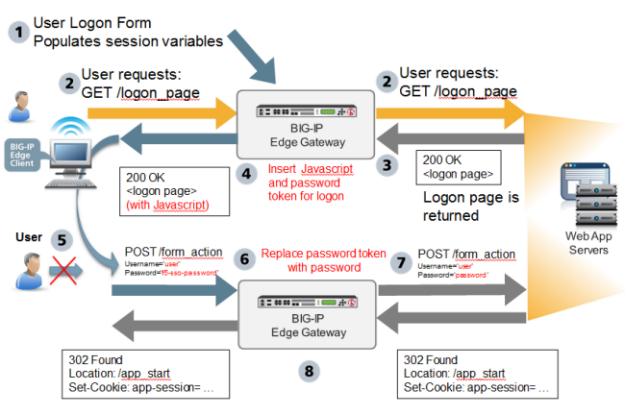
- The user logs on to Access Policy Manager and APM® runs the access policy. This populates the session variables with the user credentials.
- The user requests the application logon page. This GET request is passed to the application web server, verbatim.
- The application web server replies with 200 OK and serves the logon page.
- APM generates JavaScript and inserts it into the logon page before returning it to the user. The JavaScript assigns values to form parameters, as specified in the form configuration. The password parameter is assigned a password token rather than the actual user password.
- The JavaScript runs on the client side. The logon page is not displayed to the user; user input is locked out. Without delay, the form is submitted using POST. The form parameters and their values, including user name and password token, are sent to APM.
- APM then replaces the password token with the actual user password, as well as other form parameters specified in the form configuration with their configured values.
- The POST, along with the real user credentials from step 1, is sent to the web server.
- The application start page is served by the webserver, and sent to the client, verbatim. Optionally, APM performs detection of successful logon by examining HTTP response headers, looking for a cookie or redirect Location URI.
You can change some aspects of the form-based client-initiated SSO default behavior by configuring optional properties.
- You can change the automatically generated JavaScript code that is inserted into the logon page in one of three ways using the JavaScript Insertion options. You can replace it completely with custom code, or add extra code to it by specifying the application JavaScript functions to call prior to submitting a logon form.
- You can configure the SSO module to automatically detect the application HTTP request that submits user credentials using Form Submit Detection. If you disable automatic detection, the SSO module instead detects form submittal by using an HTTP header, cookie, or HTTP URIs that you specify.
You can use the form-based client-initiated SSO method to create form-based SSO configurations. For example, you can use this SSO method to support web applications that run JavaScript in the browser and need to maintain application state during the login process. You can also use it to support web applications that present multiple login screens.
-
On the Main tab, click Access > Single Sign-On > Forms - Client Initiated.
The Forms - Client Initiated screen opens.
-
Click Create.
A popup screen, Create New Forms-Client Initiated Configuration, opens.
-
In the SSO Configuration Name field, type a name.
-
From the Log Setting list, select one of the following options:
- Select an existing APM log setting.
- Click Create to create a new log setting.
-
If you want APM to gather and log information that you can use to configure form settings, select Passthrough Configuration.
When you start a session using this SSO configuration, APM logs the information at the NOTICE level and prefixes it with PASSTHROUGH MODE LOG. You can view the logs in the sessions report. Reports are available in the Access Overview Access Reports area of the product.
Important: When Passthrough Configuration is selected, APM does not validate the form settings that you configure. This enables you to gather information, configure forms, and test them freely.
Important: When you complete your testing, be sure to clear the Passthrough Configuration check box.
-
If you selected Passthrough Configuration and you do not want to start configuring form settings now, click OK.
The remainder of this procedure steps through configuring form settings.
The new form-based client-initiated SSO configuration is available for testing.
-
Select Form Settings from the left pane.
-
Click Create.
The Create button is not active until you complete the General Settings by typing a name for the SSO configuration.
Note: You must create at least one form to complete the SSO configuration (unless Passthrough Configuration is selected on the General Settings screen).
The Create New Form Definition popup screen opens.
-
Type a name in the Form Name field.
-
In the left pane, click Request Detection.
The right pane displays required fields.
-
From the Detect request for form by list, select an option and type required data.
- Cookie Type a name in the Cookie Name field.
- Header Type a name in the Header Name field.
- URI Type a URI in the Request URI field. The OK button becomes available.
-
In the Advanced Settings area, select an option for Request Method.
Specifies whether the request method is GET or POST. Defaults to GET.
-
Select Form Identification from the left pane.
Create New Form Definition displays in the right pane.
-
From the Identify Form by list, select how to find the HTML logon form in the HTML body of the logon page.
-
Select Form Parameters from the left pane.
Form Parameters displays in the right pane.
-
For each form parameter that you want to create, repeat these steps:
-
Click Create.
The Create New Form Parameter popup screen opens.
-
In the Form Parameter Name field, type or select a name.
-
In the Form Parameter Value field, type or select a value.
-
For the Secure option, select Yes if applicable.
-
Click OK.
The screen closes, showing the Create New Form Definition popup screen, which displays the new form parameter.
-
-
Select Form Submit Detection from the left pane.
The Create New Form Definition popup screen opens.
-
For Disable Auto detect submit, retain the default value, No.
-
Select Logon Detection from the left pane.
-
From Detect Login by, select an option for detecting a successful login and type any required data:
- None.
- Presence of Cookie Type a name in the Cookie Name field.
- Redirect URI Type a URI in the Redirect URI field.
-
Click OK.
The screen closes, displaying the Forms - Client Initiated screen for SSO Configurations.
The new form-based client-initiated SSO configuration is available for use.
These settings are available when you create a form-based client-initiated SSO configuration.
| Setting | Description |
|---|---|
| SSO Configuration Name | Specifies the name of the configuration. It must be unique. |
| SSO Description | Specifies a description. This is an optional setting. |
| Log Setting | Specifies at what level of detail the system logs. Valid values are listed. Defaults to Notice. |
| Passthrough Configuration | This option helps administrators configure SSO Form Settings. Form Settings are not mandatory when this option is enabled. When starting a session with SSO passsthrough enabled, the relevant form settings information is logged in the session report. Disable Passthrough Configuration after configuring Form Settings correctly with the help of the session passthrough logs. |
| Setting | Description |
|---|---|
| Form Name | Specifies the name of the form. It can be any name and need not match the actual name of the HTML form. |
| Form Description | Specifies an optional description of the form. |
| Setting | Description |
|---|---|
| Detect request for form by | Specifies which element of the HTTP request headers is used to identify the application request for logon page: Cookie, Header, or URI. Defaults to URI. |
| Cookie | Specifies that the system identifies the form by the presence (default) or absence (configurable with Advanced Properties) of this cookie. |
| Header | Specifies that the system identifies the form by the presence (default) or absence (configurable with Advanced Properties) of a header. |
| URI | Specifies that the system identifies the form by a successful match (default) or failed match (configurable with Advanced Properties) against one or multiple URIs. |
| Setting | Description |
|---|---|
| Request Method | Specifies whether the request method is GET or POST. Defaults to GET. |
| Request Negative | When selected, specifies that the system detects the form that fails to match the criteria specified for Form Detection. The system then detects the form by the absence of the specific cookie or header, or by its failure to match the URIs. The default is cleared. |
| Request Prefix | When selected, specifies that the system matches on a partial string. If this option is not selected, the match must be verbatim. The default is selected. |
|
Setting |
Description |
|---|---|
|
Identify Form by |
Specifies how the HTML logon form is found in the HTML body of the logon page. If there is more than one form on the logon page matching the criteria, the first match is used. Options are: - **ID Attribute-**Specifies that a form ID is used to find the form.
|
|
Form ID |
Specifies the form ID that is used to identify the form. |
|
Form Name |
Specifies the specific form name. |
|
Form Action |
Specifies the value of the action attribute. |
|
Form Order |
Specifies the relative order of the form on the logon page (starting from 1). |
|
Form Parameters |
Specifies the name and value of the form parameter and whether the parameter is encrypted. |
|
Setting |
Description |
|---|---|
|
Form Parameter Name |
Specifies the name of a form parameter. |
|
Form Parameter Value |
Specifies the value of the form parameter. This is usually the name of a session variable. The value could also be a literal string or a combination of strings and session variable names. Note: If the session variable is not found when the SSO request is processed, the value of the corresponding POST parameter will be empty. |
|
Secure |
Specifies whether the parameter is secure. Defaults to No. |
|
Setting |
Description |
|---|---|
|
Disable Auto detect submit |
Defaults to No. |
|
Scheme |
Available when Disable Auto detect submit is set to Yes. Specifies how to detect submit. Options are: - URI
|
| Setting | Description |
|---|---|
| Submit Request Negative | When selected, specifies that the system detects the form that fails to match the criteria specified for Form Detection. The system then detects the form by the absence of the specific cookie or header or by its failure to match the URIs. The default is cleared. |
| Submit Request Prefix | When selected, specifies that the system matches on a partial string. If this option is not selected, the match must be verbatim. The default is selected. |
|
Setting |
Description |
|---|---|
|
Detect Login by |
Specifies whether and how to detect a successful logon. Options are: - Presence of Cookie
|
|
Cookie Name |
Specifies the cookie name that identifies successful logon. |
|
Redirect URI |
Specifies the redirect URI that identifies successful logon. |
|
Setting |
Description |
|---|---|
|
Injection Method |
Specifies whether to use the default JavaScript that APM creates. Defaults to Auto.- Auto
|
|
Extra Javascript |
Specifies more JavaScript to run at the end of the automatically generated JavaScript.Note: Review the logon page source to determine whether any JavaScript functions are called on submit. |
|
Custom Javascript |
Specifies the custom JavaScript to run in place of the automatically generated JavaScript. When you select the Custom injection method, a JavaScript template is provided in the Custom Javascript text area. You must modify this in order to add the appropriate form parameters. |
| Setting | Description |
|---|---|
| Header Name | Name |
| Header Value | Value |
Using the examples provided for various applications, you can quickly create form-based client-initiated SSO configurations.
This example lists settings and values for creating a form-based client-initiated SSO configuration for Domino Web Access (DWA).
|
Setting |
Sample value |
|---|---|
|
SSO Configuration Name |
|
|
Form Name |
|
|
|
|
|
|
Detect Form by |
|
|
Request URI |
/ |
|
Identify Form by |
|
|
Form Name |
|
|
Detect Logon by |
|
|
Cookie Name |
|
|
Request Prefix |
Not selected |
This example lists settings and values for creating a form-based client-initiated SSO configuration for Bugzilla.
|
Setting |
Sample value |
|---|---|
|
SSO Configuration Name |
|
|
Form Name |
|
|
|
|
|
|
Detect Form by |
URI |
|
Request URI |
|
|
Identify Form by |
ID Attribute |
|
Form ID |
|
|
Detect Logon by |
Presence of Cookie |
|
Cookie Name |
|
|
Request Prefix |
Not selected |
This example lists settings and values for creating a form-based client-initiated SSO configuration for Ceridian.
|
Setting |
Sample value |
|---|---|
|
SSO Configuration Name |
|
|
SSO Description |
|
|
Form Name |
|
|
|
|
|
|
|
|
Detect Form by |
URI |
|
Request URI |
|
|
Identify Form by |
Form Parameters |
|
Detect Logon by |
Redirect URI |
|
Redirect URI |
|
|
Request Prefix |
Not selected |
|
Injection Method |
Custom |
|
Custom Javascript |
See sample code that follows. |
|
Disable Auto detect submit |
Yes |
|
Scheme |
URI |
|
URI |
|
<script>
function checkInternetExplorerVersion()
// Returns 'true' if the version of Internet Explorer > 8
{
  var r = -1; // Return value assumes agreement.
  if (navigator.appName == 'Microsoft Internet Explorer')
  {
    var ua = navigator.userAgent;
    var re  = new RegExp("MSIE ([0-8]{1,}[\.0-9]{0,})");
    if (re.exec(ua) != null)
      r = parseFloat( RegExp.$1 );
  }
  return ( r==-1 ) ? true : false;
}
if (checkInternetExplorerVersion()) {
  document.body.style.visibility='hidden';
  document.body.style.display='none';
}
document.body.onkeydown=function(e){return false;};
function __f5submit() {
var __f5form = document.forms[0];
__f5form.SerialNumberInput.value='%{session.sso.token.last.username}';
__f5form.PasswordInput.value='%{session.sso.custom.last.password}';
__f5form.ClientIDInput.value='%{session.logon.last.clientid}';
f_submit();
}
if (window.addEventListener) {
  window.addEventListener('load',__f5submit,false);
} else if (window.attachEvent) {
  window.attachEvent('onload',__f5submit);
} else {
  window.onload=__f5submit;
}
</script>
Logon Page Agent(field 3):
- Type:
text - Post Variable Name:
clientid - Session Variable Name:
clientid
Logon Page Input Field #3: Company ID
session.sso.custom.last.password = expr { [mcget -secure {session.sso.token.last.password}] }This example lists settings and values for creating a form-based client-initiated SSO configuration for some of the Citrix server product versions that F5 supports. For Citrix compatibility information, see the BIG-IP APM Client Compatibility Matrix on the AskF5 web site at http://support.f5.com/.
|
Setting |
Sample value |
|---|---|
|
SSO Configuration Name |
|
|
Form Name |
|
|
|
|
|
|
|
|
Detect Form by |
URI |
|
Request URI |
|
|
Identify Form by |
Action Attribute |
|
Form Action |
|
|
Detect Logon by |
Redirect URI |
|
Redirect URI |
|
Warning: When you upgrade from one Citrix product version to another, it is not unusual for the product URIs to change. When that happens, form-based client-initiated SSO will stop working until you update the SSO configuration with the new URIs for the logon form and for redirect.
This example lists settings and values for creating a form-based client-initiated SSO configuration for Devcentral.
|
Setting |
Sample value |
|---|---|
|
SSO Configuration Name |
|
|
SSO Description |
|
|
Form Name |
|
|
|
|
|
|
|
|
Detect Form by |
|
|
Request URI |
|
|
Identify Form by |
|
|
Detect Logon by |
|
|
Cookie Name |
|
|
Injection Method |
|
|
Extra Javascript |
See sample code that follows. |
WebForm_DoPostBackWithOptions(new WebForm_PostBackOptions("dnn$ctr1093548$Login$Login_DNN$cmdLogin", "", true, "", "", false, false));
__f5form.enctype = 'application/x-www-form-urlencoded';
__f5form.encoding = 'application/x-www-form-urlencoded';This example lists settings and values for creating a form-based client-initiated SSO configuration for Google.
|
Setting |
Sample value |
|---|---|
|
SSO Configuration Name |
|
|
Description |
|
|
Form Name |
|
|
|
|
|
|
Detect Form by |
URI |
|
Request URI |
|
|
Identify Form by |
Form Parameters |
|
Detect Logon by |
Presence of Cookie |
|
Cookie Name |
|
Note: For Internet Explorer 7 (and 8), disable the advanced setting Display a notification about every script error.
This example lists settings and values for creating a form-based client-initiated SSO configuration for Oracle 10g Release 2 (10.1.2).
|
Setting |
Sample value |
|---|---|
|
SSO Configuration Name |
|
|
Form Name |
|
|
|
|
|
|
Detect Form by |
|
|
Request URI |
|
|
Identify Form by |
|
|
Detect Logon by |
|
|
Cookie Name |
|
This example lists settings and values for creating a form-based client-initiated SSO configuration for Outlook Web App (OWA) 2010 and OWA 2007.
|
Setting |
Sample value |
|---|---|
|
SSO Configuration Name |
|
|
Form Name |
|
|
|
|
|
|
Detect Form by |
|
|
Request URI |
|
|
Identify Form by |
|
|
Detect Logon by |
|
|
Cookie Name |
|
|
Injection Method |
|
|
Extra Javascript |
|
This example lists settings and values for creating a form-based client-initiated SSO configuration for Perforce.
|
Setting |
Sample value |
|---|---|
|
SSO Configuration Name |
|
|
Form Name |
|
|
|
|
|
|
Detect Form by |
|
|
Request URI |
|
|
Identify Form by |
|
|
Detect Logon by |
|
|
Cookie Name |
|
|
Request Prefix |
Not selected |
This example lists settings and values for creating a form-based client-initiated SSO configuration for Reviewboard.
|
Setting |
Sample value |
|---|---|
|
SSO Configuration Name |
|
|
Form Name |
|
|
|
|
|
|
Detect Form by |
|
|
Request URI |
|
|
Identify Form by |
|
|
Detect Logon by |
|
|
Redirect URI |
|
|
Request Prefix |
Not selected |
This example lists settings and values for creating a form-based client-initiated SSO configuration for SAP.
|
Setting |
Sample value |
|---|---|
|
SSO Configuration Name |
|
|
Form Name |
|
|
|
|
|
|
|
|
Detect Form by |
|
|
Request URI |
|
|
Identify Form by |
|
|
Detect Logon by |
|
|
Cookie Name |
|
|
Request Prefix |
Not selected |
This example lists settings and values for creating a form-based client-initiated SSO configuration for Salesforce.
|
Setting |
Sample value |
|---|---|
|
SSO Configuration Name |
|
|
Form Name |
|
|
|
|
|
|
Detect Form by |
|
|
Request URI |
|
|
Identify Form by |
|
|
Detect Logon by |
|
|
Cookie Name |
|
|
Injection Method |
|
|
Custom Javascript |
See sample code that follows. |
<script>
function checkInternetExplorerVersion()
// Returns 'true' if the version of Internet Explorer > 8
{
var r = -1; // Return value assumes agreement.
if (navigator.appName == 'Microsoft Internet Explorer')
{
var ua = navigator.userAgent;
var re = new RegExp("MSIE ([0-8]{1,}[\.0-9]{0,})");
if (re.exec(ua) != null)
r = parseFloat( RegExp.$1 );
}
return ( r==-1 ) ? true : false;
}
if (checkInternetExplorerVersion()) {
document.body.style.visibility='hidden';
document.body.style.display='none';
}
document.body.onkeydown=function(e){return false;};
function __f5submit() {
var __f5form = document.forms[0];
__f5form.username.value='%{session.sso.token.last.username}';
__f5form.password.value='f5-sso-token';
;
var __f5action = __f5form.action;
var __f5qsep = (__f5action.indexOf('?') == -1) ? '?' : '&';
__f5form.action = __f5action + __f5qsep + 'f5-sso-form=auth_form';
__f5form.Login.click();
}
if (window.addEventListener) {
window.addEventListener('load',__f5submit,false);
} else if (window.attachEvent) {
window.attachEvent('onload',__f5submit);
} else {
window.onload=__f5submit;
}
</script>This example lists settings and values for creating a form-based client-initiated SSO configuration for Sharepoint.
|
Setting |
Sample value |
|---|---|
|
SSO Configuration Name |
|
|
Form Name |
|
|
|
|
|
|
|
|
Detect Form by |
|
|
Request URI |
|
|
Identify Form by |
|
|
Detect Logon by |
|
|
Cookie Name |
|
This example lists settings and values for creating a form-based client-initiated SSO configuration for Weblogin.
|
Setting |
Sample value |
|---|---|
|
SSO Configuration Name |
|
|
Form Name |
|
|
|
|
|
|
|
|
Detect Form by |
|
|
Request URI |
|
|
Identify Form by |
|
|
Form Name |
|
|
Detect Logon by |
|
|
Cookie Name |
|
This example lists settings and values for creating a form-based client-initiated SSO configuration for Yahoo.
|
Setting |
Sample value |
|---|---|
|
SSO Configuration Name |
|
|
SSO Description |
|
|
Form Name |
|
|
|
|
Detect Form by |
|
|
Request URI |
|
|
Identify Form by |
|
|
Form ID |
|
|
Detect Logon by |
|
|
Cookie Name |
|
|
Injection Method |
|
|
Custom Javascript |
See example custom Javascript that follows. |
|
Disable Auto detect submit |
Selected |
|
Javascript |
|
<script>
//Logon page will not be hidden in IE7/8.
//This is workaround for the problem with JS method .focus()
//"Can't move focus to the control because it is invisible, not enabled, or of a type that does not accept the focus."
function checkInternetExplorerVersion()
// Returns 'true' if the version of Internet Explorer > 8
{
var r = -1; // Return value assumes agreement.
if (navigator.appName == 'Microsoft Internet Explorer')
{
var ua = navigator.userAgent;
var re = new RegExp("MSIE ([0-8]{1,}[\.0-9]{0,})");
if (re.exec(ua) != null)
r = parseFloat( RegExp.$1 );
}
return ( r==-1 ) ? true : false;
}
if (checkInternetExplorerVersion()) {
document.body.style.visibility='hidden';
var inter = setInterval(function ()
{
var err = document.getElementsByClassName('yregertxt')[0];
var wcl = document.getElementById('captcha_c');
if (err) {
document.body.style.visibility = 'visible';
clearInterval(inter);
}
if (wcl) {
if ( wcl.style.visibility == 'hidden') {
document.body.style.visibility = 'visible';
clearInterval(inter);
}
}
}, 1000);
};
function __f5submit() {
var adv = document.getElementById('adFrame');
if (adv) adv.style.visibility='hidden';
var __f5form = document.forms[0];
if (__f5form.login)
__f5form.login.value='%{session.sso.token.last.username}';
__f5form.passwd.value='%{session.sso.custom.last.password}';
__f5form[".save"].click();
}
if (window.addEventListener) {
window.addEventListener('load',__f5submit,false);
} else if (window.attachEvent) {
window.attachEvent('onload',__f5submit);
} else {
window.onload=__f5submit;
}
</script>session.sso.custom.last.password = expr { [mcget -secure {session.sso.token.last.password}] }