


Updated Date: 07/07/2026
Quick Start/Basic Customization - Modern and Standard
You can use the Quick Start/Basic customization view to configure common settings for access profile web pages, and the webtop captions, descriptions, and images for any item that appears on a full webtop. In addition, you can customize webtop font size and link colors. For example, here is the Quick Start/Basic view in which you can easily modify common page styles.
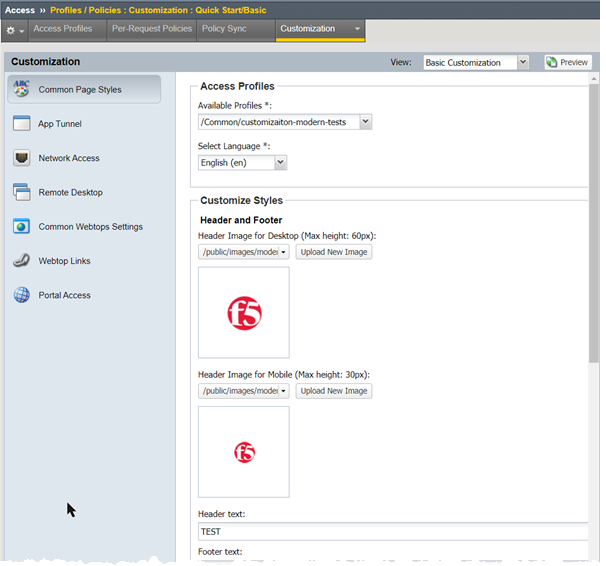
With this view, you can customize all of these items:
- Common Page Styles
- Specifies settings for the logon form display, header image, and alignment of items.
- App Tunnel
- Specifies settings for the display of app tunnels on the full webtop.
- Network Access
- Specifies settings for network access on the full webtop.
- Remote Desktop
- Specifies settings for remote desktops on the full webtop.
- Common Webtops Settings
- Specifies display settings that apply to all resources on the full webtop including font size, link color and window logo.
- Webtop links
- Specifies links to other sites available on the full webtop.
- Portal Access
- Specifies settings for the display of portal access resources on the full webtop.
Use Quick Start/Basic customization to configure settings for access profiles and items that appear on the full webtop. Basic customization provides a starting point that you can later refine through the Advanced Customization view.
-
On the Main tab, click Access > Profiles / Policies > Customization > Quick Start/Basic.
The Quick Start/Basic Customization view opens.
-
In the left column of the page, select the category of items to customize.
For example, select Network Access to customize the appearance of a network access resource item on the full webtop.
-
On the right side of the page, from the list, select the specific item for which you want to customize settings.
The customizable settings for the item are displayed.
-
Configure settings for the resource item or access profile.
When configuring Common Page Styles, click Preview at the bottom of the screen to display changes without first saving them.
After you customize settings, click Save to save the new customization settings. To return to the original settings and discard your changes, click Revert.
Common Page Styles in the Quick Start/Basic Customization view provides these settings for customizing an access profile if created with the Customization Type set to Modern.
| Setting | Value | Description |
|---|---|---|
| Available Profiles | An access profile already defined on the system with Customization Type set to Modern. | The access profile for which you want to change page styles. |
| Select Language | A language already specified in the access profile on the system. | The language for which you are changing customization settings. Select All languages to apply the same customization changes to all languages in the access profile. |
| Header Image for Desktop (Max height: 60px) | An image that you select. | The header image appears, by default, in the top-left corner of the defined HTML block. Acceptable formats are GIF, PNG, and JPG. Often, this is a square, transparent image file (GIF and PNG only). The page header area expands to the height of this image. |
| Header Image for Mobile (Max height: 30px) | An image that you select. | The header image appears, by default, in the top-left corner of the defined HTML block. Acceptable formats are GIF, PNG, and JPG. Often, this is a square, transparent image file (JIF and PNG only). The page header area expands to the height of this image. |
| Top Stripe Color | A color, selected from a color chooser. | Indicates the color of the stripe at the top of a page. |
| Header Background Color | A color, selected from a color chooser. | Indicates the color of the background for the header on a page. |
| Page Background Color | A color, selected from a color chooser. | Indicates the color used as the background for pages. |
| Form Background Color | A color, selected from a color chooser. | Indicates the color used as the background for form-based pages. |
| Footer Background Color | A color, selected from a color chooser. | Indicates the color used as the background for footers. |
| Text Color | A color, selected from a color chooser. | Indicates the color used for text on a page. |
| Active and Button Background Color | A color, selected from a color chooser. | Indicates the color used as background for links, clickable elements, and buttons. |
| Solid Button Text Color | A color, selected from a color chooser. | Indicates the color used for text on buttons. |
Common Page Styles in the Quick Start/Basic Customization view provides these settings for customizing an access profile if created with the Customization Type set to Standard.
| Setting | Value | Description |
|---|---|---|
| Available Profiles | An access profile already defined on the system with the Customization Type set to Standard. | The access profile for which you want to change common page styles. |
| Select Language | A language already specified in the access profile on the system. | This specifies the language for which you are changing customization settings. Select All languages to apply the same customization changes to all languages in the access profile. |
| Page Alignment | Left, center, or right. | Sets the alignment of the page within the web browser screen. |
| Page Width | Pixel or percentage value (for example 90%). |
The width of any access/per-request policy web pages inside the web browser frame. |
| Header Logo | An image that you select. | The header logo appears, by default, at the upper-left corner of the defined HTML block. Acceptable formats are GIF, PNG, and JPG. Often, this is a square, transparent image file (GIF and PNG only). The page header area expands to the height of this image. |
| Page Background Color | A color, selected from a color chooser. | Indicates the color behind pages. |
| Header Background Color | A color, selected from a color chooser. | Indicates the color of the header on a page. |
| Table Background Color | A color, selected from a color chooser. | Indicates the color behind a table on a page. |
| Form Left Margin | A numeric pixel value, or a percentage (for example, 10px or 5%). |
The margin between the left edge of the form and the left edge of the browser window, on form-based pages. |
| Form Top Margin | A numeric pixel value or a percentage, (for example, 10px). |
The margin between the top edge of the form and the bottom edge of the header image, on form-based pages. |
| Form Height | A numeric pixel value or a percentage, (for example, 500px or 50%). |
The height of the form, on form-based pages. Any value less than the full height of the browser increases the space at the bottom of the form, as the top margin is set by the Form Top Margin value. |
| Form Background Color | A color, selected from a color chooser. | Indicates the color behind form-based pages. |
| Footer Text | A text string. | Specifies the footer message that appears at the bottom of access policy web pages. |
| Footer Font Size | Font size in pixels (for example 10px). |
Indicates the size for the footer message at the bottom of access policy web pages. |
The Basic Customization view provides settings for customizing an app tunnel on the full webtop.
| Setting | Value | Description |
|---|---|---|
| Available App Tunnels | An app tunnel already defined on the system | The app tunnel for which you want to change basic settings. |
| Select Language | A language already specified on the system | This specifies the language for which you are changing customization settings. Select All languages to apply the same customization changes to all languages in the access profile. |
| Caption | A text string | The text under the icon for the app tunnel, on a full webtop. |
| Description | A text string | The description text for the app tunnel, on a full webtop. |
| Select an image | An image or icon | The image acts as an icon on the full webtop to represent the app tunnel. Select an image from the list, or click Upload New Image to add a new image. |
The Basic Customization view provides settings for customizing a network access resource on the full webtop.
| Setting | Value | Description |
|---|---|---|
| Available Network Access | A network access resource already defined on the system | The network access resource for which you want to change basic settings. |
| Select Language | A language already specified on the system | This specifies the language for which you are changing customization settings. Select All languages to apply the same customization changes to all languages in the access profile. |
| Caption | A text string | The text under the icon for the network access resource, on a full webtop. |
| Description | A text string | The description text for the network access resource, on a full webtop. |
| Select an Image | An image or icon | The image acts as an icon on the full webtop to represent the network access resource. Select an image from the list, or click Upload New Image to add a new image. |
The Basic Customization view provides settings for customizing a remote desktop on the full webtop.
| Setting | Value | Description |
|---|---|---|
| Available Remote desktops | A remote desktop already defined on the system | The remote desktop for which you want to change basic settings. |
| Select Language | A language already specified on the system | This specifies the language for which you are changing customization settings. Select All languages to apply the same customization changes to all languages in the access profile. |
| Caption | A text string | The text under the icon for the remote desktop, on a full webtop. |
| Description | A text string | The description text for the remote desktop, on a full webtop. |
| Select an Image | An image or icon | The image acts as an icon on the full webtop to represent the remote desktop. Select an image from the list, or click Upload New Image to add a new image. |
The Basic Customization view provides these shared settings for customizing full webtops.
| Setting | Value | Description |
|---|---|---|
| Available Webtops | A webtop already defined on the system | The webtop for which you want to change basic settings. |
| Select Languages | A language already specified on the system | This specifies the language for which you are changing customization settings. Select All languages to apply the same customization changes to all languages in the access profile. |
| Portal Access Webtop Font Size | A pixel value, (for example 14px) |
The font size used for text on the full webtop. |
| Portal Access Webtop Link Color | A color, selected from a color chooser | Indicates the color for links on the webtop. |
| Full Webtop Popup window logo | An image or icon | The image appears on the full webtop. Select an image from the list, or click Upload New Image to add a new image. |
| Show Statistics While Connected | on or off | Show or hide statistics in the remote connection popup screen for the application tunnel or the network access tunnel. |
The Basic Customization view provides settings for customizing a webtop link on the full webtop.
| Setting | Value | Description |
|---|---|---|
| Available Webtop Links | A webtop link already defined on the system | Select the webtop link for which you want to change basic settings. |
| Select Language | A language already specified on the system | This specifies the language for which you are changing customization settings. Select All languages to apply the same customization changes to all languages in the access profile. |
| Caption | A text string | The text under the icon for the webtop link, on a full webtop. |
| Description | A text string | The description text for the webtop link, on a full webtop. |
| Select an image | An image or icon | The image acts as an icon on the full webtop to represent the webtop link. Select an image from the list, or click Upload New Image to add a new image. |
The Basic Customization view provides settings for customizing a portal access resource on the full webtop.
| Setting | Value | Description |
|---|---|---|
| Available Portal Access | A portal access resource already defined on the system | The portal access resource for which you want to change basic settings. |
| Select Language | A language already specified on the system | This specifies the language for which you are changing customization settings. Select All languages to apply the same customization changes to all languages in the access profile. |
| Caption | A text string | The text under the icon for the portal access resource, on a full webtop. |
| Description | A text string | The description text for the portal access resource, on a full webtop. |
| Select an image | An image or icon | The image acts as an icon on the full webtop to represent the portal access resource. Select an image from the list, or click Upload New Image to add a new image. |