


Updated Date: 07/07/2026
LDAP Query
When running the LDAP Query access policy item, Access Policy Manager (APM) queries an external LDAP server for additional information about the user.
Important: If you use LDAP query, Access Policy Manager does not query for the primary group and add it to the memberOf attribute. You must look up the attribute memberOf, as well as the primary group, manually.
The LDAP Query item does not authenticate user credentials. To authenticate users, use another or an additional authentication item in the access policy.
For LDAP, Access Policy Manager (APM) converts an attribute value to hex only if the value contains unprintable characters. If the session variable contains several values, and one or more of those values is unprintable, then APM converts only those particular values to hex.
9302eb80.session.ldap.last.attr.objectGUID 34 /
0xfef232d3039be9409a72bfc60bf2a6d029302eb80.session.ldap.last.attr.memberOf 251 | /
CN=printable group,OU=groups,OU=someco,DC=smith, /
DC=labt,DC=fp,DC=somelabnet,DC=com | /
0x434e3d756e7072696e7461626c6520c2bdc2a12067726f75702c4f553d67726f7570732c4f553d66352c /
44433d73686572776f6f642c44433d6c6162742c44433d66702c44433d66356e65742c44433d636f6d | Before you add an LDAP query to an access policy, you must have at least one LDAP AAA server configured. You should also have an access profile that is configured with actions to authenticate the user.
You add an LDAP query to an access policy to get information about a user. Access Policy Manager (APM) stores the attributes it retrieves in session variables.
-
On the Main tab, click Access > Profiles / Policies > Access Profiles (Per-Session Policies).
The Access Profiles (Per-Session Policies) screen displays.
-
In the Per-Session Policy column, click the Edit link for the access profile you want to configure.
The visual policy editor opens the access policy in a separate screen.
-
Click the (+) icon anywhere in the access policy to add a new item.
Note: Only an applicable subset of access policy items is available for selection in the visual policy editor for any access profile type.
A popup screen opens, listing predefined actions on tabs such as General Purpose, Authentication, and so on.
-
On the Authentication tab, select LDAP Query and click Add Item.
-
From the Server list, select an AAA LDAP server.
An LDAP Query uses SSL connections when you select an LDAP AAA server that is configured for LDAPS.
-
Specify the SearchDN, and SearchFilter settings.
SearchDN is the base DN from which the search is done.
-
From the Show Extended Error list, specify whether to display comprehensive error messages generated by the authentication server on the user’s logon page. This setting is intended only for use in testing, in a production or debugging environment. If enabled in a live environment, your system might be vulnerable to malicious attacks. When disabled, displays non-comprehensive error messages generated by the authentication server on the user’s logon page.
-
Specify how to fetch groups from the Fetch groups to which the user or group belong list.
- None: Do not fetch groups.
- Direct: Fetch only those groups to which the user or group belong directly.
- All: Fetch groups to which the user or group belong directly; then fetch all groups that are nested under those groups. For example, if the user belongs to Group 1 and Group 2, and Group 1 is a member of Group 3 and Group 4, selecting All associates all four groups to the user. Alternatively, if the group is Group 1, selecting All associates Group 3 and Group 4 to Group 1.
-
Specifies how to fetch users that are members of the group from the Fetch users that belong to the group list.
- None: Do not fetch groups.
- Direct: Fetch only those users that belong to the group directly.
- All: Fetch users that belong to the group directly and, if other groups are nested under the group, fetch users that belong to those groups also. For example, if the group (for example, Group 1) is a member of Group 3 and Group 4, selecting All associates the members (users) of all three groups to the group.
-
Click Save.
The properties screen closes and the policy displays.
-
Click Apply Access Policy to save your configuration.
This adds an LDAP Query to an existing access policy.
Confirm that the correct log settings are selected for the access profile to ensure that events are logged as you intend.
Note: Log settings are configured in the Access > Overview > Event Log > Settings area of the product. They enable and disable logging for access system and URL request filtering events. Log settings also specify log publishers that send log messages to specified destinations.
-
On the Main tab, click Access > Profiles / Policies > Access Profiles (Per-Session Policies).
The Access Profiles (Per-Session Policies) screen displays.
-
Click the name of the access profile that you want to edit.
The properties screen opens.
-
On the menu bar, click Logs.
The access profile log settings display.
-
Move log settings between the Available and Selected lists.
You can assign up to three log settings that enable access system logging to an access profile. You can assign additional log settings to an access profile provided that they enable logging for URl request logging only.
Note: Logging is disabled when the Selected list is empty.
-
Click Update.
An access profile is in effect when it is assigned to a virtual server.
In this example, after successful authentication, the system retrieves a user group using an LDAP query. Resources are assigned to users and users are directed to a webtop if the user group has access to the network access resources.
In this figure, the default branch rule for LDAP query was changed to check for a specific user group attribute.
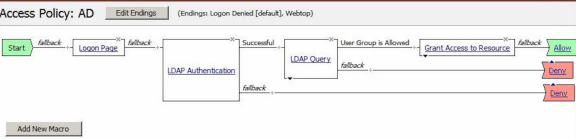
You can use session variables to configure properties for the LDAP query access policy item. The properties are listed in the table.
| Property | Example value | Description |
|---|---|---|
| SearchFilter | (sAMAccountName=%{session.logon.last.username}) | Populates the SearchFilter parameter with the username from the current session. |
| UserDN | cn=%{session.logon.last.username}, cn=users, dc=sales, dc=com. | A typical UserDN for query in an LDAP structure. |
| SearchDN | session.ssl.cert.last.cn | Uses the user CN from the SSL certificate. Useful as a value for any property in this table. |
When the LDAP Query access policy item runs, it populates session variables which are then available for use in access policy rules. The tables list the session variables for the LDAP query access policy item and for a logon access policy item.
| Session Variable | Description |
|---|---|
| session.ldap.last.queryresult | Provides the result of the LDAP query. The available values are:
|
| session.ldap.last.attr.$attr_name | $attr_name is a value that represents the user’s attributes received during LDAP/query. Each attribute is converted to separate session variables. |
| session.ldap.last.errmsg | Contains only a simple error message for the last error generated for LDAP. |
| session.ldap.last.errmsgext | Useful for troubleshooting. At any log level, contains extended error information for the last error message generated for LDAP. |
| Session Variable | Description |
|---|---|
| session.logon.last.username | Provides user credentials. The username string is stored after encrypting, using the system’s client key. |
| session.logon.last.password | Provides user credentials. The password string is stored after encrypting, using the system’s client key. |
You might run into problems with LDAP authentication and query in some instances. Follow these tips to try to resolve any issues you might encounter.
| Possible error messages | Possible explanations and corrective actions |
|---|---|
| LDAP auth failed |
|
| LDAP query failed |
|
| You should | Steps to take |
|---|---|
| Check that your access policy is attempting to perform authentication |
|
| Confirm network connectivity |
|
| Check the LDAP server configuration |
|
| Capture a tcpdump | Use the tcpdump utility on the BIG-IP system to record activities between Access Policy Manager and the authentication server when authentication attempts are made.
|