Updated Date: 05/19/2026
Adding primary authentication to a per-session policy
Before you can configure a per-session policy to use Active Directory authentication, you must have at least one Active Directory AAA server configured.
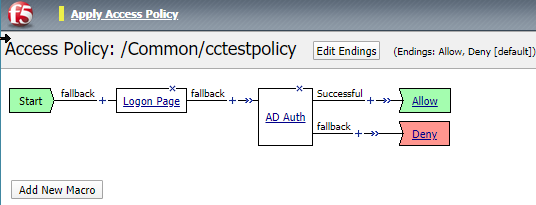
This example describes how to add primary authentication to the per-session policy by creating a logon page to obtain user credentials and then authenticate the user against an external Active Directory server before granting access. You can use other methods of authentication as long as your Okta organization has user entries with the same primary authentication.
-
On the Main tab, click Access > Profiles / Policies.
The Access Profiles (Per-Session Policies) screen opens.
-
In the Per-Session Policy column, click the Edit link for the access profile you want to configure.
The visual policy editor opens the access policy in a separate screen.
-
Click the (+) icon anywhere in the access policy to add a new item.
Note: Only an applicable subset of access policy items is available for selection in the visual policy editor for any access profile type.
A popup screen opens, listing predefined actions on tabs such as General Purpose, Authentication, and so on.
-
On the Logon tab, select Logon Page and click the Add Item button.
The Logon Page Agent properties screen opens.
-
Make any changes that you require to the logon page properties and click Save.
The properties screen closes and the policy displays.
-
Right after the Logon Page, click the (+) icon.
-
On the Authentication tab, select AD Auth and click Add Item.
A Properties popup screen opens.
-
From the Server list, select the AAA Active Directory server to use for authentication.
-
You can set other options, as needed, then click Save.
-
At the end of the Successful branch, click Deny and change it to Allow.
This task adds a logon page and Active Directory authentication to the per-session policy which looks like this: