


Updated Date: 05/19/2026
Enrolling and Signing in via YubiKey
To enable YubiKey integration as MFA, you need to upload the YubiKey Configuration file generated through the YubiKey Personalization Tool. For details, refer to the Create a YubiKey Configuration File section.
To enroll in the Yubico OTP, you must use the Yubikey device to generate the passcode.
-
Click YubiKey in the Set up multifactor authentication screen.
-
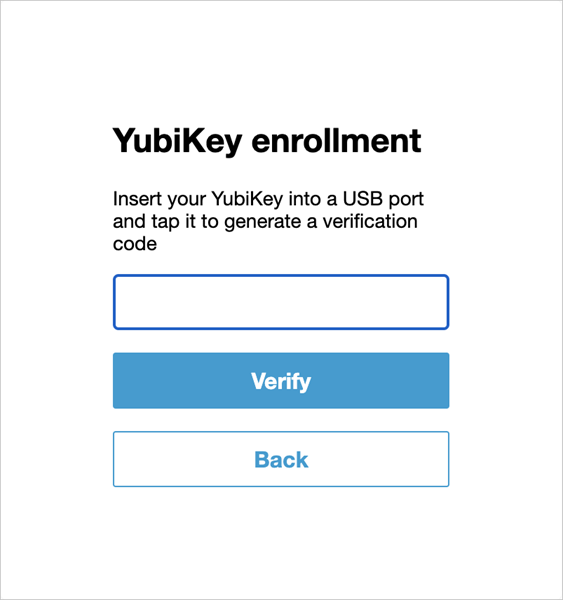
Insert your YubiKey into your USB port and then tap the YubiKey to get a verification code. Enter the code in the YubiKey Enrollment screen and click Verify.
-
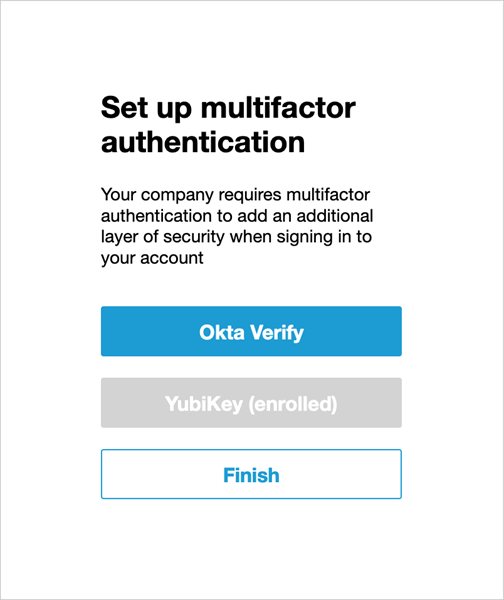
The Set up Multifactor authentication screen shows the YubiKey option as enrolled. Click Okta Verify to enroll your mobile device for Push and TOTP.
Subsequent logins after YubiKey enrollment allow you to enter a verification code from your YubiKey device.