


Updated Date: 05/19/2026
Enrolling and Signing in manually without Push
To enroll additional factors without scanning QR code, click Okta Verify in the Set up multifactor authentication screen and then click More options to enroll.
-
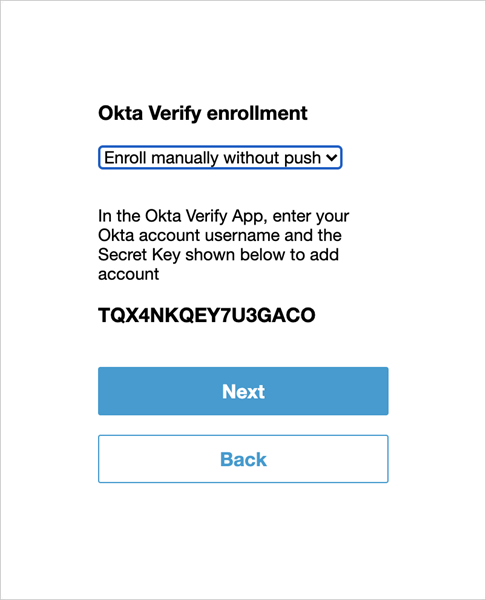
Select Enroll manually without push from the drop-down list to manually set up Okta Verify without Push authentication.
-
In the Okta Verify app, enter your Okta account username and the secret key displayed on the screen. Click Next.
-
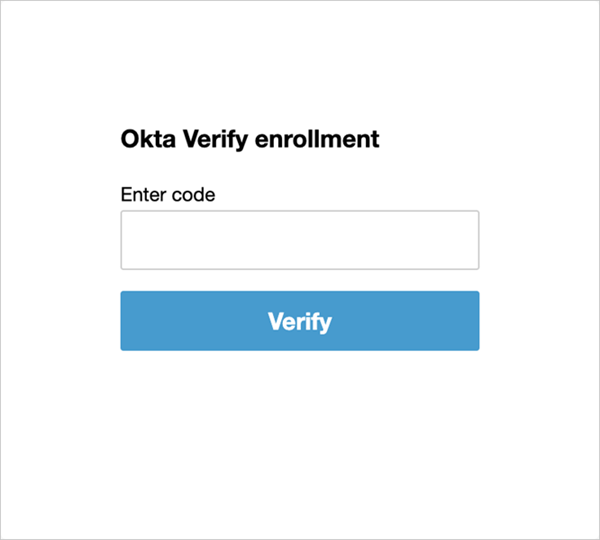
Enter the code displayed in your Okta Verify app and click Verify to complete enrollment.
-
If you have not enrolled for any push notifications, the Okta Verify enrollment screen displays an option to upgrade MFA to available Push factors.
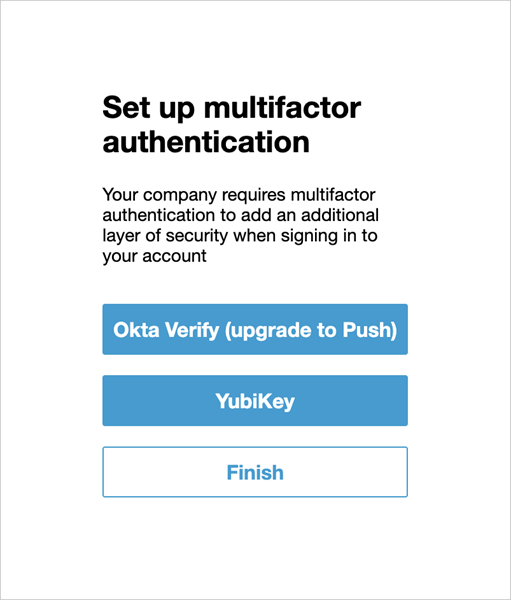
Subsequent logins after manual device enrollment allow you to enter the code displayed in your Okta Verify app.