Updated Date: 05/19/2026
Scanning and Signing in via QR code
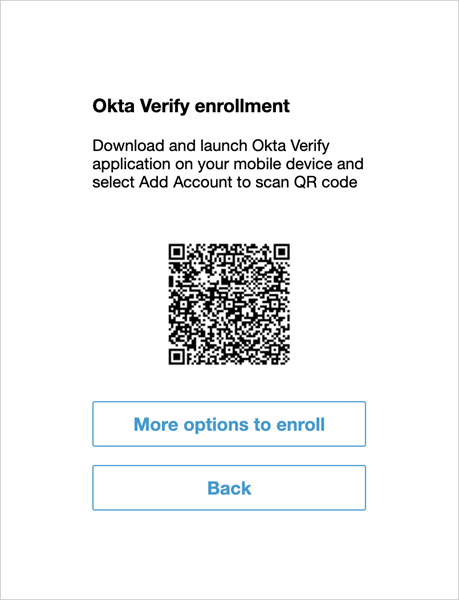
If you choose to scan QR code, click Okta Verify in the Set up multifactor authentication screen.
-
Follow the instructions to download the Okta Verify application on your mobile device and click Add Account. Click Continue on your device to allow camera access.
-
Point the camera at the QR code to complete device enrollment.
Subsequent logins after device enrollment allow you to send a pop-up notification to your device or enter a one-time passcode.
-
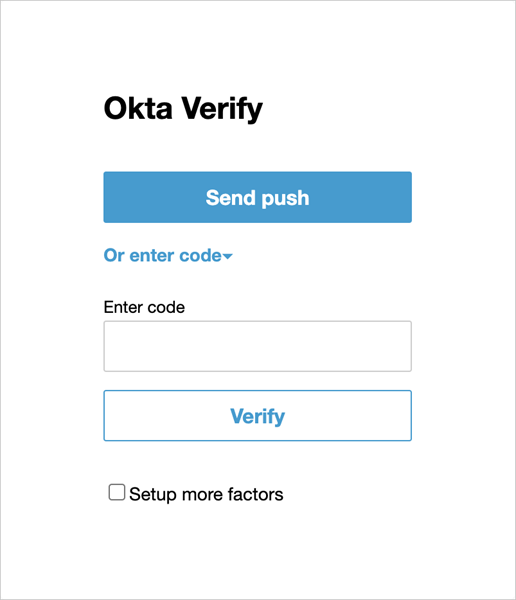
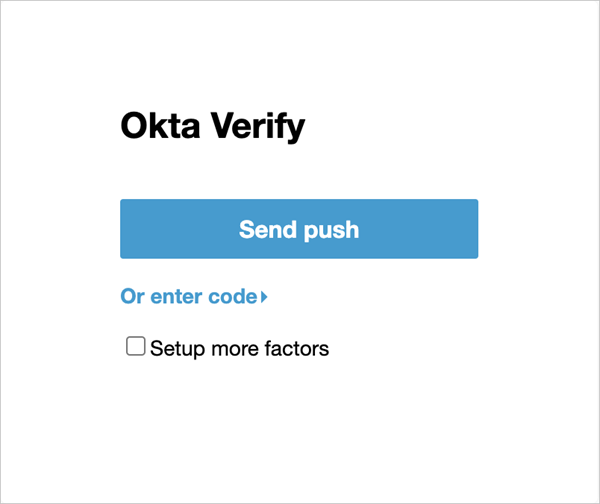
To log in, click Send Push to send push notification. Click Setup more factors to setup additional factors for Okta MFA after successful verification. Tap the confirmation option on your device to the accept authentication request and confirm your identity.
-
Optionally, click Or enter code to enter the one-time code into the Enter code field. Tap the Okta Verify app on your mobile device to get the code. Click Verify to sign in with Okta Verify and confirm your identity.