Updated Date: 05/19/2026
Adding a URL branching rule
You must have a per-request policy.
Add a URL branching rule to provide branching for different URLs to allow different authentication methods.
-
From the Main tab, click Access > Profiles / Policies > Per-Request Policies.
-
Find the policy you want to edit, and in the Per-Request Policy column, click Edit.
-
Add a URL branching rule by clicking the plus symbol, then the Classification tab, then selecting URL Branching. Click Add Item.
-
Click the Branch Rules tab.
-
In the Name field, type the name of the branch for MFA. For example,
admin. -
Next to Expression: URL contains: domain.com, click Change.
-
In the URL contains field, type the URL for users who are required to use MFA. For example,
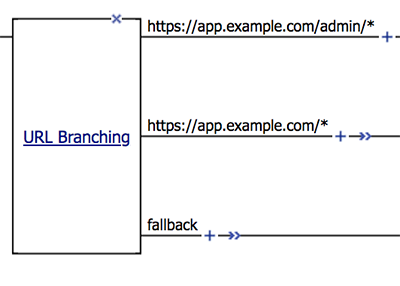
https://app.example.com/admin/*.Important: Rules are evaluated in order, so specify the most specific rule first. In this example, we specify the
<url>/admin/*rule first, because this URL requires MFA, and it is more specific than the next rule,<url>/*. If we specified the less specific rule first, all traffic would be sent to primary authentication, and MFA would not be used. -
Click Finished.
-
From Insert Before, select fallback, then click Add Branch Rule.
-
In the Name field, type the name of the branch that does not use MFA. For example,
non-admin. -
Next to Expression: Empty click change.
-
Click Add Expression.
-
From Condition, select Substring.
-
In the URL contains field, type the URL to match for all other non-MFA traffic. For example,
https://app.example.com/*.Tip: You are not required to use substring as the condition when specifying a URL. You can use equals for an exact match, prefix or suffix for prefix or suffix matching, or glob for glob matching.
-
Click Finished.
This is an example of the URL Branching access policy item configured to branch for MFA and non-MFA authentication.