


Updated Date: 05/19/2026
Creating a logon page for MFA in a subroutine
You should have created a subroutine with the variable assign agent to collect subsession.logon.last.username and assign it to the session variable last.subsession.logon.last.logonname. Start this task in this subroutine.
The logon page presents the user with a choice to type a onetime passcode or to get a push notification.
-
In the subroutine, after the Variable Assign agent, click the plus to add a new item.
-
On the Logon tab, click Logon Page and click Add Item.
-
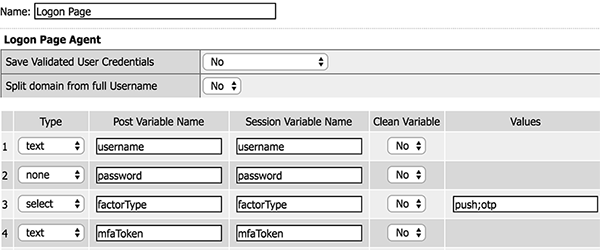
Specify the following settings for the Logon Page item.
Item Type Post variable Session variable Other configuration 1 text username username 2 none password password 3 select factorType factorType Click Values and specify two options: pushandotp. Specify names for identification.4 text mfaToken mfaToken This example shows the logon page item configuration.
-
Click the Branch Rules tab and click Add Branch Rule.
-
Name the branch rule for the push notification, for example
Push Selected. -
Next to Expression: empty click change.
-
Click Advanced.
-
Type the expression for push notifications:
expr { [mcget {subsession.logon.last.factorType}] == "push" }. -
Click Finished.
-
Click Add Branch Rule.
-
Name the branch rule for the one time passcode, for example
OTP Selected. -
Next to Expression: empty click change.
-
Click Advanced.
-
Type the expression for push notifications:
expr { [mcget {subsession.logon.last.factorType}] == "otp" }. -
Click Finished.
-
Click Save.
-
Assign success and failure terminals to the branches.
Continue with the configuration of the subroutine.