


Updated Date: 07/07/2026
How do I deploy changes made to managed objects?
Deploying changes applies the revisions that you have made on the BIG-IQ Centralized Management system to the managed BIG-IP devices.
This figure illustrates the workflow for managing the objects on BIG-IP devices. Deploying the settings is the last step in this process.

To apply the changes you made on the BIG-IQ Centralized Management system to your managed device, you must deploy those changes to the managed device.
-
At the top of the screen, click Deployment.
-
Under EVALUATE & DEPLOY, select the component for which you want to make changes.
The screen displays a list of evaluations and deployments defined on this device.
-
Click the name of the evaluation that you want to deploy.
The View Evaluation screen opens.
-
Scroll down to Deployment, and then use the Schedule controls to specify whether you want to deploy the changes immediately or schedule deployment for later.
- To deploy this change immediately:
- Select Deploy Now.
- Click Deploy to confirm.
- To deploy this change later:
- Select the Schedule for later check box.
- Select the date and time.
- Click Schedule Deployment. The process of deploying changes can take some time, especially if there are a large number of changes. During this time, you can click Cancel to stop the deployment process.
Important: If you cancel a deployment, some of the changes might have already deployed. Cancel does not roll back these changes.
- To deploy this change immediately:
The evaluation you chose is added to the list of deployments on the bottom half of the screen.
- If you chose to deploy immediately, the changes begin to deploy and the Status column updates as it proceeds.
- If you choose to delay deployment, the Status column displays the scheduled date and time.
If you need to make an urgent change, you can skip the Evaluate configuration changes task, and immediately deploy changes to the BIG-IP device. The system still validates changes to configuration objects; if there are critical errors, the deployment does not proceed. But you can avoid the task of creating an evaluation and viewing the changes and get right to deploying your changes.
Note: F5 does not generally recommend making a deployment without evaluating the changes first. However, in situations where you need to deploy changes as quickly as possible, you can deploy the changes right away. The urgent deployment work flow skips the task of creating an evaluation, which speeds up the process of deploying your changes.
-
At the top of the screen, click Deployment.
-
Under EVALUATE & DEPLOY, select Access.
The screen opens a list of APM evaluations and deployments that have been created on this device.
-
Under Deployments, click Create.
The New Deployment screen opens.
-
Type a name Name for the deployment task you are creating.
-
Type a brief Description for the deployment task you are creating.
-
For the Source setting, select what you want to deploy.
- To deploy your changes to the managed device, select Current Changes.
- To deploy the object settings from a stored snapshot, select Existing Snapshot, then choose the snapshot you want to use.
-
For the Unused Objects setting, specify whether you want the system to delete unused objects from the BIG-IP devices that you are deploying changes to.
|**If you do not want the system to delete unused objects:**|select **Keep Unused Objects**.||If you want the system to delete objects not referenced (directly or indirectly) by an object:|leave Remove Unused Objects (the default) selected.|
To understand what an unused object is, consider the following example:
There are two address lists on the BIG-IP device to which you are about to deploy changes (AddressList-a and AddressList-b).
- AddressList-a is referenced by a policy that in turn is referenced by a firewall context.
- AddressList-b is not referenced (directly or indirectly) by any objects. If you leave Remove Unused Objects (the default) selected, then when you deploy changes to the BIG-IP device, AddressList-b is deleted. If you don’t want it deleted, select Keep Unused Objects.
-
For Method, consider one more time how you want to deploy these changes.
- If you want to review the changes, click Create evaluation.
- To make the changes right now, click Deploy immediately.
-
To deploy an Access configuration with associated LTM objects, for Supporting Objects, select Include associated LTM Objects.
-
In the Target settings, from the Group list, select the Access group that you want to evaluate.
Devices in the group display in the field.
-
Move the devices that you want to evaluate to the Selected list.
- If you are evaluating a device that is a member of a cluster that is set to initiate BIG-IP DSC sync at deployment, you can select either member of the HA pair.
- If you are evaluating a device that is a member of a cluster that is set to ignore BIG-IP DSC sync, you should select both devices in the cluster.
-
If you want to apply access policies on each BIG-IP device after deployment, select Automatically apply policies after deployment.
-
Click Deploy to start deployment.
A confirmation screen notifies you that you are about to trigger a deployment.
-
Click Deploy again to deploy the changes to your device.
If you need to make an urgent change, you can skip the Evaluate configuration changes task and immediately deploy changes to the BIG-IP device. The system still validates changes to configuration objects; if there are critical errors, the deployment does not proceed. But you can avoid the task of creating an evaluation and viewing the changes and get right to deploying your changes.
Note: F5 does not generally recommend making a deployment without evaluating the changes first. However, in situations where you need to deploy changes as quickly as possible, you can deploy the changes right away. The urgent deployment work flow skips the task of creating an evaluation, which speeds up the process of deploying your changes.
-
At the top of the screen, click Deployment.
-
Under EVALUATE & DEPLOY, select DNS.
The screen opens a list of DNS evaluations and deployments that have been created on this device.
-
Under Deployments, click Create.
The New Deployment screen opens.
-
Type a name Name for the deployment task you are creating.
-
Type a brief Description for the deployment task you are creating.
-
For the Source setting, select what you want to deploy.
- To deploy your changes to the managed device, select Current Changes.
- To deploy the object settings from a stored snapshot, select Existing Snapshot, then choose the snapshot you want to use.
-
For the Unused Objects setting, specify whether you want the system to delete unused objects from the BIG-IP devices that you are deploying changes to.
|**If you do not want the system to delete unused objects:**|select **Keep Unused Objects**.||If you want the system to delete objects not referenced (directly or indirectly) by an object:|leave Remove Unused Objects (the default) selected.|
To understand what an unused object is, consider the following example:
There are two address lists on the BIG-IP device to which you are about to deploy changes (AddressList-a and AddressList-b).
- AddressList-a is referenced by a policy that in turn is referenced by a firewall context.
- AddressList-b is not referenced (directly or indirectly) by any objects. If you leave Remove Unused Objects (the default) selected, then when you deploy changes to the BIG-IP device, AddressList-b is deleted. If you don’t want it deleted, select Keep Unused Objects.
-
For Method, consider one more time how you want to deploy these changes.
- If you want to review the changes, click Create evaluation.
- To make the changes right now, click Deploy immediately.
-
In the Target area, decide how you want to deploy these changes.
- To deploy the changes to specific devices, click Deploy to Devices. Then move the devices you want from the Available list to the Selected list.
- To deploy the changes to all devices in one or more sync groups, click Deploy to Sync Groups. Then move the sync groups you want from the Available list to the Selected list.
-
If you decide you want to remove one of the objects selected for deployment, you can select it and then click Remove.
-
Click Deploy to start deployment.
A confirmation screen notifies you that you are about to trigger a deployment.
If you need to make an urgent change, you can skip the Evaluate configuration changes task and immediately deploy changes to the BIG-IP device. The system still validates changes to configuration objects validated; if there are critical errors, the deployment does not proceed. But you can avoid the task of creating an evaluation and viewing the changes and get right to deploying your changes.
Note: F5 does not generally recommend making a deployment without evaluating the changes first. However, in situations where you need to deploy changes as quickly as possible, you can deploy the changes right away. The urgent deployment work flow skips the task of creating an evaluation, which speeds up the process of deploying your changes.
-
At the top of the screen, click Deployment.
-
Under EVALUATE & DEPLOY, select Fraud Protection.
The screen opens a list of FPS evaluations and deployments that have been created on this device.
-
Under Deployments, click Create.
The New Deployment screen opens.
-
Type a name Name for the deployment task you are creating.
-
Type a brief Description for the deployment task you are creating.
-
For the Source setting, select what you want to deploy.
- To deploy your changes to the managed device, select Current Changes.
- To deploy the object settings from a stored snapshot, select Existing Snapshot, then choose the snapshot you want to use.
-
For the Unused Objects setting, specify whether you want the system to delete unused objects from the BIG-IP devices that you are deploying changes to.
|**If you do not want the system to delete unused objects:**|select **Keep Unused Objects**.||If you want the system to delete objects not referenced (directly or indirectly) by an object:|leave Remove Unused Objects (the default) selected.|
To understand what an unused object is, consider the following example:
There are two address lists on the BIG-IP device to which you are about to deploy changes (AddressList-a and AddressList-b).
- AddressList-a is referenced by a policy that in turn is referenced by a firewall context.
- AddressList-b is not referenced (directly or indirectly) by any objects. If you leave Remove Unused Objects (the default) selected, then when you deploy changes to the BIG-IP device, AddressList-b is deleted. If you don’t want it deleted, select Keep Unused Objects.
-
From the Available list under Target Devices, select the devices to which you want to deploy changes, and move them to the Selected list.
-
If you selected All Changes, there are a couple more options to specify.
-
Specify whether you want unused objects to be deleted from the BIG-IP devices to which you are deploying changes. If you do not want unused objects to be deleted, select Keep Unused Objects.
To understand what an unused object is, consider the following example:
There are two address lists on the BIG-IP device to which you are about to deploy changes (AddressList-a and AddressList-b).
- AddressList -a is referenced by a policy that is in turn referenced by a firewall context.
- AddressList-b is not referenced (directly or indirectly) by any objects. If you leave Remove Unused Objects (the default) selected, then when you deploy changes to the BIG-IP device, AddressList-b is deleted. If you don’t want it deleted, select Keep Unused Objects.
-
For Method, consider one more time how you want to deploy these changes.
- If you want to review the changes, click Create evaluation.
- To make the changes right now, click Deploy immediately.
-
From the Available list under Target Devices, select the devices to which you want to deploy changes, and move them to the Selected list.
Important: If you deploy changes to a device in a DSC cluster, you must make changes to all devices in the cluster before you can create the evaluation.
-
-
Click Deploy to start deployment.
A confirmation screen notifies you that you are about to trigger a deployment.
-
Click Deploy again to deploy the changes to your device.
If you need to make an urgent change, you can skip the Evaluate configuration changes task and immediately deploy changes to the BIG-IP device. The system still validates changes to configuration objects; if there are critical errors, the deployment does not proceed. But you can avoid the task of creating an evaluation and viewing the changes and get right to deploying your changes.
Note: F5 does not generally recommend making a deployment without evaluating the changes first. However, in situations where you need to deploy changes as quickly as possible, you can deploy the changes right away. The urgent deployment work flow skips the task of creating an evaluation, which speeds up the process of deploying your changes.
-
At the top of the screen, click Deployment.
-
Under EVALUATE & DEPLOY, select Local Traffic & Network.
The screen opens a list of LTM evaluations and deployments that have been created on this device.
-
Under Deployments, click Create.
The New Deployment screen opens.
-
Type a name Name for the deployment task you are creating.
-
Type a brief Description for the deployment task you are creating.
-
For the Source setting, select what you want to deploy.
- To deploy your changes to the managed device, select Current Changes.
- To deploy the object settings from a stored snapshot, select Existing Snapshot, then choose the snapshot you want to use.
-
Determine the Source Scope; that is, choose whether you want to deploy all of the changes from the selected source, or specify which changes to deploy (either All Changes or Partial Changes).
If you choose to do a partial deployment, the screen displays additional controls.
Important: If you select All Changes, skip the rest of this step.
-
If you want to deploy changes only to the selected objects, for Supporting Objects, clear the Include check box. It is almost always best to deploy changes to the associated objects, as well.
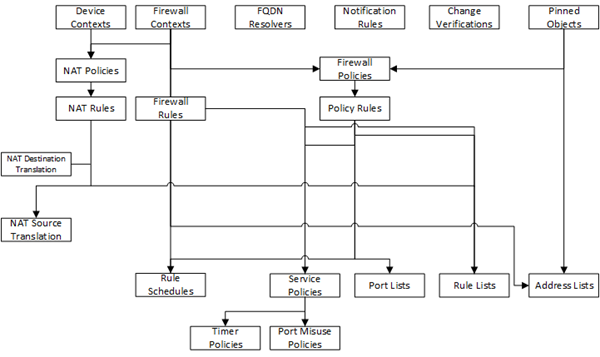
Note: The objects that you manage using BIG-IQ depend on associations with other, supporting objects. These object associations form relationship trees that are sometimes quite complex. Generally, when you deploy a change to a managed object, it is a very good idea to include these supporting objects in the deployment. This diagram illustrates a typical relationship tree for a Network Services managed object. For Local Traffic or Web Application Security objects, the trees are equally complex and just as vital to include.
-
For Method, consider one more time how you want to deploy these changes.
- If you want to review the changes, click Create evaluation.
- To make the changes right now, click Deploy immediately.
-
Under Available, select the object type for which you want to deploy changes.
-
From the list of objects, select the ones that you want to deploy, and move them to the Selected list.
Note: If you include objects in an deployment that have not been changed, the unchanged objects are not deployed to your BIG-IP device. Only objects that have been changed are deployed.
-
If you want to include additional object types in this deployment, repeat the last two sub-steps (steps 3 and 4) for each object type.
-
If you add an object to the deployment and then change your mind, you can move it back to the Available list.
-
Under Target Device(s), click Find Relevant Devices.
Note: The objects you select for deployment determine which devices display in the Available list. You cannot deploy a device-specific object (like a pool) to a device on which it does not already exist. You can deploy a shared object (like a profile) to a device on which it does not exist, as long as the shared object is referenced by an object on that device. For example, consider a device (BIG-IP1) with a virtual server (Virt1). If you add a profile named Pro1 to Virt1, then BIG-IP1 will appear in the list of devices that you can deploy changes to.
BIG-IQ lists all devices to which you can deploy the selected objects.
-
From the list of relevant devices, select the devices that you want to deploy these changes to, and move them to the Selected list.
-
-
If you selected All Changes, there are a couple more options to specify.
-
Specify whether you want unused objects to be deleted from the BIG-IP devices to which you are deploying changes. If you do not want unused objects to be deleted, select Keep Unused Objects.
To understand what an unused object is, consider the following example:
There are two address lists on the BIG-IP device to which you are about to deploy changes (AddressList-a and AddressList-b).
- AddressList -a is referenced by a policy that is in turn referenced by a firewall context.
- AddressList-b is not referenced (directly or indirectly) by any objects. If you leave Remove Unused Objects (the default) selected, then when you deploy changes to the BIG-IP device, AddressList-b is deleted. If you don’t want it deleted, select Keep Unused Objects.
-
For Method, consider one more time how you want to deploy these changes.
- If you want to review the changes, click Create evaluation.
- To make the changes right now, click Deploy immediately.
-
From the Available list under Target Devices, select the devices to which you want to deploy changes, and move them to the Selected list.
Important: If you deploy changes to a device in a DSC cluster, you must make changes to all devices in the cluster before you can create the evaluation.
-
-
Click Deploy to start deployment.
A confirmation screen notifies you that you are about to trigger a deployment.
-
Click Deploy again to deploy the changes to your device.
If you need to make an urgent change, you can skip the Evaluate configuration changes task and immediately deploy changes to the BIG-IP device. The system still validates changes to configuration objects; if there are critical errors, the deployment does not proceed. But you can avoid the task of creating an evaluation and viewing the changes and get right to deploying your changes.
Note: F5 does not generally recommend making a deployment without evaluating the changes first. However, in situations where you need to deploy changes as quickly as possible, you can deploy the changes right away. The urgent deployment work flow skips the task of creating an evaluation, which speeds up the process of deploying your changes.
-
At the top of the screen, click Deployment.
-
Under EVALUATE & DEPLOY, select Network Security.
The screen opens a list of Network Security evaluations and deployments that have been created on this device.
-
Under Deployments, click Create.
The New Deployment screen opens.
-
Type a name Name for the deployment task you are creating.
-
Type a brief Description for the deployment task you are creating.
-
For the Source setting, select what you want to deploy.
- To deploy your changes to the managed device, select Current Changes.
- To deploy the object settings from a stored snapshot, select Existing Snapshot, then choose the snapshot you want to use.
-
Determine the Source Scope; that is, choose whether you want to deploy all of the changes from the selected source, or specify which changes to deploy (either All Changes or Partial Changes).
If you choose to do a partial deployment, the screen displays additional controls.
Important: If you select All Changes, skip the rest of this step.
-
If you want to deploy changes only to the selected objects, for Supporting Objects, clear the Include check box. It is almost always best to deploy changes to the associated objects, as well.
Note: The objects that you manage using BIG-IQ depend on associations with other, supporting objects. These object associations form relationship trees that are sometimes quite complex. Generally, when you deploy a change to a managed object, it is a very good idea to include these supporting objects in the deployment. This diagram illustrates a typical relationship tree for a Network Services managed object. For Local Traffic or Web Application Security objects, the trees are equally complex and just as vital to include.
-
For Method, consider one more time how you want to deploy these changes.
- If you want to review the changes, click Create evaluation.
- To make the changes right now, click Deploy immediately.
-
Under Available, select the object type for which you want to deploy changes.
-
From the list of objects, select the ones that you want to deploy, and move them to the Selected list.
Note: If you include objects in an deployment that have not been changed, the unchanged objects are not deployed to your BIG-IP device. Only objects that have been changed are deployed.
-
If you want to include additional object types in this deployment, repeat the last two sub-steps (steps 3 and 4) for each object type.
-
If you add an object to the deployment and then change your mind, you can move it back to the Available list.
-
Under Target Device(s), click Find Relevant Devices.
Note: The objects you select for deployment determine which devices display in the Available list. You cannot deploy a device-specific object (like a pool) to a device on which it does not already exist. You can deploy a shared object (like a profile) to a device on which it does not exist, as long as the shared object is referenced by an object on that device. For example, consider a device (BIG-IP1) with a virtual server (Virt1). If you add a profile named Pro1 to Virt1, then BIG-IP1 will appear in the list of devices that you can deploy changes to.
BIG-IQ lists all devices to which you can deploy the selected objects.
-
From the list of relevant devices, select the devices that you want to deploy these changes to, and move them to the Selected list.
-
-
If you selected All Changes, there are a couple more options to specify.
-
Specify whether you want unused objects to be deleted from the BIG-IP devices to which you are deploying changes. If you do not want unused objects to be deleted, select Keep Unused Objects.
To understand what an unused object is, consider the following example:
There are two address lists on the BIG-IP device to which you are about to deploy changes (AddressList-a and AddressList-b).
- AddressList -a is referenced by a policy that is in turn referenced by a firewall context.
- AddressList-b is not referenced (directly or indirectly) by any objects. If you leave Remove Unused Objects (the default) selected, then when you deploy changes to the BIG-IP device, AddressList-b is deleted. If you don’t want it deleted, select Keep Unused Objects.
-
For Method, consider one more time how you want to deploy these changes.
- If you want to review the changes, click Create evaluation.
- To make the changes right now, click Deploy immediately.
-
From the Available list under Target Devices, select the devices to which you want to deploy changes, and move them to the Selected list.
Important: If you deploy changes to a device in a DSC cluster, you must make changes to all devices in the cluster before you can create the evaluation.
-
-
If you selected All Changes, there are a couple more options to specify.
-
Specify whether you want unused objects to be deleted from the BIG-IP devices to which you are deploying changes. If you do not want unused objects to be deleted, select Keep Unused Objects.
To understand what an unused object is, consider the following example:
There are two address lists on the BIG-IP device to which you are about to deploy changes (AddressList-a and AddressList-b).
- AddressList -a is referenced by a policy that is in turn referenced by a firewall context.
- AddressList-b is not referenced (directly or indirectly) by any objects. If you leave Remove Unused Objects (the default) selected, then when you deploy changes to the BIG-IP device, AddressList-b is deleted. If you don’t want it deleted, select Keep Unused Objects.
-
For Method, consider one more time how you want to deploy these changes.
- If you want to review the changes, click Create evaluation.
- To make the changes right now, click Deploy immediately.
-
From the Available list under Target Devices, select the devices to which you want to deploy changes, and move them to the Selected list.
Important: If you deploy changes to a device in a DSC cluster, you must make changes to all devices in the cluster before you can create the evaluation.
-
-
Click Deploy to start deployment.
A confirmation screen notifies you that you are about to trigger a deployment.
-
Click Deploy again to deploy the changes to your device.
If you need to make an urgent change, you can skip the Evaluate configuration changes task and immediately deploy changes to the BIG-IP device. The system still validates changes to configuration objects; if there are critical errors, the deployment does not proceed. But you can avoid the task of creating an evaluation and viewing the changes and get right to deploying your changes.
Note: F5 does not generally recommend making a deployment without evaluating the changes first. However, in situations where you need to deploy changes as quickly as possible, you can deploy the changes right away. The urgent deployment work flow skips the task of creating an evaluation, which speeds up the process of deploying your changes.
-
At the top of the screen, click Deployment.
-
Under EVALUATE & DEPLOY, select Shared Security.
The screen opens a list of Shared Security evaluations and deployments that have been created on this device.
-
Under Deployments, click Create.
The New Deployment screen opens.
-
Type a name Name for the deployment task you are creating.
-
Type a brief Description for the deployment task you are creating.
-
For the Source setting, select what you want to deploy.
- To deploy your changes to the managed device, select Current Changes.
- To deploy the object settings from a stored snapshot, select Existing Snapshot, then choose the snapshot you want to use.
-
Determine the Source Scope; that is, choose whether you want to deploy all of the changes from the selected source, or specify which changes to deploy (either All Changes or Partial Changes).
If you choose to do a partial deployment, the screen displays additional controls.
Important: If you select All Changes, skip the rest of this step.
-
If you want to deploy changes only to the selected objects, for Supporting Objects, clear the Include check box. It is almost always best to deploy changes to the associated objects, as well.
Note: The objects that you manage using BIG-IQ depend on associations with other, supporting objects. These object associations form relationship trees that are sometimes quite complex. Generally, when you deploy a change to a managed object, it is a very good idea to include these supporting objects in the deployment. This diagram illustrates a typical relationship tree for a Network Services managed object. For Local Traffic or Web Application Security objects, the trees are equally complex and just as vital to include.
-
For Method, consider one more time how you want to deploy these changes.
- If you want to review the changes, click Create evaluation.
- To make the changes right now, click Deploy immediately.
-
Under Available, select the object type for which you want to deploy changes.
-
From the list of objects, select the ones that you want to deploy, and move them to the Selected list.
Note: If you include objects in an deployment that have not been changed, the unchanged objects are not deployed to your BIG-IP device. Only objects that have been changed are deployed.
-
If you want to include additional object types in this deployment, repeat the last two sub-steps (steps 3 and 4) for each object type.
-
If you add an object to the deployment and then change your mind, you can move it back to the Available list.
-
Under Target Device(s), click Find Relevant Devices.
Note: The objects you select for deployment determine which devices display in the Available list. You cannot deploy a device-specific object (like a pool) to a device on which it does not already exist. You can deploy a shared object (like a profile) to a device on which it does not exist, as long as the shared object is referenced by an object on that device. For example, consider a device (BIG-IP1) with a virtual server (Virt1). If you add a profile named Pro1 to Virt1, then BIG-IP1 will appear in the list of devices that you can deploy changes to.
BIG-IQ lists all devices to which you can deploy the selected objects.
-
From the list of relevant devices, select the devices that you want to deploy these changes to, and move them to the Selected list.
-
-
If you selected All Changes, there are a couple more options to specify.
-
Specify whether you want unused objects to be deleted from the BIG-IP devices to which you are deploying changes. If you do not want unused objects to be deleted, select Keep Unused Objects.
To understand what an unused object is, consider the following example:
There are two address lists on the BIG-IP device to which you are about to deploy changes (AddressList-a and AddressList-b).
- AddressList -a is referenced by a policy that is in turn referenced by a firewall context.
- AddressList-b is not referenced (directly or indirectly) by any objects. If you leave Remove Unused Objects (the default) selected, then when you deploy changes to the BIG-IP device, AddressList-b is deleted. If you don’t want it deleted, select Keep Unused Objects.
-
For Method, consider one more time how you want to deploy these changes.
- If you want to review the changes, click Create evaluation.
- To make the changes right now, click Deploy immediately.
-
From the Available list under Target Devices, select the devices to which you want to deploy changes, and move them to the Selected list.
Important: If you deploy changes to a device in a DSC cluster, you must make changes to all devices in the cluster before you can create the evaluation.
-
-
If you selected All Changes, there are a couple more options to specify.
-
Specify whether you want unused objects to be deleted from the BIG-IP devices to which you are deploying changes. If you do not want unused objects to be deleted, select Keep Unused Objects.
To understand what an unused object is, consider the following example:
There are two address lists on the BIG-IP device to which you are about to deploy changes (AddressList-a and AddressList-b).
- AddressList -a is referenced by a policy that is in turn referenced by a firewall context.
- AddressList-b is not referenced (directly or indirectly) by any objects. If you leave Remove Unused Objects (the default) selected, then when you deploy changes to the BIG-IP device, AddressList-b is deleted. If you don’t want it deleted, select Keep Unused Objects.
-
For Method, consider one more time how you want to deploy these changes.
- If you want to review the changes, click Create evaluation.
- To make the changes right now, click Deploy immediately.
-
From the Available list under Target Devices, select the devices to which you want to deploy changes, and move them to the Selected list.
Important: If you deploy changes to a device in a DSC cluster, you must make changes to all devices in the cluster before you can create the evaluation.
-
-
Click Deploy to start deployment.
A confirmation screen notifies you that you are about to trigger a deployment.
-
Click Deploy again to deploy the changes to your device.
If you need to make an urgent change, you can skip the Evaluate configuration changes task and immediately deploy changes to the BIG-IP device. The system still validates changes to configuration objects; if there are critical errors, the deployment does not proceed. But you can avoid the task of creating an evaluation and viewing the changes and get right to deploying your changes.
Note: F5 does not generally recommend making a deployment without evaluating the changes first. However, in situations where you need to deploy changes as quickly as possible, you can deploy the changes right away. The urgent deployment work flow skips the task of creating an evaluation, which speeds up the process of deploying your changes.
-
At the top of the screen, click Deployment.
-
Under EVALUATE & DEPLOY, select Web Application Security.
The screen opens a list of ASM evaluations and deployments that have been created on this device.
-
Under Deployments, click Create.
The New Deployment screen opens.
-
Type a name Name for the deployment task you are creating.
-
Type a brief Description for the deployment task you are creating.
-
For the Source setting, select what you want to deploy.
- To deploy your changes to the managed device, select Current Changes.
- To deploy the object settings from a stored snapshot, select Existing Snapshot, then choose the snapshot you want to use.
-
Determine the Source Scope; that is, choose whether you want to deploy all of the changes from the selected source, or specify which changes to deploy (either All Changes or Partial Changes).
If you choose to do a partial deployment, the screen displays additional controls.
Important: If you select All Changes, skip the rest of this step.
-
If you want to deploy changes only to the selected objects, for Supporting Objects, clear the Include check box. It is almost always best to deploy changes to the associated objects, as well.
Note: The objects that you manage using BIG-IQ depend on associations with other, supporting objects. These object associations form relationship trees that are sometimes quite complex. Generally, when you deploy a change to a managed object, it is a very good idea to include these supporting objects in the deployment. This diagram illustrates a typical relationship tree for a Network Services managed object. For Local Traffic or Web Application Security objects, the trees are equally complex and just as vital to include.
-
For Method, consider one more time how you want to deploy these changes.
- If you want to review the changes, click Create evaluation.
- To make the changes right now, click Deploy immediately.
-
Under Available, select the object type for which you want to deploy changes.
-
From the list of objects, select the ones that you want to deploy, and move them to the Selected list.
Note: If you include objects in an deployment that have not been changed, the unchanged objects are not deployed to your BIG-IP device. Only objects that have been changed are deployed.
-
If you want to include additional object types in this deployment, repeat the last two sub-steps (steps 3 and 4) for each object type.
-
If you add an object to the deployment and then change your mind, you can move it back to the Available list.
-
Under Target Device(s), click Find Relevant Devices.
Note: The objects you select for deployment determine which devices display in the Available list. You cannot deploy a device-specific object (like a pool) to a device on which it does not already exist. You can deploy a shared object (like a profile) to a device on which it does not exist, as long as the shared object is referenced by an object on that device. For example, consider a device (BIG-IP1) with a virtual server (Virt1). If you add a profile named Pro1 to Virt1, then BIG-IP1 will appear in the list of devices that you can deploy changes to.
BIG-IQ lists all devices to which you can deploy the selected objects.
-
From the list of relevant devices, select the devices that you want to deploy these changes to, and move them to the Selected list.
-
-
If you selected All Changes, there are a couple more options to specify.
-
Specify whether you want unused objects to be deleted from the BIG-IP devices to which you are deploying changes. If you do not want unused objects to be deleted, select Keep Unused Objects.
To understand what an unused object is, consider the following example:
There are two address lists on the BIG-IP device to which you are about to deploy changes (AddressList-a and AddressList-b).
- AddressList-a is referenced by a policy that is in turn referenced by a firewall context.
- AddressList-b is not referenced (directly or indirectly) by any objects. If you leave Remove Unused Objects (the default) selected, then when you deploy changes to the BIG-IP device, AddressList-b is deleted. If you don’t want it deleted, select Keep Unused Objects.
-
For Method, consider one more time how you want to deploy these changes.
- If you want to review the changes, click Create evaluation.
- To make the changes right now, click Deploy immediately.
-
You can filter the list of available devices, so that only BIG-IP devices that own objects that have been changed and are provisioned with ASM are displayed. To filter the available devices list, click Select Modified ASM Devices.
-
From the Available list under Target Devices, select the devices to which you want to deploy changes, and move them to the Selected list.
Important: If you deploy changes to a device in a DSC cluster, you must make changes to all devices in the cluster before you can create the evaluation.
-
-
If you selected All Changes, there are a couple more options to specify.
-
Specify whether you want unused objects to be deleted from the BIG-IP devices to which you are deploying changes. If you do not want unused objects to be deleted, select Keep Unused Objects.
To understand what an unused object is, consider the following example:
There are two address lists on the BIG-IP device to which you are about to deploy changes (AddressList-a and AddressList-b).
- AddressList -a is referenced by a policy that is in turn referenced by a firewall context.
- AddressList-b is not referenced (directly or indirectly) by any objects. If you leave Remove Unused Objects (the default) selected, then when you deploy changes to the BIG-IP device, AddressList-b is deleted. If you don’t want it deleted, select Keep Unused Objects.
-
For Method, consider one more time how you want to deploy these changes.
- If you want to review the changes, click Create evaluation.
- To make the changes right now, click Deploy immediately.
-
From the Available list under Target Devices, select the devices to which you want to deploy changes, and move them to the Selected list.
Important: If you deploy changes to a device in a DSC cluster, you must make changes to all devices in the cluster before you can create the evaluation.
-
-
Click Deploy to start deployment.
A confirmation screen notifies you that you are about to trigger a deployment.
-
Click Deploy again to deploy the changes to your device.
Deploying changes to a device in a cluster that has a device offline will generally fail. Normally, all device members must be available before you deploy changes to a cluster member. However, if you need to deploy changes before all cluster members are available, you can do so.
-
At the top of the screen, click Deployment.
-
Under Device Name, click the cluster member to which you want to deploy changes.
The properties screen for this member opens.
-
Under Cluster Properties, click Edit.
The Cluster Properties popup screen for this cluster opens.
-
For Deployment Settings, select Ignore BIG-IP DSC sync when deploying configuration changes.
-
Click OK, and then click Close.
With the Ignore BIG-IP DSC sync when deploying configuration changes option selected, you can now deploy changes to unavailable members, and BIG-IQ does not attempt to sync those changes.
Use the Deploy configuration changes task to deploy changes to the available member. When you select the target device for deployment, do not select the unavailable device. If you do, the deployment will generate the following error: Difference operation failed: Object <name here> specified in request refers to a device not specified in request.
You can only deploy objects to devices that are online. Once you restore the device and it is online again, you can use the Deploy configuration changes task to deploy changes to that device.