


Updated Date: 07/07/2026
Managing Configuration Snapshots
On the BIG-IQ, a configuration object snapshot is a backup copy of the module-specific object configuration settings that the BIG-IQ uses. You can create a snapshot of the current object configurations defined on the BIG-IQ to provide yourself a restore point. With this restore point, you can freely experiment with configuration settings, knowing that you can easily restore the BIG-IQ back to a known good collection of configuration settings.
Note: Before you proceed, keep in mind that there are several different ways to make backups of your data. Each of these methods backs up different things and is documented separately.
| For type of Backup | Look here for the documentation |
|---|---|
| Configuration object snapshots back up the settings for configuration objects that reside on your managed BIG-IP devices. | This task is detailed in this guide. |
| DCD snapshots back up the alert, event, and analytics data collected by your DCDs. | Refer to Managing Data Collection Device Snapshots in the Setting up and Configuring a BIG-IQ Centralized Management Solution article on support.f5.com for details. |
| To back up the entire configuration of a managed BIG-IP device, you create a compressed user configuration set (UCS). | Refer to Managing BIG-IP UCS Backup and Restore in the Managing BIG-IP Devices from BIG-IQ article on support.f5.com for details. |
| To back up the entire configuration of a BIG-IQ system, you create a compressed user configuration set (UCS). | Refer to Managing BIG-IQ UCS Backup and Restore in the Setting up and Configuring a BIG-IQ Centralized Management Solution article on support.f5.com for details. |
Note: As with most other object configuration settings, creating a snapshot or restoring from a snapshot does nothing to the object settings on the managed device until and unless you deploy those settings to the managed device.
This table shows common configuration object snapshot work flow tasks and descriptions.
| Task | Description | For details on this task |
|---|---|---|
| Create Snapshot | Creating a snapshot makes a copy of the configuration settings that the BIG-IQ currently has stored for the objects on a managed device. | Refer to Create a snapshot on support.f5.com. |
| Compare Snapshot | You can either compare a snapshot to the present BIG-IQ object configuration settings, or you can compare two snapshots. | Refer to Compare snapshots on support.f5.com. |
| Restore | When you want to revert configuration settings, choose a snapshot that contains the settings you want, and restore them. | Refer to Restore some objects from a snapshotor Restore all objects from a snapshot on support.f5.com. |
| Deploy | If the configuration changes you are reverting were deployed to a managed device or if you are reverting after importing objects from a managed device, you need to deploy the settings to the managed device to get back to the known good state that you used to create the snapshot. | Refer to Create a snapshot on support.f5.com. |
Note: Configuration snapshots are created manually. This type of snapshot does not include events or alerts.
Note: If an Access group version changes to a later BIG-IQ version and you attempt to restore a snapshot created during the previous version, then restoring that snapshot can cause working configuration changes that can cause a deployment failure.
You create a configuration snapshot to compare it to another configuration snapshot, or so you can save the current working configuration and then restore from that snapshot if needed.
You create a configuration snapshot to preserve the configuration at that point. There are three things you can do with a snapshot:
- Deploy the preserved configuration to a managed device.
- Restore the BIG-IQ Centralized Management device’s current configuration to the preserved configuration.
- Compare the preserved configuration to the BIG-IQ device’s current configuration to see what has changed.
-
At the top of the screen, click Deployment.
-
Expand SNAPSHOTS, and then select the component from which to create the snapshot.
The screen displays a list of snapshots that have been created for the selected component on this device.
-
Click the Create button.
The New Snapshot screen opens.
-
Supply the values on the New Snapshot screen, and click Create.
The system creates the snapshot and adds it to the list of snapshots on the Snapshot screen, along with information related to the snapshot, including the date it was created, what account created it, and any description.
You can compare two snapshots, or compare a snapshot to the configuration on the BIG-IQ Centralized Management system to view their differences.
-
Under SNAPSHOT & RESTORE, select Access.
The screen displays a list of Access snapshots that have been created on this device.
-
Select the check box to the left of the snapshot that you want to use as the source snapshot.
-
Click the Compare button.
The Differences screen opens.
-
Analyze the configuration differences between the snapshot and the comparison target. When you are finished, click Cancel to close the Differences screen, then click Close.
The screen closes and you return to the Snapshot screen.
You can restore a snapshot to change the working configuration to that of the snapshot. Restoring the snapshot merges objects from the snapshot into the BIG-IQ Centralized Management configuration and removes all active locks. No objects in the BIG-IQ configuration are removed. Once the restore process starts, you cannot modify the BIG-IQ configuration until the process is completed or canceled. If the process is canceled, all configuration settings are rolled back.
Important: Restoring a snapshot in one component can impact other components that have dependent configuration objects. We recommend that when you restore configurations that involve multiple components, you use snapshots that were created at approximately the same time. Restoring the Local Traffic & Network component can require a restore of other dependent components.
If you are restoring a snapshot for Local Traffic & Network, Network Security, or Web Application Security, you can select specific objects to restore. This process is called partial restore. For example, you might have changed hundreds of configuration objects since you created a specific snapshot, but by doing a partial restore, you could bring back the settings for twenty five of them.
There is another reason you might choose to do a partial restore. With a partial restore, you can either restore the snapshot immediately, or you can create a snapshot evaluation. You can use an evaluation to review the differences between a snapshot and the current working configuration and confirm that you are restoring to the preserved configuration that you are looking for.
-
At the top of the screen, click Deployment.
-
Expand RESTORE, and click the component that contains the snapshot to restore.
The screen displays a list of snapshot restores and evaluations that have been created for the selected component on this device.
-
Under Partial Restore Evaluations, click Create.
The New Evaluation screen opens.
-
For Name, type a name for the snapshot restore.
-
For Description, describe the snapshot restore.
-
For Snapshot, select the snapshot you want to restore to.
-
If you want to create a snapshot that you can use to get back to your current configuration after the restore, for Create Snapshot, select Create a snapshot prior to restoring.
-
If you want the system to assess what the impact of deploying this snapshot would be on the managed devices, forOffline Verification, select Run offline verification after restore.
-
For the Restore Scope, select Partial Restore.
The screen displays additional settings.
-
Click Add to specify which configuration changes to restore.
-
On the Available tab, select the object type that you want to restore.
-
From the list of configuration changes, select the objects that you want to restore and click Add.
-
If there are additional object types you want to include in this restore, repeat the last two steps for each object type.
-
If you add an object to the restore and then change your mind, you can click the Selected tab, select the object, and click Remove.
-
When you have added all of the changes that you want to include in this restore, click Save.
The objects you selected for inclusion are listed under Source Objects.
-
For Supporting Objects, your options depend on the component you are restoring.
|**For Web Application Security**|Supporting objects are always included.||For Network Security or Local Traffic & Network|Clear the Include check box if you want to restore changes only to the selected objects. It is almost always best to restore changes to the associated objects as well.|
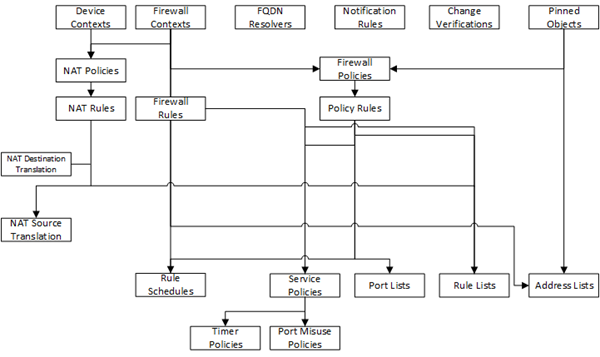
Important: The objects that you manage using the BIG-IQ depend on associations with other, supporting objects. These object associations form relationship trees that are sometimes quite complex. Generally, when you restore a change to a managed object it is a very good idea to include these supporting objects in the deployment. This diagram illustrates a typical relationship tree for Network Services managed objects. For Local Traffic and Web Application Security, the trees are equally complex and just as vital to include.
-
If you decide you want to remove one of the objects selected for restoration, you can select it and then click Remove.
-
You can either create an evaluation of the restore and review it, or restore the snapshot immediately. For Method, select Create Evaluation or Restore immediately.
-
Click Create.
|**If you selected **Create Evaluation****| 1. The confirmation screen notifies you that you are about to create an evaluation. <br>2. Click **Evaluate**. The evaluation is added to the Evaluations list with a status of Pending confirmation.
Note: This process might take some time. You can cancel it if you change your mind.
3.  To review the changes between the snapshot and the current working configuration, click **View**.
4.  If you decide to complete this restoration, select this snapshot evaluation, and click **Restore**. When the restore finishes, the snapshot restore you created is listed under Restores with a status of Restore complete.
|**If you selected **Restore immediately****|    1.  The confirmation screen notifies you that you are about to trigger a snapshot restore. <br>2. Click **Restore**. The restore process begins. <br>**Note:** This process might take some time. You can cancel it if you change your mind.
You can restore a snapshot to change the working configuration to that of the snapshot. Restoring the snapshot merges objects from the snapshot into the BIG-IQ Centralized Management configuration, and removes all active locks. No objects in the BIG-IQ configuration are removed. Once the restore process starts, you cannot modify the BIG-IQ configuration until the process is completed or canceled. If the process is canceled, all configuration settings are rolled back.
Important: Restoring a snapshot in one component can impact other components that have dependent configuration objects. We recommend that when you restore configurations that involve multiple components, you use snapshots that were created at approximately the same time. Restoring the Local Traffic & Network component can require a restore of other dependent components.
-
At the top of the screen, click Deployment.
-
Expand RESTORE, and click the component that contains the snapshot to restore.
The screen displays a list of snapshot restores and evaluations that have been created for the selected component on this device.
-
Under Restores, click Create.
-
For Name, type a name for the snapshot restore.
-
For Description, describe the snapshot restore.
-
For Snapshot, select the snapshot you want to restore to.
-
If you want to create a snapshot that you can use to get back to your current configuration after the restore, for Create Snapshot, select Create a snapshot prior to restoring,.
-
If you want the system to assess what the impact of deploying this snapshot would be on the managed devices. for Offline Verification, select Run offline verification after restore.
-
For Restore Scope, select Full Restore.
-
Click Restore.
The confirmation screen notifies you that you are about to trigger a snapshot restore.
-
Click Restore to begin the restore process.
Note: This process might take some time. You can cancel it if you change your mind.