


Updated Date: 06/30/2026
Downgrade Software
Before you downgrade the F5OS software on your system:
- Back up your system and tenant configurations.
- Export your backups to a safe, off-unit location.
- Upload system image files to the system before the scheduled maintenance window to minimize the time needed to downgrade.
- F5OS- v2.0.0 or later support password hashing algorithm. Before you downgrade to F5OS-A v1.8.3/ F5OS-C 1.8.2 or lower versions of software, ensure that you delete the password hashing algorithm and reset your password.
You can use the CLI to perform a downgrade of F5OS software to an earlier version.
Before you downgrade your system software, verify that you have downloaded and imported the F5OS-A image files from F5 Downloads.
If necessary, you can return to a previous version of F5OS-A software on an F5 rSeries system from the CLI.
-
Connect to the system using a management console or console server.
Note: The default baud rate and serial port configuration is 19200/8-N-1.
-
Log in to the command line interface (CLI) of the system using an account with admin access.
When you log in to the system, you are in user (operational) mode.
-
Verify that the Base OS image you want to install is listed, and the status is
ready.show system imageA summary similar to this excerpt displays:
appliance-1# show system image IN VERSION OS STATUS DATE SIZE USE ------------------------------------------------- 1.3.0-4567 ready 2022-10-05 921.22MB true 1.2.0-3456 ready 2022-09-27 921.19MB false VERSION IN SERVICE STATUS DATE SIZE USE ----------------------------------------------- 1.3.0-4567 ready 2022-10-05 2.12GB true 1.2.0-3456 ready 2022-09-27 2.05GB false VERSION IN ISO STATUS DATE SIZE USE ----------------------------------------------- 1.3.0-4567 ready 2022-10-05 3.63GB false 1.2.0-3456 ready 2022-09-27 3.56GB false -
Change to config mode.
configThe CLI prompt changes to include
(config). -
Set the ISO version to the new version.
system image set-version iso-version <*version*>Note: By default, you will be prompted to confirm the downgrade.
This example shows downgrading the ISO version:
appliance-1(config)# system image set-version iso-version 1.2.0-3456 -
When the compatibility check succeeds, type
yesto proceed with the installation process.A summary similar to this excerpt displays:
appliance-1(config)# system image set-version iso-version 1.2.0-3456
Changing software version will trigger system reboot and interrupt tenant
operation. Proceed? [yes/no]: yes
response System ISO version has been set
Note: If you are switching between a FIPS license and a non-FIPS license, the following message appears:
As part of the application or removal of a FIPS license, an automatic secure-erase operation will be performed. This will IRREVERSIBLY DESTROY all partitions, resulting in the permanent deletion of all tenants followed by a system reboot. Previously created F5OS backup files will be INVALIDATED, unless specific action is taken to restore the prior primary key using the same passphrase and salt as before. Enter yes to continue license installation with a secure-erase operation performed.
The system installs the selected version and reboots. This results in a temporary service outage.
You can use the webUI to perform a downgrade of F5OS software to an earlier version.
Before you downgrade your system software, verify that you have downloaded and imported the F5OS-A image files from F5 Downloads.
If necessary, you can return to a previous version of F5OS-A software on an F5 rSeries system from the webUI.
-
Log in to the webUI using an account with admin access.
-
On the left, click System Settings > Software Management.
-
In the ‘Base OS Software’ card click on the ‘Upgrade’ button. It opens a drawer form:
- To install a full F5OS-A version release, select Bundled.
- To install F5OS-A and service version releases independently, select Unbundled.
-
For ISO Image, select the full version release ISO image from the drop-down.
This field is available when Bundled is selected.
-
For Base OS Version, select the F5OS version from the drop-down.
This field is available when Unbundled is selected.
-
For Service Version, select the service version release from the drop-down.
This field is available when Unbundled is selected.
-
Click Save
Note: If you are switching between a FIPS license and a non-FIPS license, the following message appears:
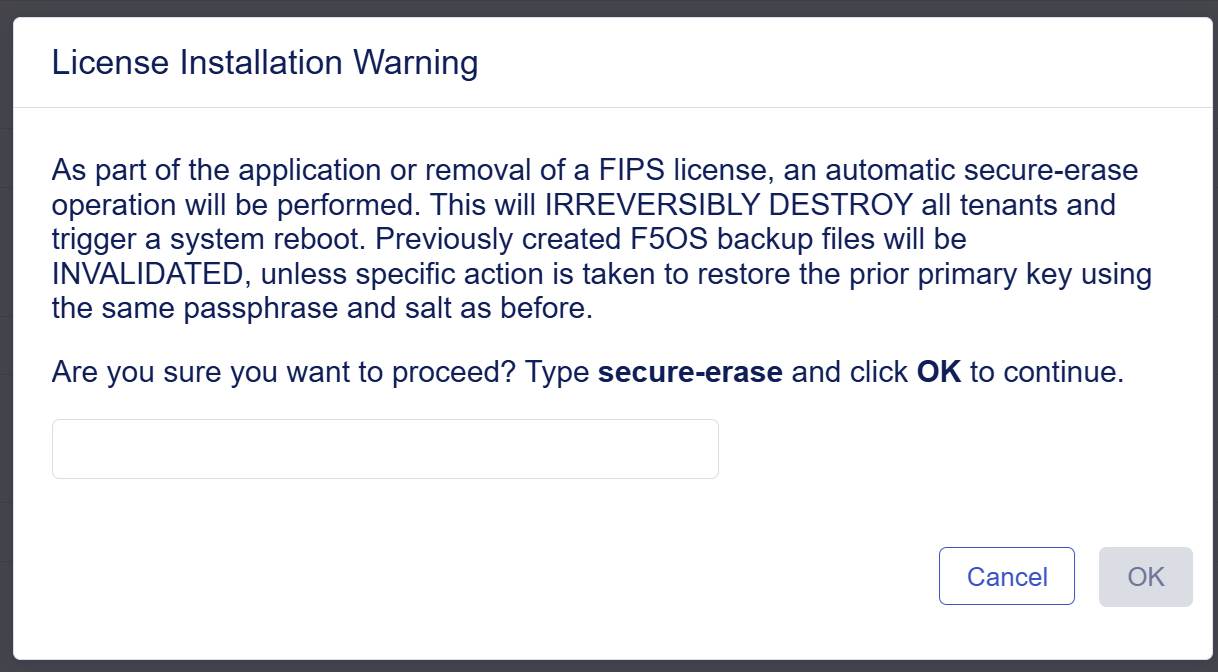
Click OK to continue license installation with a secure-erase operation performed.
The system is now licensed. If a base registration key or add-on key fails to activate, try re-activating the license or contact support.f5.com.
The system installs the selected version and reboots. This results in a temporary service outage.