


Updated Date: 06/16/2026
Manual Deployment
Follow these steps to manually install F5 Access on limited Mac devices.
-
Install the F5Access.pkg on the Mac using the native installation process.
-
Launch the application.
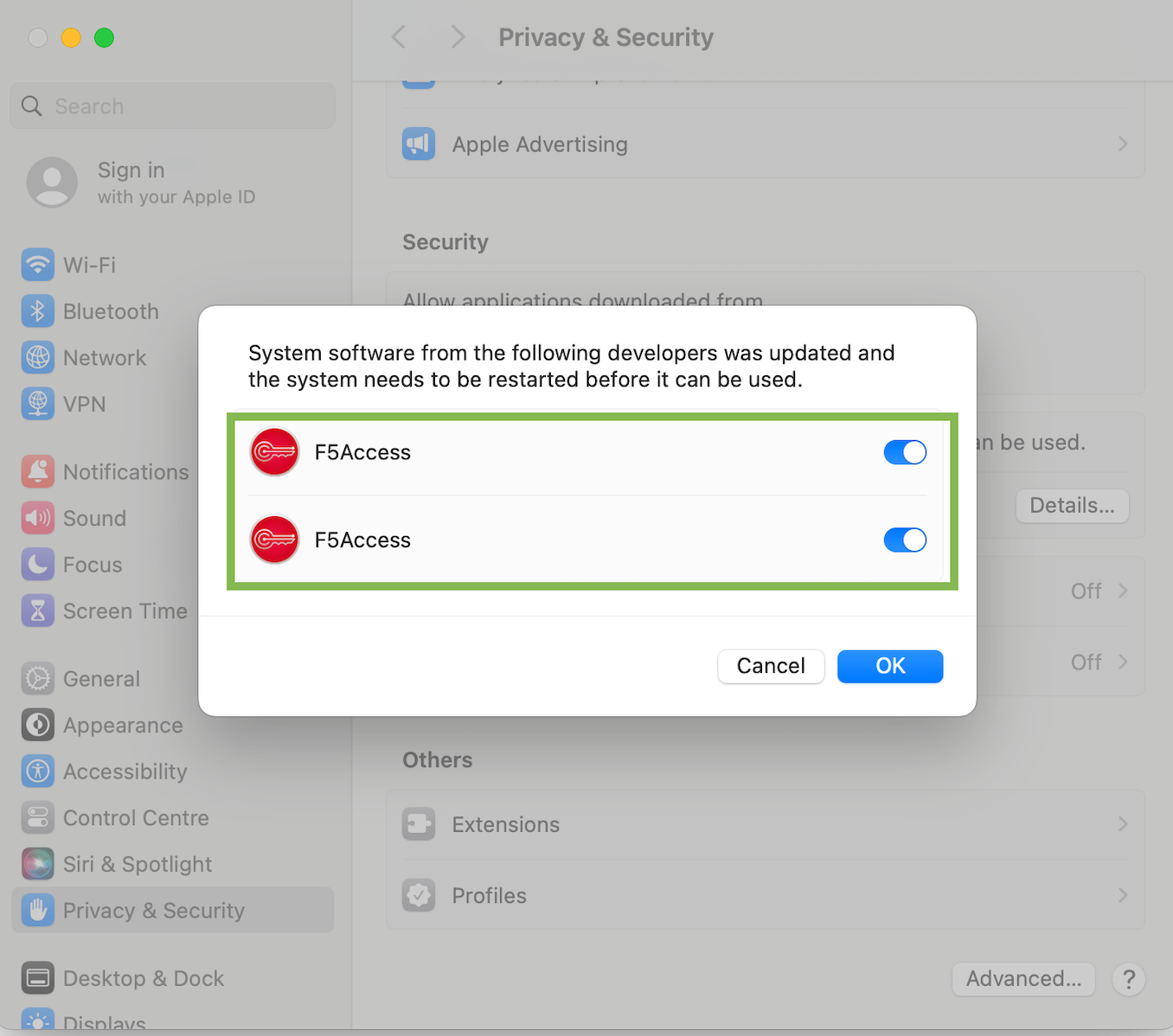
You will receive system extension prompts twice (for PacketTunnel and DNSRelayProxy extensions).
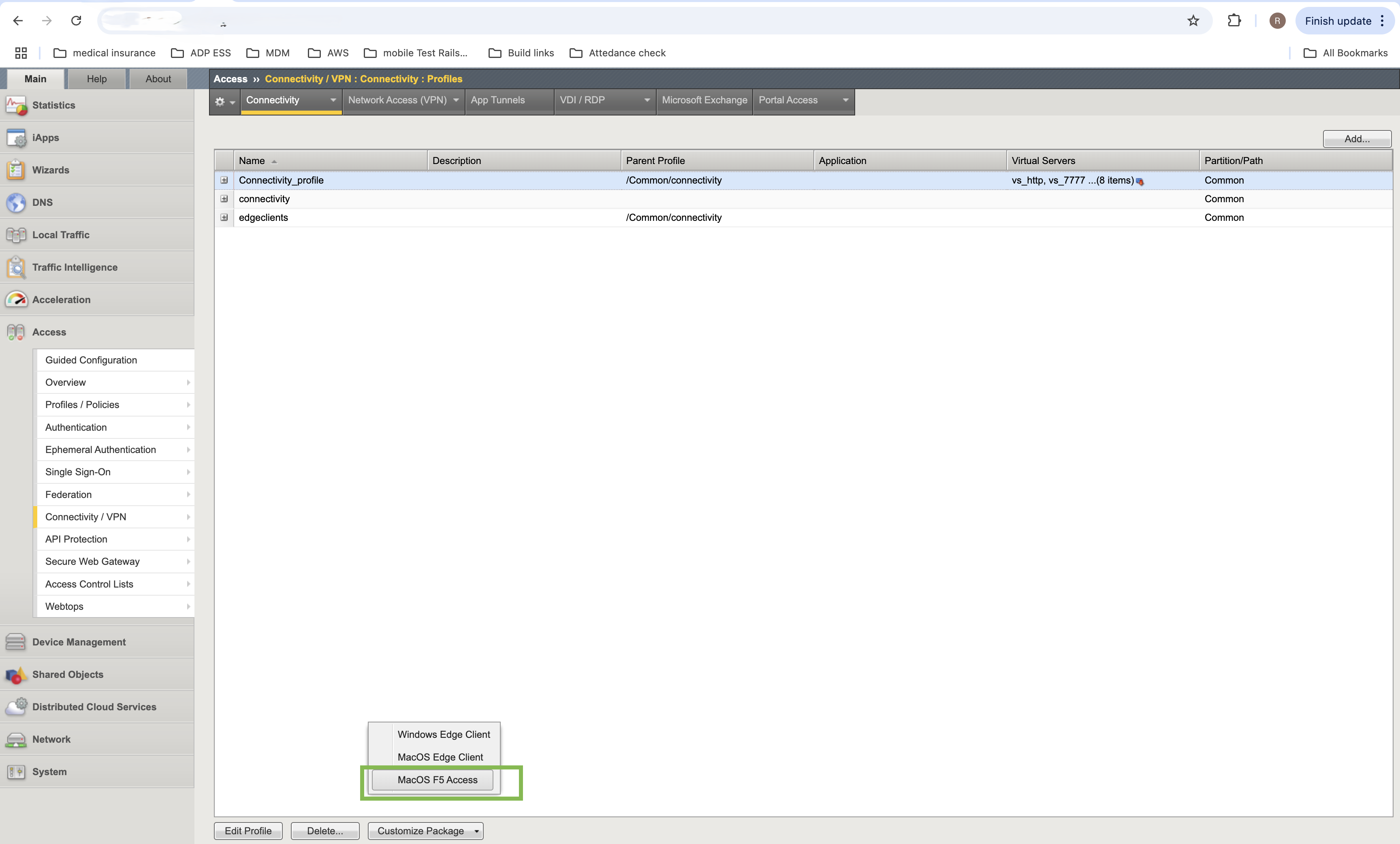
Important: You must enable both the PacketTunnel and DNSRelayProxy extensions.
-
Click Details when prompted.
The F5 Access extensions are displayed for enabling.
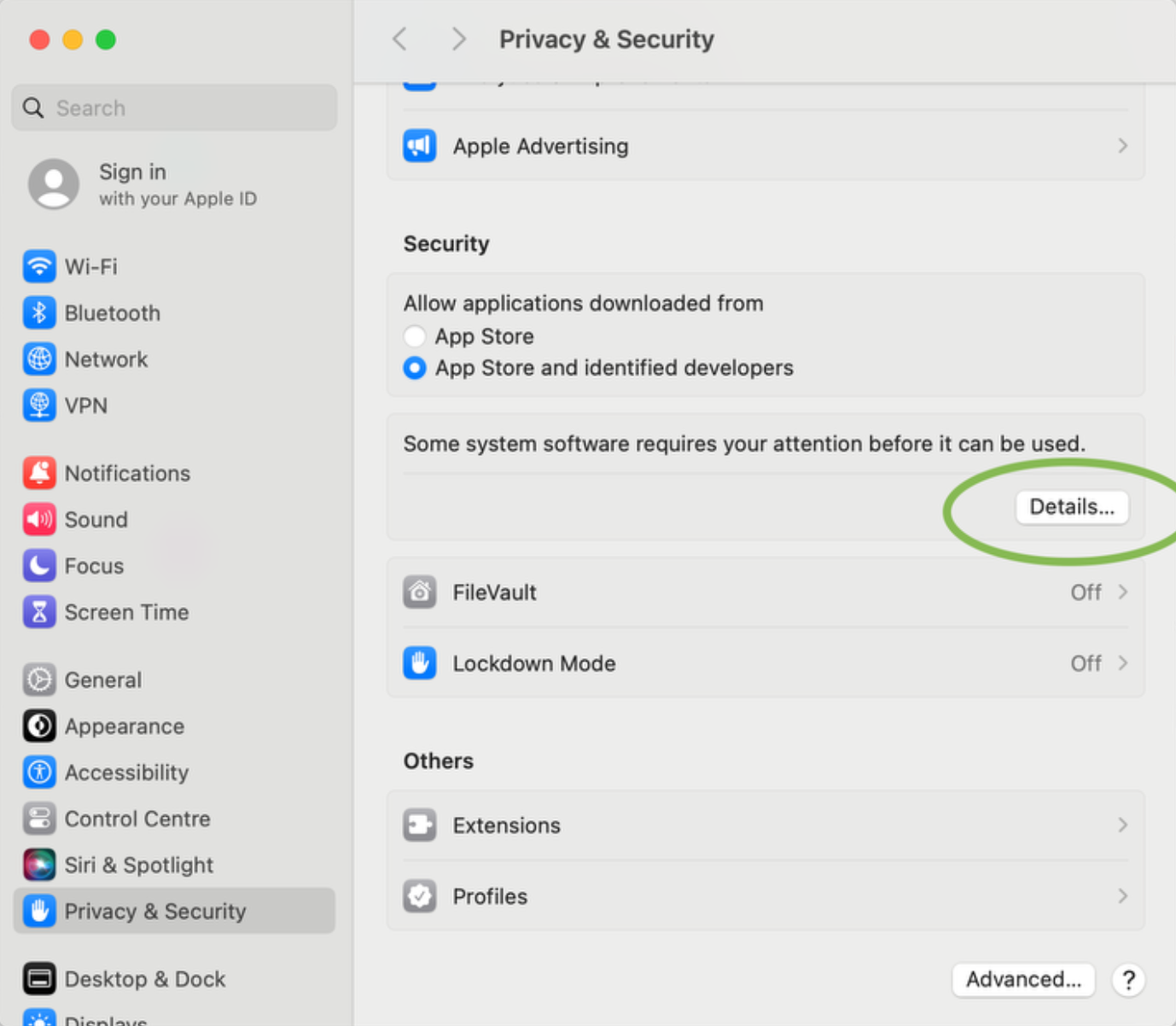
-
Enable the displayed extensions.
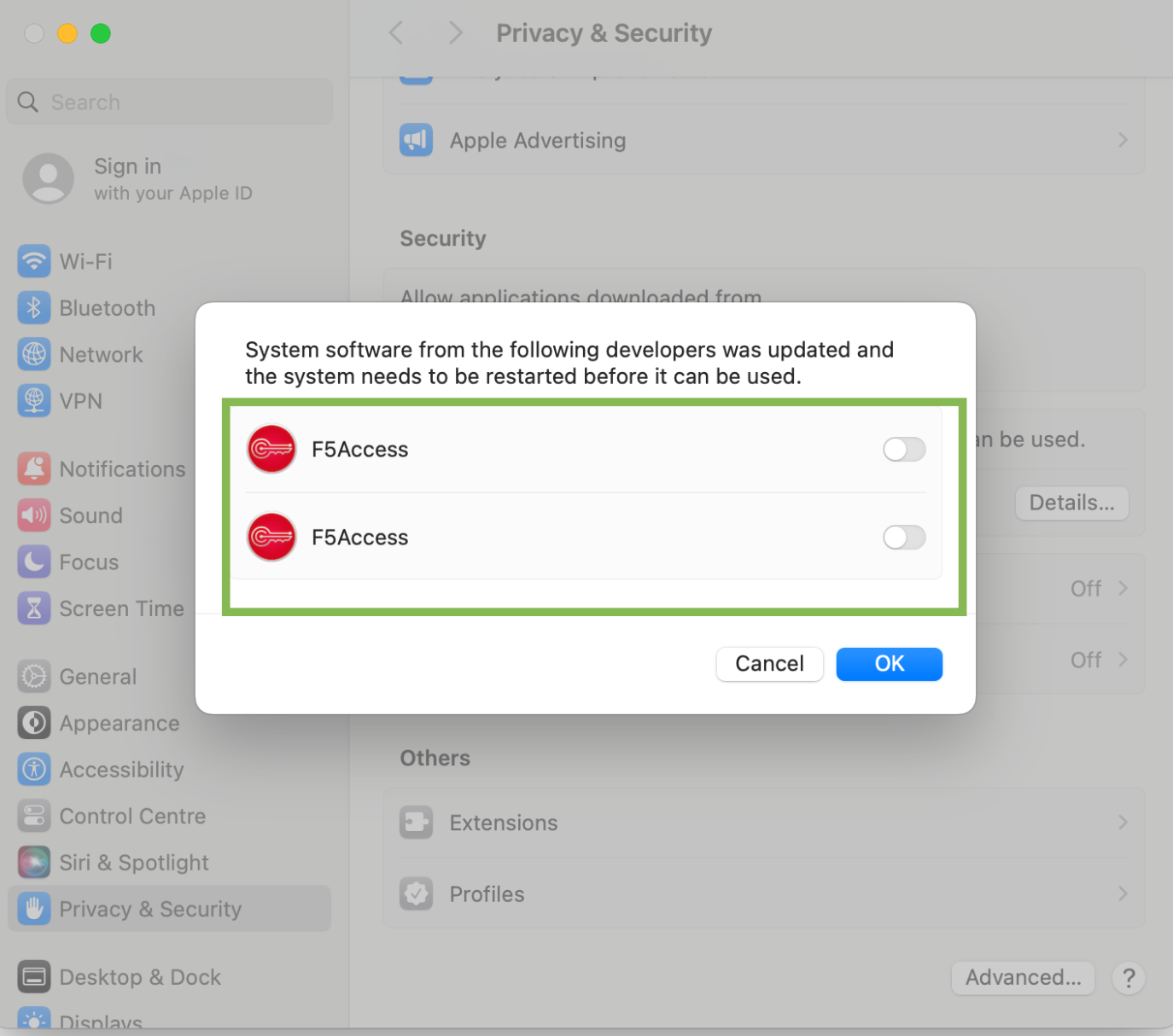
-
Provide your credentials.
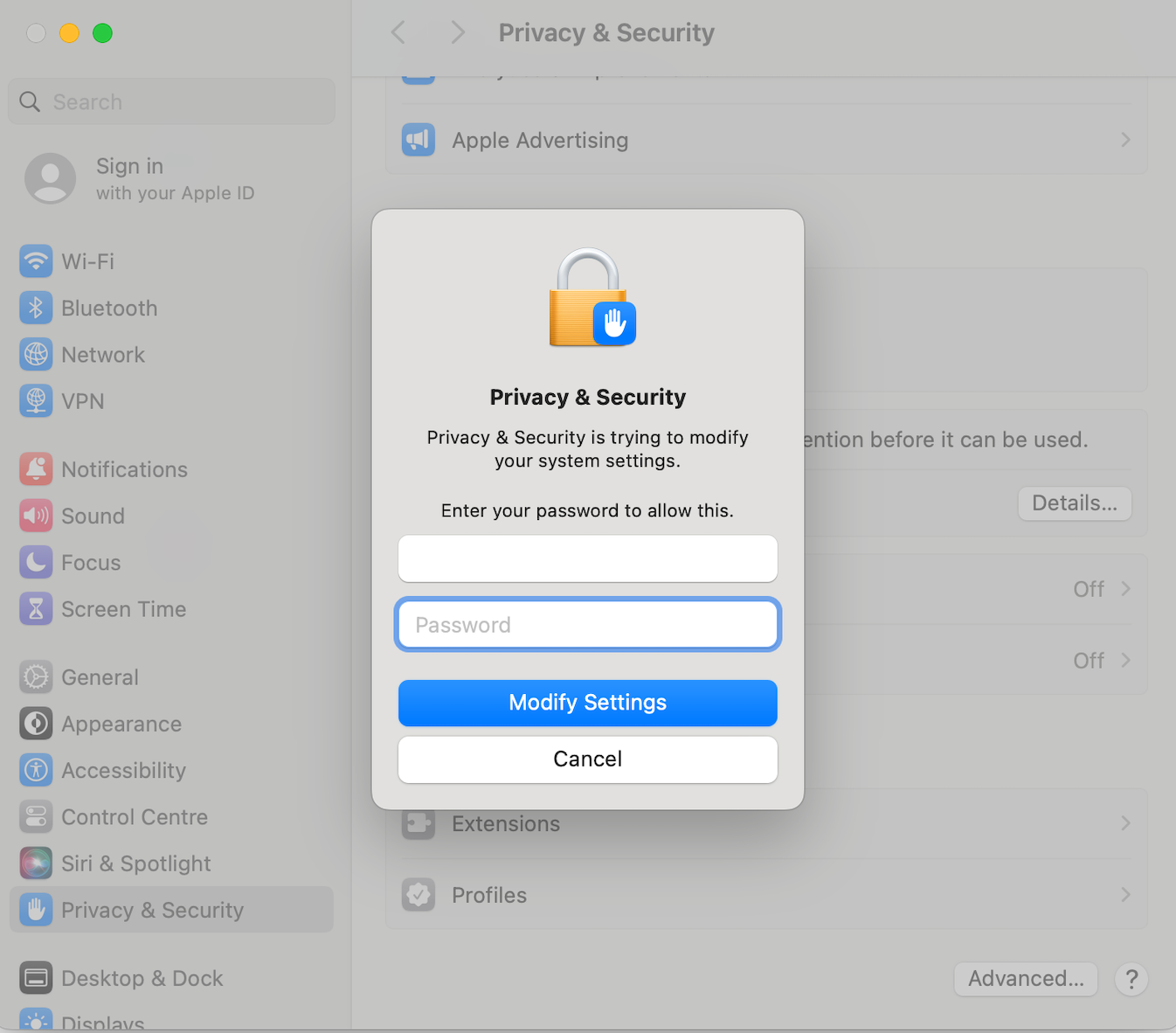
-
Enable the displayed extensions.
-
Launch the App and Allow the below prompt to Add VPN configurations ( If you configure any via connectivity profile before downloading the package, Those VPN configurations also will be reflected here)
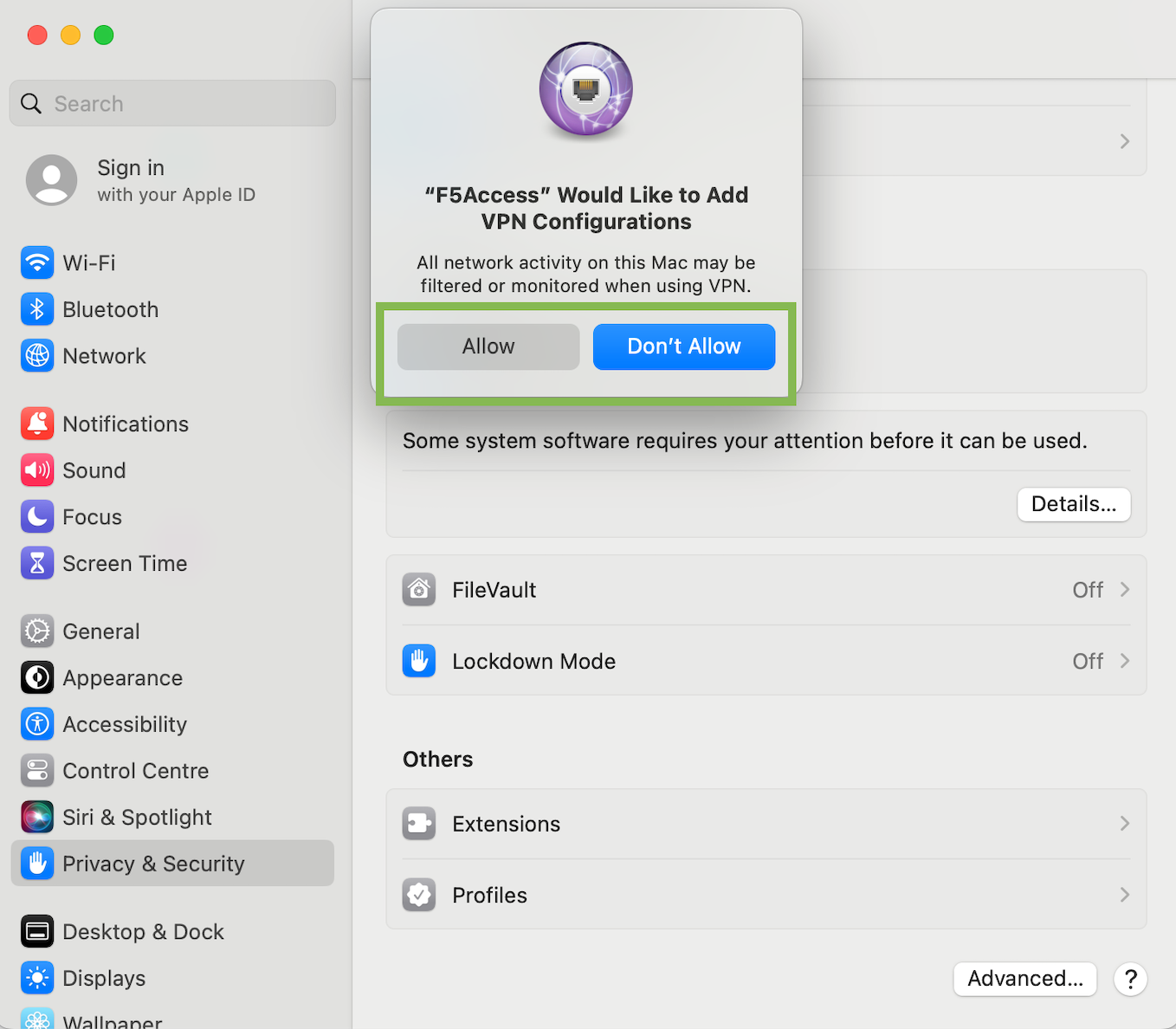
**Note:**To add the VPN configurations in connectivity profile before downloading the MacF5Access.pkg, please refer point 11 in https://techdocs.f5.com/en-us/edge-client-7-2-5-1/big-ip-access-policy-manager-edge-client-and-application-configuration-7-2-5-1/big-ip-edge-client-and-f5-access-for-macos.html
-
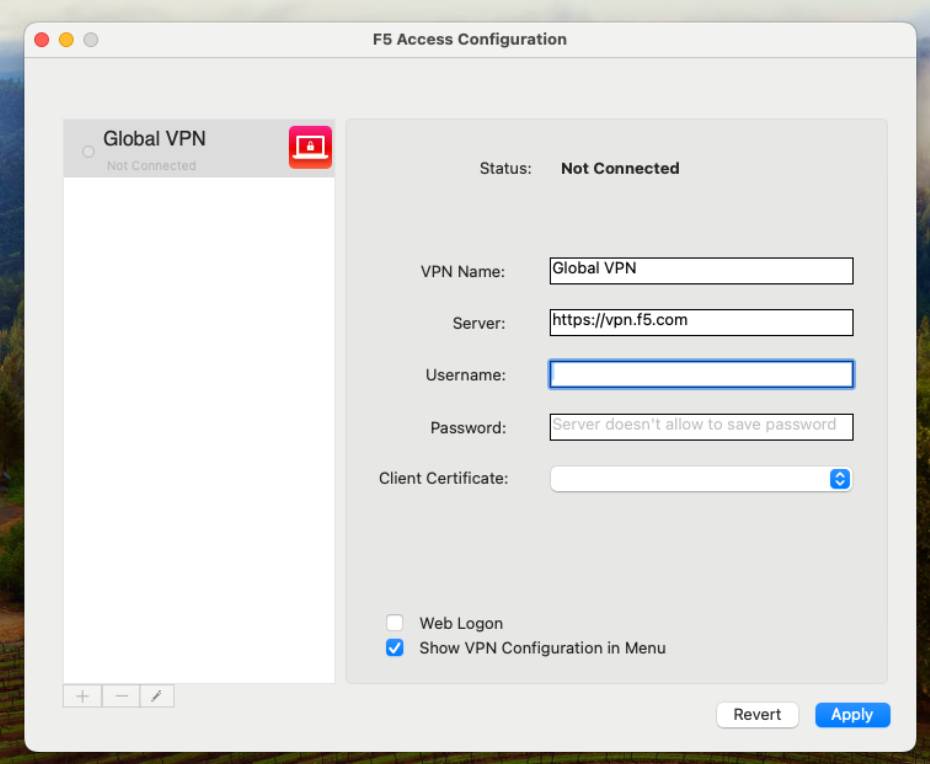
Add the VPN name and server details in the app. . .
-
Click Connect after adding the VPN details. The APM Virtual Server (VS) must be trusted, and the CA certificate should reside in the “System” keychain. If the certificate is in the “Login” keychain, delete it and reinstall it in the “System” keychain.