
Applies To:
-
BIG-IP APM
15.1.10, 15.1.9, 15.1.8, 15.1.7, 15.1.6, 15.1.5, 15.1.4, 15.1.3, 15.1.2, 15.1.1, 15.1.0


Step-Up Authentication with APM
APM supports step-up authentication using per-request policy subroutines. With step-up authentication, the system can authenticate a user at any time during a session. This functionality is useful, for example, when making access to an application generally available for all users, but wanting to limit access to specific areas of the application to a shorter list of authorized users. You can also have the system prompt users for credentials after a configured period of time.
Subroutines can save authenticated credentials in session variables that can be shared between subroutines. In this case, the session variables in the subroutine have to be configured the same as they are in the Assign Credential agent. This agent takes the username and password session variables and stores them as perflow variables for the subsession. So the Assign Credential agent needs to be located in the policy before the subroutine that needs to reuse the credentials.
You can use step-up authentication to implement a zero trust environment. Using a per-request policy with pool assignment and subroutines to perform authorization, you can perform a device trust check periodically with primary authentication.
When publishing web applications, you may be required to provide different levels of authentication based on some context. Often, the URL is used to determine which level of authentication is required, but you can easily use some other contextual information like HTTP header, hostname, and so on. Step-up authentication provides the ability to prompt users for credentials to access specific areas of an application.
For example, you can use step-up authentication to protect parts of a web application that manage sensitive data. This way, you can increase protection by requiring stronger authentication even after having gained authenticated access to the web application. Step-up authentication can be a part of the portal access or web application management (reverse proxy) features of Access Policy Manager (APM).
Here are some typical uses for step-up authentication:
- Perform a device trust check every 60 minutes and re-authenticate the user.
- Request additional authentication from a user periodically or before granting access to sensitive resources.
- Revalidate webtop resources using Active Directory credentials.
- Require SAML authentication for certain URI paths using APM as a SAML identity provider.
- Require certificate-based authentication (provided by On-Demand Certificate authentication) when going to a specific URI.
- After SharePoint anonymous access, authenticate a user against Active Directory and do a group lookup.
- Per-session policy
- Runs once. Associated with an access profile, which specifies a session lifetime. Can be used to validate that a client satisfies corporate policy, establish user identity, establish policy behavior, and allow or deny access to a virtual server and the resources it protects. Establishes a session. Required.
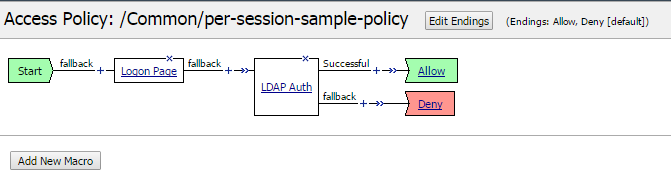
- Per-request policy
- Runs each time the client makes an HTTP or HTTPS request during a session. Can determine whether to request step-up authentication, and to allow or reject a request. The purpose of this policy is to control access to the requested resource. Required.
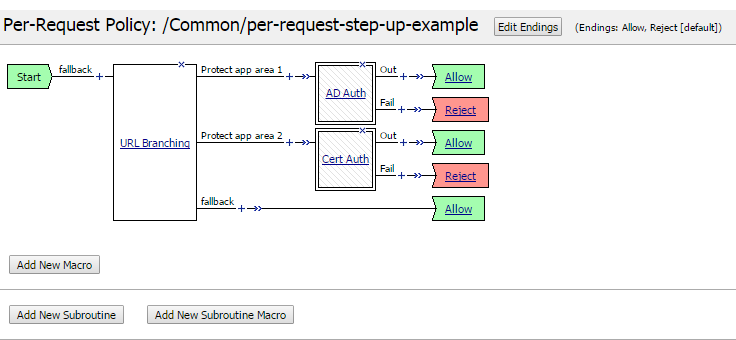
- Per-request policy macro
- Groups agents. Keeps policy display clean and simple. Optional.
- Per-request policy subroutine
- A special macro that handles client interactions. Implements the step-up authentication policy. Establishes a subsession. Runs when no active subsession matches the expected identifying characteristics (subroutine name and any gating criteria). While a matching subsession exists, the subroutine does not run again; the user retains access to the resource and need not authenticate again. Required.

- Subroutine settings
- Specifies subsession lifetime; a loop count, which can be used if an authentication retry is needed; gating criteria; and other timeout values. Default values for these settings are provided when you configure a per-request policy subroutine; you can retain those values or change them.
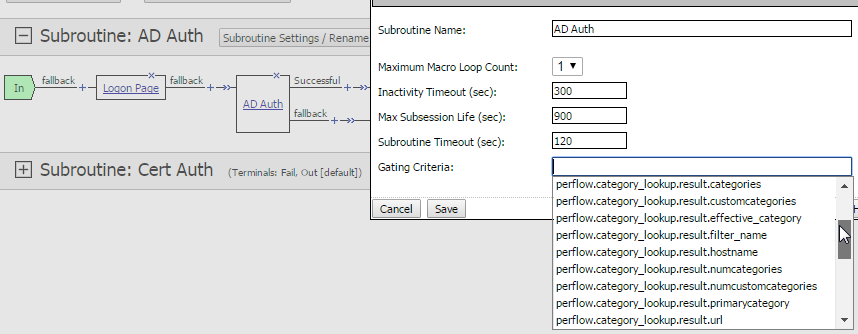
- Gating criteria
- A subroutine setting. Specifies a criteria to distinguish subsessions. A distinct subsession is created for each distinct gating criteria value. Gating criteria can be blank (one value), set to a perflow variable (more than one possible value), or a Tcl expression. The default value is blank.
- perflow.scratchpad and perflow.custom
- Predefined custom variables. You can use these custom variables in a per-request policy or its components (macro, subroutine, subroutine macro) by setting the values before they are called. They are guaranteed not to be set by any agent. Use of these variables is optional.
- Other predefined variables
- Using the Variable Assign agent, you can populate additional custom predefined variables for use in a per-request policy including Primary Category (perflow.category_lookup.result.primarycategory), Scratchpad (perflow.scratchpad), Custom (perflow.custom), Service Path (perflow.servicepath), and Endpoint Inspection Error Code (perflow.epi.error_code).
- Subsession
- Starts when a subroutine runs and continues until reaching its maximum lifetime (a subroutine setting), or until the session terminates. Does not count against license limits. Populates subsession variables that persist throughout the subsession. Supports logging. Multiple subsessions can exist at the same time, up to a limit of 128 per access session. (When the 129th session is created, the first subsession is removed.)
- Per-request policy subroutine macro
- Groups agents. Keeps policy display clean and simple. Optional.
|
1 |
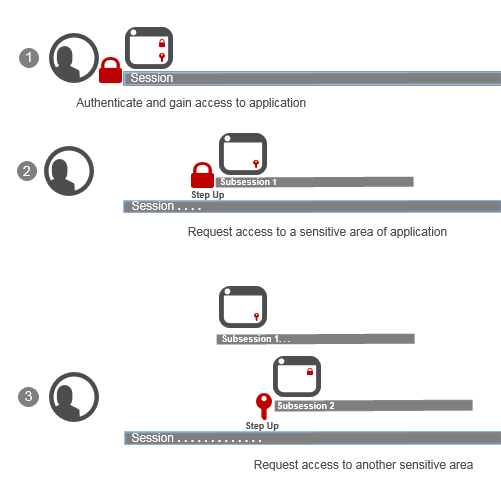
User logs in and authenticates through a per-session policy; Access Policy Manager (APM) creates a session. User starts to use an application that’s available in the enterprise. User can access all but two parts of the application that APM protects with step-up authentication, which requires: - Password-based authentication (
|
|
2 |
User requests access to part of the application protected with step-up authentication (username and password). APM challenges the user and then starts a subsession; for simplicity, we call it Subsession 1. For the duration of Subsession 1: If the user passed step-up authentication, the user does not need to authenticate again to access that part of the application; If the user failed step-up authentication, the user does not have access and step-up authentication does not run again. |
|
3 |
User requests access to part of the application protected with step-up authentication certificate authentication. APM challenges the user and then starts another subsession, Subsession 2. If the user passes certificate authentication, for the duration of Subsession 2: If the user passed step-up authentication, the user does not need to authenticate again to access that part of the application; If the user failed step-up authentication, the user does not have access and step-up authentication does not run again.Tip: A subsession ends when its lifetime expires or when the session ends, whichever is sooner. |


Access Policy Manager (APM) supports most authentication types except SecurID and TACACS+ for step-up authentication. However, APM supports multi-factor authentication providers, including DUO Security and RSA SecurID, when they are integrated with RADIUS. In addition, other types of authentication are supported for step-up auth such as certificate-based authentication and password-based authentication with Active Directory, CRLDP, LDAP, LocalDB, OAuth, OCSP, OTPRADIUS, and SAML.
In per-request policies, step-up authentication takes place in subroutines.
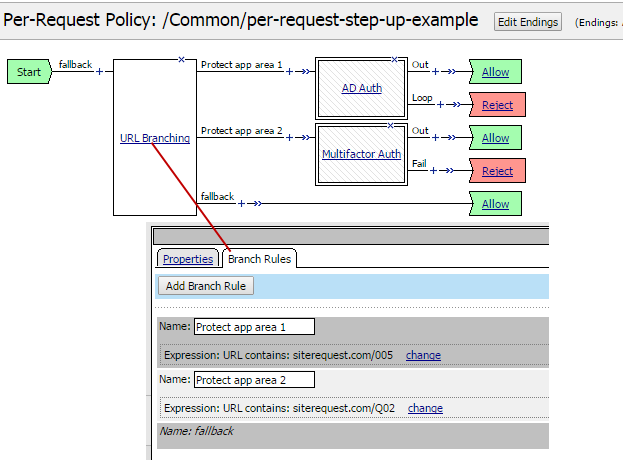
One way to identify an application or some part of an application that you want to protect is by using the URL Branching agent in a per-request policy to specify a URI and branch on it.
In this example, the URL Branching agent matches substrings that indicate requests to sensitive areas of a web application named siterequest. Matching requests are protected with Active Directory or multi-factor step-up authentication.
This example subroutine authenticates a user with Active Directory.
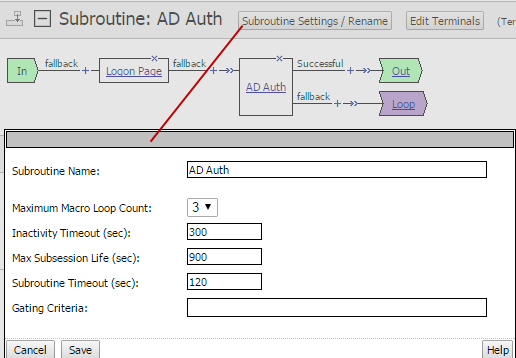
The user gets three authentication retries because the Maximum Macro Loop Count is set to 3. Because the Gating Criteria is blank, the subroutine can create only one distinct subsession. While the subsession exists, if the user makes another request that matches the application area, the user is not challenged again for authentication.
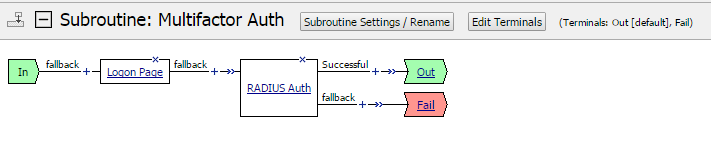
This example subroutine uses RADIUS to authenticate a user. This configuration supports multi-factor authentication when it is implemented using third-party products that integrate through RADIUS.
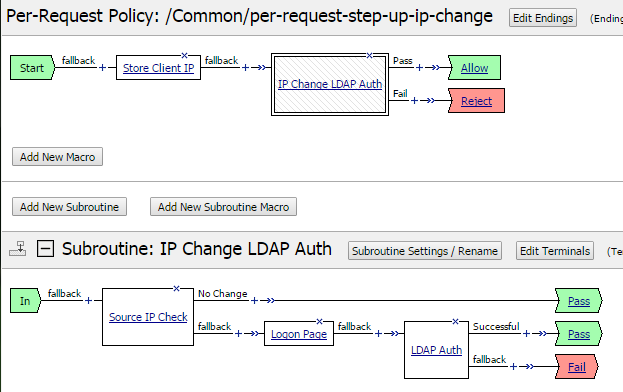
Using the Variable Assign agent (renamed as Store Client IP in this example), it’s possible to save the client IP address, then compare it to the original client IP address from the start of the session and, if it changes, run LDAP authentication.
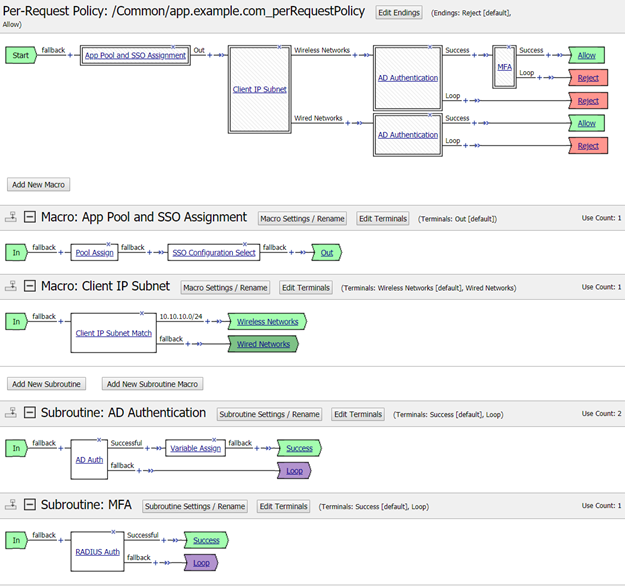
This example shows using gating criteria to check whether a request in a subsession is coming from the same IP address. It uses two subroutines: AD Authentication and MFA. AD Authentication specifies perflow.client.ip.address as the gating criteria. The user must authenticate using first factor credentials if the IP address has changed, for example, if the user has switched from the wired network to using wireless.
In that case, if initial authentication is successful, request is routed to the MFA subroutine for step-up authentication. The gating criteria for MFA is expr {[mcget {session.adStepUpAuth.gatingCounterPath}]}, where the session variable session.adStepUpAuth.gatingCounterPath was populated in the AD Authentication subroutine. The example ties the two subroutines together: as soon as the first subroutine is reevaluated, the second must be reevaluated again.
In this example, the Variable Assign agent stores a value in a predefined custom variable.
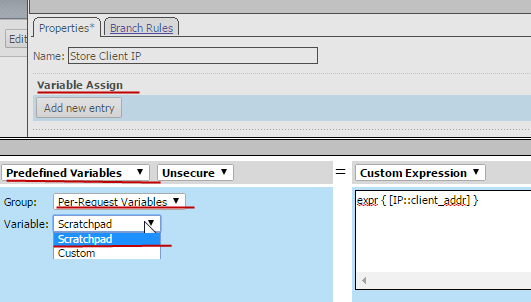
In the illustration, Predefined Variables is selected, Group is set to Per-Request Variables, and Variable is set to Scratchpad. An iRule in the Custom Expression field gets the value, which is the client IP address.
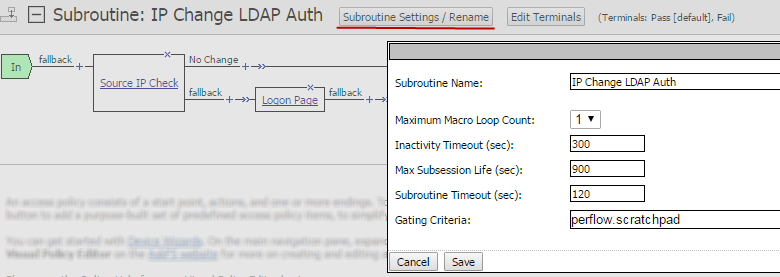
In this example, perflow.scratchpad is specified as the Gating Criteria in the subroutine settings. In another example, you can see the per-request policy store the client IP address in the predefined Scratchpad variable. The Scratchpad variable (available through the Variable Assign agent), equates to the perflow.scratchpad variable that is available in subroutine settings.
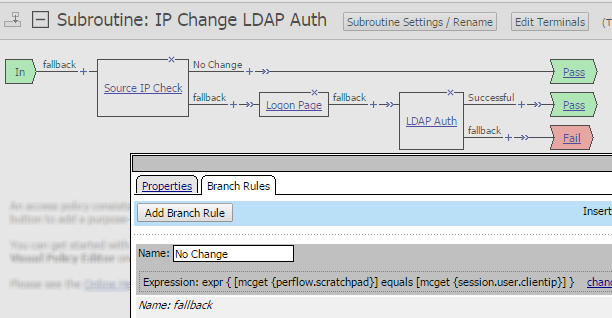
In this example, a change in the client IP address (stored in the gating criteria, perflow.scratchpad) triggers the step-up authentication subroutine to run. However, we want the user to authenticate using LDAP only if the client IP address is not the same one that started the session. An agent in the subroutine, Source IP Check (configured from the Empty agent), makes this comparison.
Session variables might not change throughout a session. However, in conjunction with other data, they can be used to create distinctive subsessions that control which resources a user can reach. A Variable Assign agent or an iRule agent could put a string into the perflow.custom or perflow.scratchpad variable like this example:
Senior_Executive_After_Hours_04_06_2017
An administrator can derive the example string from a session variable and date-time information.
- Senior_Executive - Added to the string based on a group name in the session.ldap.last.attr.memberOf session variable.
- After_Hours - Appended to the string if the current time is after 5 PM today and before 7 AM tomorrow; otherwise, Office_Hours could be appended to the string.
- 04_06_2017 - The most recent 24-hour period that started at 7 AM is appended to the string.
The F5 DevCentral online community is the source for information about iRules. BIG-IP Access Policy Manager: Visual Policy Editor on the AskF5 web site located at support.f5.com provides information about session variables, perflow variables, and Tcl usage, all of which can be helpful when working with Variable Assign.
You need to create these configuration objects and settings to implement step-up authentication.
- Access profile
- The primary use for step-up authentication is to protect resources in a portal access or web access management (reverse proxy) configuration. You can use step-up authentication with all access profile types.
- Per-session policy
- A per-session policy, also known as an access policy, can include authentication or not. The policy can be as simple as Start-Allow, or it can be very complex.
- Per-request policy
- A policy that runs for each request throughout a session. It must include a call to the step-up authentication subroutine, and can include logic that determines when to call the step-up authentication subroutine. Unless the gating criteria for the step-up authentication subroutine is set to blank, or to a variable that gets populated automatically, the per-request policy must contain an agent to populate the gating criteria.
- Per-request policy subroutine
- Part of a per-request policy in which you configure a type of authentication to use for step-up authentication.
- Per-request policy subroutine gating criteria setting
- A setting that is blank or contains a perflow variable that specifies a distinct value that represents a reason to run step-up authentication.
This section describes the basic elements for how to configure a per-request policy for step-up authentication. You need to have created a per-session policy. You also need to have configured the authentication servers you plan to use and have added them to the BIG-IP system. The steps for adding the servers differ depending on the method you are using. You can access all of the Access Policy Manager documentation from the AskF5 Knowledge Base located at https://support.f5.com/.
For step-up authentication, you configure a per-request policy subroutine that performs authentication.
-
On the Main tab, click Access > Profiles / Policies > Per-Request Policies.
The Per-Request Policies screen opens.
-
Create and then open a per-request policy for editing in the visual policy editor.
-
Click the Add New Subroutine button.
A popup screen opens.
-
Select one of these subroutine templates:
- LDAP Authentication - Includes a Logon Page followed by an LDAP Auth action, Pass and Fail terminals.
- Confirm - Includes a Confirm Box where you can specify text and an icon that allows the user to continue or cancel the action.
- Empty - Includes In and Out terminals only.
-
Name the subroutine.
-
Click Save.
The popup screen closes. The subroutine, with the heading [+] Subroutine: Name, displays below the main editor.
-
Expand the subroutine by clicking the [+] icon.
If any item in the subroutine needs some configuration, a red asterisk displays by the item name.
-
From the Authentication tab, select one of the available authentication methods. Configure the authentication agent with the information needed, such as the AAA server.
-
Make any changes you want to the subroutine terminals:
-
To add a terminal, click Edit Terminal and configure it.
-
To change a terminal, click it and select another one.
-
The subroutine settings are configured using the default values.
Next, you can add the subroutine to the per-request policy.
You can configure Access Policy Manager (APM) so that step-up authentication runs periodically throughout a session. For example, you might want a user to re-authenticate every eight hours for access to a given application.
-
For step-up authentication to run periodically, verify that the Maximum Session Timeout setting in the access profile is set to a value greater than zero.
The default value is 604800 seconds (or 1 week).
-
On the Main tab, select Access > Profiles / Policies > Access Profiles (Per-Session Policies).
-
Click the name of the access profile you want to verify.
-
In the Settings area, locate the Maximum Session Timeout setting.
-
If it is set to 0, on the right of the screen select the Custom check box. In the Maximum Session Timeout field, type a value greater than 0, and at the bottom of the screen, click Update.
-
-
To specify how long you want the user to retain access without needing to re-authenticate, update the Max Subsession Life (sec) setting:
-
With the per-request policy open in the visual policy editor, expand the subroutine for editing.
-
Click Subroutine Settings/Rename.
A popup screen opens.
-
In the Maximum Subsession Life (sec) field, type the number of seconds that you want users to retain access without needing to authenticate again.
The default value is 900 (or 15 minutes).
-
-
Click Save.
The popup screen closes.
A subroutine creates a subsession for each distinct gating criteria value. By default, gating criteria for a subroutine is set to blank and the subroutine runs once. To base step-up authentication on distinct values dynamically set in a variable, you configure a perflow variable as the gating criteria.
Important: If you set the gating criteria to a perflow variable that is populated by an agent, you must place that agent before the subroutine call in the per-request policy. Otherwise, the gating criteria does not contain a valid value, the subroutine returns an error, and step-up authentication does not run.
-
Open the per-request policy for editing.
-
Expand the subroutine.
-
Click Subroutine Settings/Rename.
-
Put your cursor in the Gating Criteria field and select one entry from the list.
If you type in the Gating Criteria field, variables display that match the string you type.
You can base step-up authentication on custom values or on values provided by specific agents. Some examples follow.
Use these perflow variables for application data from Application Lookup:
-
perflow.application_lookup.result.effective_application
-
perflow.application_lookup.result.effective_family
-
perflow.application_lookup.result.families
-
perflow.application_lookup.result.names
-
perflow.application_lookup.result.primary_application
-
perflow.application_lookup.result.primary_family These are custom values that you must populate with Variable Assign:
-
perflow.custom
-
perflow.scratchpad These values are automatically populated:
-
perflow.category_lookup.result.hostname
-
perflow.category_lookup.result.url
-
perflow.username (Username typically won’t change) These values contain URL data, available with an SWG subscription, that you must populate with Category Lookup:
-
perflow.category_lookup.result.categories
-
perflow.category_lookup.result.effective_category
-
perflow.category_lookup.result.filter_name
-
perflow.category_lookup.result.numcategories
-
perflow.category_lookup.result.numcustomcategories
-
perflow.category_lookup.result.primarycategory This value contains URL data, available with or without an SWG subscription, that you must populate with Category Lookup:
-
perflow.category_lookup.result.customcategories This value contains a pool name that you must populate with Pool Assign:
-
perflow.resource_assign_pool.name This value contains a protocol type (HTTP or HTTPS) that you must populate with Protocol Lookup:
-
perflow.protocol_lookup.result This value defaults to False; can be set to True with SSL Bypass Set (or set to False with SSL Intercept Set):
-
perflow.ssl_bypass.set This value defaults to False; can be set to True with SSL Bypass Set (or set to False with SSL Intercept Set):
-
perflow.ssl_bypass.set This value is automatically populated and does not change. When this variable is selected, step-up authentication will run once:
-
perflow.session.id Any perflow variables with application_lookup in its name are for an application name or family that you must populate with Application Lookup.
-
-
Click Save.
You can put a subroutine to use by adding it to the per-request policy.
-
With the per-request policy open in the visual policy editor, click the (+) icon on a per-request policy branch.
A popup screen displays actions on tabs, such as General Purpose and Authentication, and provides a search field.
-
Select the Subroutines tab.
-
Select a subroutine and click Add Item.
The popup screen closes and the per-request policy displays in the visual policy editor.
If the gating criteria for your subroutine is not set to blank, perflow.session.id, or perflow.username, you must include the agent in the per-request policy that populates the gating criteria.
-
Open the per-request policy for editing.
-
Locate a point that is before the subroutine and click +.
The Add Item screen opens.
-
If your gating criteria is set to perflow.custom or perflow.scratchpad, on the Assignment tab select Variable Assign, click Add Item, configure an entry that sets a value for the variable, and click Save.
-
If your gating criteria is not set to perflow.custom or perflow.scratchpad, on the General Purpose tab, select the agent that you want to populate the gating criteria, click Add Item, configure the agent properties, and click Save.
When you set subroutine gating criteria to the perflow.custom or perflow.scratchpad variable, you must configure Variable Assign to specify its value.
Important: Using Variable Assign to populate a perflow variable other than perflow.custom and perflow.scratchpad causes subroutine results to become unreliable.
-
Open the per-request policy for editing.
-
Click the name of the Variable Assign agent.
A Properties screen opens.
-
Click Add new entry, and in the new entry, click the change link.
A popup screen opens with Custom Variable selected on the left and Custom Expression selected on the right.
-
On the left, select Predefined Variables.
Additional fields display.
-
For Group, select Per-Request Variables.
-
For Variable, select one of the following:
- Custom - Populates the perflow.custom variable.
- Scratchpad - Populates the perflow.scratchpad variable.
-
On the right, retain Custom Expression and configure the expression to provide a value.
The Custom Expression option provides the greatest flexibility; you can select any other option and configure it.
-
Click Finished.
The popup window closes.
-
Click Save.
The Properties screen closes.
Add a URL branching agent to a per-request policy or to a per-request policy subroutine to create simple branching rules based on URLs. You might use URL branching to run different types of step-up authentication for different URLs or to skip step-up authentication altogether for a group of URLs.
-
Open the per-request policy for editing.
-
To edit a per-request policy subroutine, expand it.
-
In the per-request policy or in the per-request policy subroutine, in the branch where you want to add URL branching, click [+].
The Add Item popup screen opens.
-
On the Classification tab, select URL Branching and click Add Item.
The Properties screen opens.
-
Click the Branch Rules tab.
The screen displays the default rule, Allow, and the expression, URL contains: domain.com.
-
If you do not want a rule that matches a URL substring, delete the default rule; (click x).
The URL Branching agent can be configured to exactly match a URL, or to match a substring or a prefix or a suffix in a URL, or to perform glob pattern matching on a URL.
-
If you want to replace the value (domain.com) in the default rule:
Note: You can use AND and OR operators to configure expressions for your rules. For simplicity of illustration, the examples do not include these operators.
-
Click the change link.
An additional popup screen opens.
-
In the URL contains field, delete domain.com, and type the substring that you want to match.
-
Click Finished.
The popup screen closes.
-
If you have no more changes to make, click Save.
-
-
To add a rule, click Add Branch Rule.
-
In the Name field, replace the default name Branch Rule number with a name for the branch.
-
For Expression: Empty, click the change link.
A popup screen opens.
-
Click Add Expression.
Fields with default values display.
-
For the Agent Sel field, select or retain URL Branching.
-
For Condition, select one from the list.
When you select a condition, a related input field displays.
-
For Condition Equals in the URL is field, type the URL that you want to exactly match.
-
For Condition Substring in the URL contains field, type the string that you want to match.
-
For Condition Prefix Match in the URL begins with field, type the prefix that you want to match.
-
For Condition Suffix Match in the URL ends with field, type the suffix that you want to match.
-
For Condition Glob Match in the URL glob pattern field, type the globbing pattern that you want to match.
URL branching supports these globbing patterns:
*Matches any number of characters (none or one or more).?Matches a single character in these sets: [a-z] or [0-9] or [A-Za-z].[characters]Matches one of the specified characters.[^characters]Matches any characters except for those specified.[!characters]Matches any characters except for those specified.
-
Click Add Expression, then click Finished.
The popup screen closes; the updated expression displays on the Branch Rules screen.
-
Click Save.
The popup screen closes; the visual policy editor displays.
-
The per-request policy or subroutine includes URL branching.
After the URL branch, you can add step-up authentication if that’s what you are trying to do. In a per-request policy, you can insert a call to a subroutine after a URL branch. Or, in a subroutine, you can insert an authentication agent after a URL branch. Make sure to add the per-session and per-request policies to the virtual server.