


Updated Date: 07/07/2026
Using APM as a Remote Desktop Gateway
Access Policy Manager (APM®) can act as a gateway for Microsoft RDP clients, authorizing them on initial access and authorizing access to resources that they request after that. The APM configuration includes these elements.
- APM as gateway
- From a configuration point of view, this is a virtual server that accepts SSL traffic from Microsoft RDP clients and is associated with an access policy that authorizes the client.
- Client authorization access policy
- This access policy runs when the RDP client initiates a session with the gateway (APM). Only NTLM authentication is supported. This access policy should verify that NTLM authentication is successful and must assign an additional access policy to use for resource authorization throughout the session.
- Resource authorization access policy
- This access policy runs when the authorized RDP client requests access to a resource. The access policy must contain logic to determine whether to allow or deny access to the target server and port.

Notice the RDG Policy Assign item; it is used to specify the resource authorization policy.

Task summary
If you already have configured them, you can use existing configuration objects: a machine account, an NTLM authentication configuration, a VDI profile, a connectivity profile, and a client SSL profile.
Supported Microsoft RDP clients can use APM as a gateway. The configuration supports Microsoft RDP clients on Windows, Mac, iOS, and Android.
Refer to BIG-IP APM Client Compatibility Matrix on the AskF5 web site at http://support.f5.com/kb/en-us.html for the supported platforms and operating system versions for Microsoft RDP clients.
On a Microsoft RDP client, a user types in settings for a gateway and a connection. The names for the settings vary depending on the Microsoft RDP client.
- RDP client gateway settings
- Hostname setting: The hostname or IP address of the virtual server must be specified.
- Port setting: If requested,
443must be specified. - Credentials: Selection of specific logon method and entry of a user name and password should be avoided. In this implementation, APM supports only NTLM authentication.
- RDP client connection settings
- Gateway setting: On some clients, you must configure a name and address for the gateway and at login type the gateway name. If requested, the gateway name must be specified as configured on the client.
- Hostname setting: Hostname of the target server.
- Port setting: Port on the target server.
Configure an RDG-RAP type of access profile for Access Policy Manager (APM) before you create an access policy to authorize resource requests from Microsoft RDP clients.
Note: After APM authorizes a Microsoft RDP client, subsequent resource requests are sent to APM.
-
On the Main tab, click Access > Profiles / Policies > Access Profiles (Per-Session Policies).
The Access Profiles (Per-Session Policies) screen displays.
-
Click Create.
The New Profile screen displays.
-
In the Name field, type a unique name for the access profile.
-
From the Profile Type list, select RDG-RAP.
-
Click Finished.
The new access profile displays on the list.
The access profile displays in the Access Profiles List. Default-log-setting is assigned to the access profile.
You must configure an access policy that determines whether to deny or allow access to a resource.
Confirm that the correct log settings are selected for the access profile to ensure that events are logged as you intend.
Note: Log settings are configured in the Access > Overview > Event Log > Settings area of the product. They enable and disable logging for access system and URL request filtering events. Log settings also specify log publishers that send log messages to specified destinations.
-
On the Main tab, click Access > Profiles / Policies > Access Profiles (Per-Session Policies).
The Access Profiles (Per-Session Policies) screen displays.
-
Click the name of the access profile that you want to edit.
The properties screen opens.
-
On the menu bar, click Logs.
The access profile log settings display.
-
Move log settings between the Available and Selected lists.
You can assign up to three log settings that enable access system logging to an access profile. You can assign additional log settings to an access profile provided that they enable logging for URl request logging only.
Note: Logging is disabled when the Selected list is empty.
-
Click Update.
An access profile is in effect when it is assigned to a virtual server.
Configure this access policy to perform resource authorization every time an RDP client requests access to a new resource.
Note: The requested resource is specified in these session variables: session.rdg.target.host and session.rdg.target.port.
-
On the Main tab, click Access > Profiles / Policies > Access Profiles (Per-Session Policies).
The Access Profiles (Per-Session Policies) screen displays.
-
In the Access Policy column, click the Edit link for the RDG-RAP type access profile you want to configure.
The visual policy editor opens the access policy in a separate screen.
-
Click the (+) icon anywhere in the access policy to add a new item.
Note: Only an applicable subset of access policy items is available for selection in the visual policy editor for any access profile type.
A popup screen opens, listing predefined actions on tabs such as General Purpose, Authentication, and so on.
-
To restrict the target port to the RDP service only, perform these substeps:
Note: F5 strongly recommends this action.
-
In the search field, type emp, select Empty from the result list, and then click Add Item.
A popup Properties screen opens.
-
Click the Branch Rules tab.
-
Click Add Branch Rule.
A new entry with Name and Expression settings displays.
-
In the Name field, replace the default name by typing a new name.
The name appears on the branch in the policy.
-
Click the change link in the new entry.
A popup screen opens.
-
Click the Advanced tab.
-
In the field, type this expression: ``expr
{ [mcget{**session.rdg.target.port**}] == 3389 } -
Click Finished.
The popup screen closes.
-
Click Save.
The properties screen closes and the policy displays.
-
-
To verify group membership for the requested host, add an LDAP Query to the access policy and configure properties for it:
Adding an LDAP Query is one option. The visual policy editor provides additional items that you can use to determine whether to allow the client to access the resource.
-
From the Server list, select an AAA LDAP server.
An LDAP Query uses SSL connections when you select an LDAP AAA server that is configured for LDAPS.
-
Type queries in the SearchFilter field.
This query matches hosts with the fully qualified domain name (FQDN) of the host.
(DNSHostName=%{session.rdg.target.host})When clients request a connection, they must specify the FQDN.This query matches hosts with the host name or with the FQDN of the host.
(|(name=%{session.rdg.target.host})(DNSHostName=%{session.rdg.target.host}))When clients request a connection, they can specify a host name or an FQDN. -
Click Save.
The properties screen closes and the policy displays.
-
-
To verify that the target host is a member of an Active Directory group, add a branch rule to the LDAP query item:
-
In the visual policy editor, click the LDAP Query item that you want to update.
A popup Properties screen displays.
-
Click the Branch Rules tab, click Add Branch Rule, and type a descriptive name for the branch in the Name field.
-
Click the change link in the new entry.
A popup screen displays.
-
Click the Advanced tab.
-
Type an expression in the field.
This expression matches the last LDAP memberOf attribute with an Active Directory group, RDTestGroup. ``expr
{ [mcget{**session.ldap.last.attr.memberOf**}] contains "CN=*RDTestGroup*" }The hypothetical members of the group in this example are the hosts to which access is allowed. -
Click Finished.
The popup screen closes.
-
Click Save.
The properties screen closes and the policy displays.
-
-
Click Save.
The properties screen closes and the policy displays.
-
Add any other items to the access policy and change any appropriate branch ending to Allow.
-
Click Apply Access Policy to save your configuration.
Important: Do not specify this access policy in a virtual server definition. Select it from an RDG Policy Assign item in an access policy that authorizes Microsoft RDP clients.
You create an access profile to provide the access policy configuration for a virtual server that establishes a secured session.
-
On the Main tab, click Access > Profiles / Policies > Access Profiles (Per-Session Policies).
The Access Profiles (Per-Session Policies) screen displays.
-
Click Create.
The New Profile screen displays.
-
In the Name field, type a unique name for the access profile.
-
From the Profile Type list, select one of these options.
- LTM-APM: Select for a web access management configuration.
- SSL-VPN: Select to configure network access, portal access, or application access. (Most access policy items are available for this type.)
- ALL: Select to support LTM-APM and SSL-VPN access types. Additional settings display.
-
Select the Custom check box.
-
In the Access Policy Timeout field, type the number of seconds that should pass before the access profile times out because of inactivity.
The timeout needs to be at least 15 minutes long because an RDP client sends a keepalive to the gateway every 15 minutes.
Important: To prevent a timeout, type
0to set no timeout or type900or greater. 900 indicates a 15-minute timeout, which is enough time for the keepalive to prevent the timeout. -
Click Finished.
Confirm that the correct log settings are selected for the access profile to ensure that events are logged as you intend.
Note: Log settings are configured in the Access > Overview > Event Log > Settings area of the product. They enable and disable logging for access system and URL request filtering events. Log settings also specify log publishers that send log messages to specified destinations.
-
On the Main tab, click Access > Profiles / Policies > Access Profiles (Per-Session Policies).
The Access Profiles (Per-Session Policies) screen displays.
-
Click the name of the access profile that you want to edit.
The properties screen opens.
-
On the menu bar, click Logs.
The access profile log settings display.
-
Move log settings between the Available and Selected lists.
You can assign up to three log settings that enable access system logging to an access profile. You can assign additional log settings to an access profile provided that they enable logging for URl request logging only.
Note: Logging is disabled when the Selected list is empty.
-
Click Update.
An access profile is in effect when it is assigned to a virtual server.
Configure an access policy to authorize Microsoft RDP clients and to specify the access policy that APM should use to authorize access to resources as the client requests them.
Note: NTLM authentication occurs before an access policy runs. If NTLM authentication fails, an error displays and the access policy does not run.
-
On the Main tab, click Access > Profiles / Policies > Access Profiles (Per-Session Policies).
The Access Profiles (Per-Session Policies) screen displays.
-
In the Per-Session Policy column, click the Edit link for the access profile you want to configure.
The visual policy editor opens the access policy in a separate screen.
-
Click the (+) icon anywhere in the access policy to add a new item.
Note: Only an applicable subset of access policy items is available for selection in the visual policy editor for any access profile type.
A popup screen opens, listing predefined actions on tabs such as General Purpose, Authentication, and so on.
-
On the Endpoint Security (Server-Side) tab, select Client Type, and then click Add Item.
The Client Type action identifies clients and enables branching based on the client type.
A properties screen opens.
-
Click Save.
The properties screen closes; the Client Type item displays in the visual policy editor with a Microsoft Client RDP branch and branches for other client types.
-
On a policy branch, click the (+) icon to add an item to the policy.
-
To verify the result of client authentication:
-
Type
NTLMin the search field. -
Select NTLM Auth Result.
-
Click Add Item.
A properties screen opens.
-
-
Click Save.
The properties screen closes and the policy displays.
-
Select the RDG-RAP access policy you configured earlier:
-
Click the [+] sign on the successful branch after the authentication action.
-
Type
RDGin the search field. -
Select RDG Policy Assign and click Add Item.
-
To display available policies, click the Add/Delete link.
-
Select a policy and click Save.
Without an RDG policy, APM denies access to each resource request.
-
-
Click the Apply Access Policy link to apply and activate the changes to the policy.
To apply this access policy to network traffic, add the access profile to a virtual server.
Note: To ensure that logging is configured to meet your requirements, verify the log settings for the access profile.
You configure a machine account so that Access Policy Manager (APM) can establish a secure channel to a domain controller.
-
On the Main tab, click Access > Authentication > NTLM > Machine Account.
A new Machine Account screen opens.
-
In the Configuration area, in the Machine Account Name field, type a name.
-
In the Domain FQDN field, type the fully qualified domain name (FQDN) for the domain that you want the machine account to join.
-
In the Domain Controller FQDN field, type the FQDN for a domain controller.
-
In the Admin User field, type the name of a user who has administrator privilege.
-
In the Admin Password field, type the password for the admin user.
APM uses these credentials to create the machine account on the domain controller. However, APM does not store the credentials and you do not need them to update an existing machine account configuration later.
-
Click Join.
This creates a machine account and joins it to the specified domain. This also creates a non-editable NetBIOS Domain Name field that is automatically populated.
Note: If the NetBIOS Domain Name field on the machine account is empty, delete the configuration and recreate it. The field populates.
Create an NTLM Auth configuration to specify the domain controllers that a machine account can use to log in.
-
On the Main tab, click Access > Authentication > NTLM > NTLM Auth Configuration.
A new NTLM Auth Configuration screen opens.
-
In the Name field, type a name.
-
From the Machine Account Name list, select the machine account configuration to which this NTLM Auth configuration applies.
You can assign the same machine account to multiple NTLM authentication configurations.
-
For each domain controller, type a fully qualified domain name (FQDN) and click Add.
Note: You should add only domain controllers that belong to one domain.
By specifying more than one domain controller, you enable high availability. If the first domain controller on the list is not available, Access Policy Manager tries the next domain controller on the list, successively.
-
Click Finished.
This specifies the domain controllers that a machine account can use to log in.
In some networks, administrators run scripts to find and delete outdated machine accounts on the domain controllers. To keep the machine account up to date, you can renew the password periodically.
-
On the Main tab, click Access > Authentication > NTLM > Machine Account.
The Machine Account screen opens.
-
Click the name of a machine account.
The properties screen opens and displays the date and time of the last update to the machine account password.
-
Click the Renew Machine Password button.
The screen refreshes and displays the updated date and time.
Configure a VDI profile to specify NTLM authentication for Microsoft RDP clients that use APM as a gateway.
-
On the Main tab, click Access > Connectivity / VPN > VDI / RDP > VDI Profiles.
The VDI Profiles list opens.
-
Click Create.
A popup screen opens with General Information selected in the left pane and settings displayed in the right pane.
-
In the Profile Name field, type a name.
-
From the Parent Profile field, select an existing VDI profile.
A VDI profile inherits properties from the parent profile. You can override them in this profile.
-
In the left pane, click MSRDP Settings.
Settings in the right pane change.
-
From the MSRDP NTLM Configuration list, select an NTLM authentication configuration.
-
From the left pane, click Citrix Settings.
-
For the Enable StoreFront Functionality on APM setting, enable or disable the native StoreFront protocol. The default value is Disabled, which continues to use the PNAgent protocol.
-
In the left pane, click VMware View Settings.
Settings in the right pane change.
-
From the Transport Protocol (UDP-only) list, select a protocol.
Select Blast Extreme or PCoIP to proxy the remote desktop protocol supported by VMware Horizon View.
-
Click OK.
The popup screen closes.
To apply the VDI profile, you must specify it in a virtual server.
You create a connectivity profile to configure client connections.
-
On the Main tab, click Access > Connectivity / VPN > Connectivity > Profiles.
A list of connectivity profiles displays.
-
Click Add.
The Create New Connectivity Profile popup screen opens and displays General Settings.
-
Type a Profile Name for the connectivity profile.
-
Select a Parent Profile from the list.
APM provides a default profile, /Common/connectivity.
-
Click OK.
The popup screen closes, and the Connectivity Profile List displays.
The connectivity profile displays in the list.
You create a custom Client SSL profile when you want the BIG-IP system to terminate client-side SSL traffic for the purpose of decrypting client-side ingress traffic and encrypting client-side egress traffic. By terminating client-side SSL traffic, the BIG-IP system offloads these decryption/encryption functions from the destination server. When you perform this task, you can specify multiple certificate key chains, one for each key type (RSA, DSA, and ECDSA). This allows the BIG-IP system to negotiate secure client connections using different cipher suites based on the client’s preference.
-
On the Main tab, click Local Traffic > Profiles > SSL > Client.
The Client SSL profile list screen opens.
-
Click Create.
The New Client SSL Profile screen opens.
-
In the Name field, type a unique name for the profile.
-
From the Parent Profile list, select clientssl.
-
Select the Custom check box.
The settings become available for change.
-
From the Configuration list, select Advanced.
-
For the Mode setting, select the Enabled check box.
-
For the Certificate Key Chain setting, click Add.
-
From the Certificate list, select a certificate name.
This is the name of a certificate that you installed on the BIG-IP system. If you have not generated a certificate request nor installed a certificate on the BIG-IP system, and the BIG-IP system is not part of a device service clustering (DSC) configuration, you can specify the name of the existing certificate named
default.Important: If the BIG-IP system is part of a DSC Sync-Failover group, always select a non-default certificate name, and ensure that this same certificate name is specified in every instance of this SSL profile in the device group. Taking these actions helps to ensure that SSL handshakes are successful after a failover event.
-
From the Key list, select the name of the key associated with the certificate specified in the previous step.
This is the name of a key that you installed on the BIG-IP system. If you have not installed a key on the BIG-IP system, and the BIG-IP system is not part of a device service clustering (DSC) configuration, you can specify the name of the existing key named
default.Important: If the BIG-IP system is part of a DSC Sync-Failover group, always select a non-default key name, and ensure that this same key name is specified in every instance of this SSL profile in the device group. Taking these actions helps to ensure that SSL handshakes are successful after a failover event.
-
From the Chain list, select the chain that you want to include in the certificate key chain.
A certificate chain can contain either a series of public key certificates in Privacy Enhanced Mail (PEM) format or a series of one or more PEM files. A certificate chain can contain certificates for Intermediate certificate Authorities (CAs).
Note: The default self-signed certificate and the default CA bundle certificate are not appropriate for use as a certificate chain.
-
For the Passphrase field, type a string that enables access to SSL certificate/key pairs that are stored on the BIG-IP system with password protection.
This setting is optional. For added security, the BIG-IP system automatically encrypts the pass phrase itself. This pass phrase encryption process is invisible to BIG-IP system administrative users.
-
Click Add.
-
-
In the Certificate Key Chain setting, click Add again, and repeat the process for all certificate key chains that you want to specify.
At a minimum, you must specify an RSA certificate key chain.
The result is that all specified key chains appear in the text box.
-
The OCSP Stapling setting allows you to select an SSL Online Certificate Status Protocol (OCSP) stapling profile which contains various OCSP stapling parameters. By default this setting is disabled. To enable OCSP stapling, select theOCSP Stapling check box.
To enable OCSP stapling, you must first create an OCSP Stapling profile. See Creating an OCSP stapling profile for detailed steps.
-
If you want to Notify Certificate Status to Virtual Server, select the check box.
Note: This setting is used to communicate SSL certificate revocation status to the virtual server. This is typically implemented in conjunction with an OCSP stapling configuration.
-
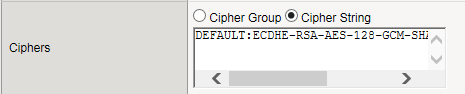
The Ciphers setting is optional. By default, the Client SSL profile uses the DEFAULT cipher string. In most cases, the DEFAULT cipher string is appropriate, but you can customize it as necessary to meet the security and performance needs of your site. Specify a cipher group or cipher string by choosing one of these options.
Note: If you specified an ECDSA certificate key chain in the Certificate Key Chain setting, you must include the cipher string
ECDHE_ECDSAin the cipher group or cipher string that you specify in the Ciphers setting. (At a minimum, you should specify a cipher group or string such asDEFAULT:ECDHE_ECDSA.) This is necessary to ensure successful cipher negotiation when the BIG-IP system is offered an ECDSA-based certificate only.
|
Option |
Description |
|---|---|
|
Cipher Group |
Select an existing cipher group from the list when you want to use a system-defined or custom cipher group to define the ciphers that the BIG-IP system uses for negotiating SSL connections. Here’s an example of the 
|
|
Cipher String |
Type a cipher string in the box if you want to manually specify a cipher string instead of selecting a cipher group. For security and performance reasons, consider following these recommendations:
|
-
When enabled, the Options setting, references the Options List setting, which are industry standard SSL options and workarounds use for handling SSL processing. The default setting is All Options Disabled. By default, TLSv1.3 is disabled in this configuration.
-
The Options List setting provides selection from a set of industry standard SSL options and workarounds for handling SSL processing.
-
The Data 0-RTT setting when Enabled, specifies that you can initiate a server connection for early data so to receive the benefits of early data delivered to the server-side early. The default value is Disabled.
-
When the Proxy SSL setting is enabled, the client can directly authenticate with the server, and the server can authenticate with the client, based on the client certificate presented. In a typical setup, with the BIG-IP system in the middle, the client and server cannot communicate directly to authenticate each other. The Proxy SSL setting requires both a Client SSL profile and a Server SSL profile, and you must enable the setting in both profiles. For information about the Proxy SSL setting, refer to the following resources:
-
The Implementing Proxy SSL on a Single BIG-IP system chapter in this guide.
-
The Proxy SSL Passthrough setting allows Proxy SSL to pass traffic when the cipher suite negotiated between client and server is not supported. Disabled by default. If you enable it, you should enable this setting on the server SSL profile as well.
-
The ModSSL Methods setting enables or disables ModSSL method emulation. Disabled (cleared) by default. Enable this setting when OpenSSL methods are inadequate. For example, enable it when you want to use SSL compression over TLSv1. When you enable this setting, you can then write an iRule, using the
HTTP::header insert_modssl_fieldscommand, which inserts some of the ModSSL options as headers into HTTP requests. See ModSSL options for use with iRules section of the Additional SSL Profile Configuration Options chapter in this guide. -
The Cache Size setting specifies the maximum number of SSL sessions allowed in the SSL session cache. The default value for Cache Size is 262144 sessions. A value of
0disallows session caching. -
The Cache Timeout setting specifies the number of seconds that the system allows SSL sessions to remain in the SSL session cache before removing them. The default value for Cache Timeout is 3600 seconds. The range of values configurable for Cache Timeout is between 0 and 86400 seconds inclusive.
Note: Longer cache timeout periods can increase the risk of SSL session hijacking.
-
The Alert Timeout setting specifies the duration that the system tries to close an SSL connection by transmitting an alert or initiating an unclean shutdown before resetting the connection. Select Indefinite to specify that the connection should not be reset after transmitting an alert or initiating an unclean shutdown. The BIG-IP system sends an RST once the Alert Timeout value has been reached, forcefully aborting the connection early and reducing the amount of data transferred between the peer system and the BIG-IP system. The Immediate value makes the BIG-IP system reset both client and server side flows after 1/1000 seconds.
-
The Handshake Timeout setting specifies the number of seconds that the system tries to establish an SSL connection before terminating the operation. Selecting Indefinite specifies that the system continues trying to establish a connection for an unlimited time.
-
Configure the Renegotiation setting to control if the virtual server allows midstream session renegotiation. When enabled (default), Renegotiation allows the BIG-IP system to process midstream SSL renegotiation requests. When disabled, the system either terminates the connection or ignores the request, depending on system configuration. See Additional SSL Profile Configuration Options chapter in this guide for more details.
-
The Renegotiation Period setting indicates the amount of time before the system renegotiates the SSL session after the initial connection. If you set it to Indefinite (default), the system does not renegotiate the SSL session.
-
The Renegotiation Size setting indicates the amount of application data in megabytes the system must receive from the time of initial connection before it renegotiates the SSL session. If set to Indefinite (default), the system does not renegotiate the SSL session.
-
The Renogotiate Max Record Delay setting indicates the number of SSL records allowed during the SSL renegotiation before the system terminates the connection. If set to Indefinite, the system allows an unlimited number.
-
The Secure Renegotiation setting specifies the method of secure renegotiation for SSL connections. The default value for the Client SSL profile is Require. The values for the Secure Renegotiation setting in the Client SSL profile are as follows:
-
Request: Specifies that the system requests secure renegotiation of SSL connections.
-
Require: Specifies that the system requires secure renegotiation of SSL connections. In this mode, the system permits initial SSL handshakes from clients but terminates renegotiations from clients that do not support secure renegotiation.
-
Require Strict: Specifies that the system requires strict, secure renegotiation of SSL connections. In this mode, the system denies initial SSL handshakes from clients that do not support secure renegotiation.
-
-
The Max Renegotiation setting specifies the maximum number of SSL renegotiation attempts per connection that the system can receive in one minute before renegotiating an SSL session. For example, one client with three connections may have a maximum number of SSL renegotiation attempts equal to three times the configured Max Renegotiation value. After the system receives this number of SSL renegotiation records, it closes the connection. This setting applies to client profiles only. The default value is 5.
-
The Max Aggregate Renegotiation setting specifies the maximum number of aggregated SSL renegotiation records that the system can receive before renegotiating an SSL session. After the system receives this number of aggregated SSL renegotiation records, it closes the connection. This setting applies to client profiles only. The default value is Indefinite.
-
The Server Name setting specifies the fully qualified DNS hostname of the server, or a wildcard string containing the asterisk (*) character to match multiple names, used in the TLS SNI connection. There is no default value for this setting. For information about configuring the TLS SNI feature on the BIG-IP system, see K13452: Configuring a virtual server to serve multiple HTTPS sites using TLS Server Name Indication feature.
-
When enabled, the Default SSL Profile for SNI setting indicates that the system should use the profile as the default SSL profile when there is no match to the server name or when the client does not support TLS SNI extension. This setting is disabled by default. For information about configuring the TLS SNI feature on the BIG-IP system, see K13452: Configuring a virtual server to serve multiple HTTPS sites using TLS Server Name Indication feature.
-
When enabled, the Require Peer SNI Support setting requires that the client support the TLS SNI extension; otherwise, the BIG-IP system disconnects the client connection with a fatal alert. This setting is disabled by default.
-
The Unclean Shutdown setting allows the BIG-IP system to perform an unclean shutdown of SSL connections by closing the underlying TCP connection without sending the SSL close notify alerts. By default, this setting is enabled (selected) and is useful for certain browsers that handle SSL shutdown alerts differently. For example, some versions of Internet Explorer require SSL shutdown alerts from the server while other versions do not, and the SSL profile cannot always detect this requirement. In the case where the browser expects a shutdown alert but the SSL profile has not exchanged one (the default setting), the browser displays an error message.
-
The Strict Resume setting enables or disables the resumption of SSL sessions after an unclean shutdown.
-
The BIG-IP SSL profiles support the stateless TLS session resumption mechanism as described in Internet Engineering Task Force (RFC 5077) . This mechanism allows the BIG-IP system to encapsulate the TLS session state as a ticket to the client and allows the client to subsequently resume a TLS session using the same ticket. Disabled (cleared) by default.
-
The Session Ticket Timeout setting specifies the timeout for the session ticket. The default is 0 seconds, which means the system uses the cache timeout.
-
The Session Mirroring setting enables or disables the mirroring of SSL session ID data to a high-availability peer. The default setting is Disabled, preventing the system from mirroring SSL session ID data.
-
When enabled (default), the Generic Alert setting causes the system to send all SSL alerts using a generic handshake failure message. When the setting is disabled, the system sends more specific SSL alert messages.
-
The Non SSL Connections setting enables or disables acceptance of non-SSL connections.
-
The Allow Dynamic Record Sizing setting allows a TLS performance improvement preventing buffering and delay of TLS record fragment delivery. The BIG-IP system dynamically adjusts the size of TLS records based on the state of the connection. The disabled by default.
-
The Maximum Record Size setting specifies the profile’s maximum record size. Set to enabled when you want to allow dynamic record sizing. The range is 128 - 16384. The default setting is 16384.
-
The SSL Sign Hash setting specifies the hash algorithm that the BIG-IP system uses to sign server key exchanges with the Diffie-Hellman (DHE), including Elliptic Curve (ECDHE) ciphers, and for certificate verify messages. Possible choices are SHA1, SHA256, SHA384, or Any. When you select Any, you authorize the system to choose any one of the hash algorithms. The BIG-IP system respects the client signature_algorithms extension as defined in TLS 1.2. When possible, the BIG-IP system prefers SHA256 in the handshake signature based on the content of the signature_algorithms extension. The BIG-IP system further upgrades the hash algorithm to Hash SHA384 from SHA256 when P-384 is used. The BIG-IP system attempts to avoid the use of SHA1 in a TLS handshake, except in the case when signatures are used in X.509 certificates (these signatures are created by the X.509 Certificate Authority). The only time the BIG-IP system uses the SHA1 handshake signature is when an RSA key is used and the signature_algorithms extension is missing or - signature_algorithms is present and only lists SHA1.
-
The Peer No-renegotiate Timeout setting specifies the number of seconds the system waits before resetting the connection to peer systems that do not renegotiate SSL sessions. The default is 10.
-
The Max Active Handshakes setting limits the number of concurrent SSL handshakes. When the number of active SSL handshakes reaches the specified limit, the system terminates the most recent SSL handshake. The default setting is Indefinite, which means that there is no limit.
-
For information about using the SSL Forward Proxy feature, refer to the Implementing SSL Forward Proxy on a Single BIG-IP system chapter of the SSL Administration guide.
-
In the Client Authentication section, the Client Certificate setting enables and disables client certificate authentication. The possible options for this setting are:
-
Ignore: The Ignore setting is the default setting. It disables Client Certificate Authentication. The BIG-IP system ignores any certificate presented and does not authenticate the client before establishing the SSL session.
-
Request: The Request setting enables optional Client Certificate Authentication. The BIG-IP system requests a client certificate and attempts to verify it. However, an SSL session is established regardless of whether a trusted CA presents a valid client certificate. The Request setting is often used in conjunction with iRules to provide selective access depending on the certificate presented. For example, this option is useful if you want to allow clients who present a certificate from the configured trusted CA to gain access to the application, while redirecting clients who do not provide the required certificate to a page that details the access requirements. However, if you are not using iRules to enforce a different outcome, depending on the certificate details, there is no functional benefit to using the Request setting instead of the default Ignore setting.
-
Require: The Require setting enforces Client Certificate Authentication. The BIG-IP system requests a client certificate and attempts to verify it. The system establishes an SSL session only if a trusted CA presents a valid client certificate. Use the Require setting to restrict access to only clients that present a valid certificate from a trusted CA.
-
-
The Frequency setting specifies the frequency of client authentication for an SSL session. The default value for this setting is once.
-
The Retain Certificate is enabled by default. When this setting is disabled, the client certificate is not stored in an SSL session.
-
The Certificate Chain Traversal Depth setting specifies the maximum number of certificates to be traversed in a client certificate chain. The default value is 9.
-
The Trusted Certificate Authorities setting specifies a client CA that the system trusts. The default is None.
-
None: Specifies that no CA is trusted for client-side processing.
-
ca-bundle: Uses the ca-bundle.crt file, which contains all well-known public certificate authority (CA) certificates, for client-side processing.
-
default: Specifies that the trusted CA for client-side processing is the default certificate on the system.
-
-
The Advertised Certificate Authorities setting specifies that the CAs that the system advertises to clients is being trusted by the profile. The default is None.
-
None: Specifies that the system does not advertise any chain as being trusted.
-
ca-bundle: Uses the ca-bundle.crt file, which contains all well-known public certificate authority (CA) certificates, for client-side processing.
-
default: Specifies that the name of the certificate on the system is the default certificate name, which the system advertises as trusted.
-
-
The CRL File setting allows you to specify a CRL that the BIG-IP system should use to check revocation status of a certificate prior to authenticating a client. If you want to use a CRL, you must import it to the BIG-IP system.
-
The Allow Expired CRL File setting instructs the system to use the specified CRL file, even if it has expired. Disabled by default.
-
The Client Certificate Constrained Delegation setting enables or disables the C3D feature. Using constrained delegation prevents users from having to provide credentials twice for certain authentication actions. For more information on this setting, refer to K72668381: Overview of the SSL Client Certificate Constrained Delegation feature article.
-
The Client Fallback Certificate setting specifies the client SSL profile name of the certificate file that is used as the client certificate when the client does not send one during SSL handshake. You can click the + icon to open the create-new OCSP object screen.
-
The OCSP setting specifies the SSL client certificate constrained delegation OCSP object that the BIG-IP system’s SSL should use to connect to the OCSP responder and check the client certificate status. You can click the + icon to open the create-new SSL Certifcate screen.
-
The Unknown OCSP Response Control setting specifies the action the system takes when the OCSP object returns an unknown status. The default value is Drop, which causes the connection to be dropped. Selecting Ignore causes the connection to ignore the unknown status and continue.
-
In the Logging section, the Log Publisher setting specifies the defined Log Publisher for the system to use for logging information.
-
Select the Log SSL Handshake Events setting to log SSL Handshake events that are equal to or above the specified log level. Default is Warning. In descending order of urgency, the available options are Emergency, Alert, Critical, Error, Warning, Notice, Informational, and Debug.
-
Select the Log SSL Client Authentication Events setting to log SSL Client Authentication events that are equal to or above the specified log level. Default is Warning. In descending order of urgency, the available options are Emergency, Alert, Critical, Error, Warning, Notice, Informational, and Debug.
-
Select the Log SSL Forward Proxy Events setting to log SSL Forward Proxy events that are equal to or above the specified log level. Default is Warning. In descending order of urgency, the available options are Emergency, Alert, Critical, Error, Warning, Notice, Informational, and Debug.
-
Select the Log SSL C3D Events setting to log SSL Client Certificate Constrained Delegation (C3D) events that are equal to or above the specified log level. Default is Warning. In descending order of urgency, the available options are Emergency, Alert, Critical, Error, Warning, Notice, Informational, and Debug.
-
Click Finished.
After performing this task, you can see the custom Client SSL profile in the list of Client SSL profiles on the system.
Define a virtual server to process SSL traffic from Microsoft RDP clients that use APM as a gateway.
Note: Users must specify the IP address of this virtual server as the gateway or RDG gateway from the RDP client that they use.
-
On the Main tab, click Local Traffic > Virtual Servers.
The Virtual Server List screen opens.
-
Click Create.
The New Virtual Server screen opens.
-
In the Name field, type a unique name for the virtual server.
-
For the Destination Address/Mask setting, confirm that the Host button is selected, and type the IP address in CIDR format.
The supported format is address/prefix, where the prefix length is in bits. For example, an IPv4 address/prefix is
10.0.0.1or10.0.0.0/24, and an IPv6 address/prefix isffe1::0020/64or2001:ed8:77b5:2:10:10:100:42/64. When you use an IPv4 address without specifying a prefix, the BIG-IP system automatically uses a/32prefix.Note: The IP address you type must be available and not in the loopback network.
-
For the Service Port, do one of the following:
- Type
443in the field. - Select HTTPS from the list.
- Type
-
In the SSL Profile (Client) list, select an SSL profile.
-
In the Access Policy area, from the Access Profile list, select the access profile for RDP client authorization that you configured earlier.
-
From the Connectivity Profile list, select a profile.
-
From the VDI Profile list, select the VDI profile you configured earlier.
-
Click Finished.
Supported Microsoft RDP clients can specify a virtual server on the BIG-IP system to use as a remote desktop gateway. APM can authorize the clients and authorize access to target servers as the clients request them.